
How to use Stem separation
Split a song into its parts and play along
Beta
Stem separation splits a recording into drums, bass, vocals and more, right on your computer. Mute your own part and play along with the band, solo a bass line to learn it, or loop and slow down a hard bit. Then export the parts as audio files or put them on lanes of a tab. This guide walks through every screen, with a band demo as the example.
Before you start
- Smart Beat on macOS, Windows or Linux.
- A song as an MP3, WAV, FLAC, OGG or AIFF file that you have the rights to use, such as your own band’s recording.
- For the best sound, an AI model (an optional download of about 50 to 210 MB). The Fast engine works without one.
- Smart Beat 1.3.0 or later for exporting stems and adding them to a tab. Splitting and practising work in 1.2.0.
Start from the start screen
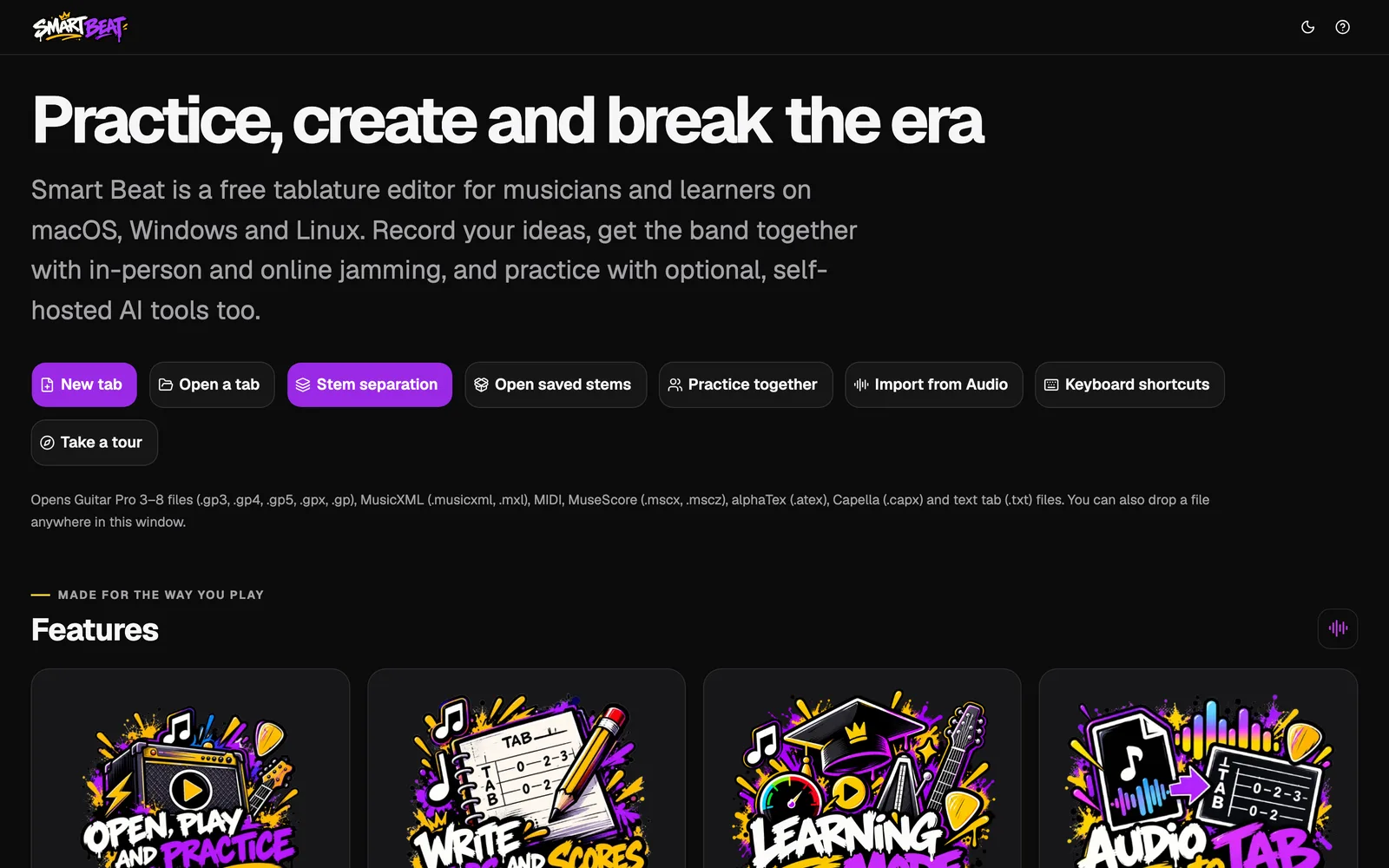
Open Smart Beat. On the start screen, click Stem separation.
Stem separation takes a recording, such as an MP3 of your band, and splits it into its parts: drums, bass, vocals and the rest. Then you can learn a bass line on its own, practice the drums without the drummer, or play your part with everyone else and leave yours out.
Pick a song
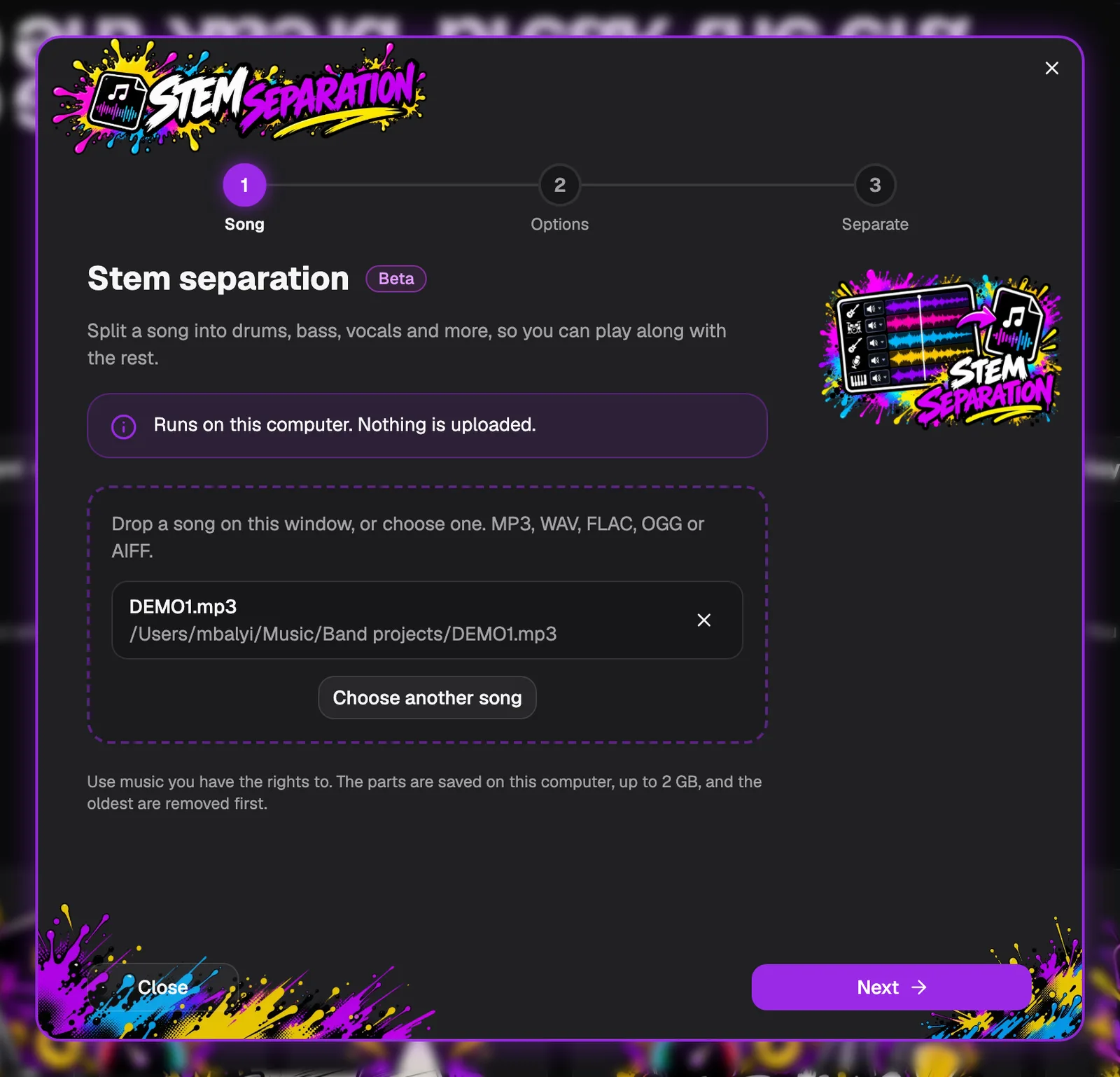
Click Choose a song and pick an audio file, or drop the file on the window. MP3, WAV, FLAC, OGG and AIFF files work.
The file name and its folder appear in the box. Click Next.
- Everything runs on this computer. Nothing is uploaded.
- The parts are kept on your computer, up to 2 GB. The oldest are removed first.
Choose an engine
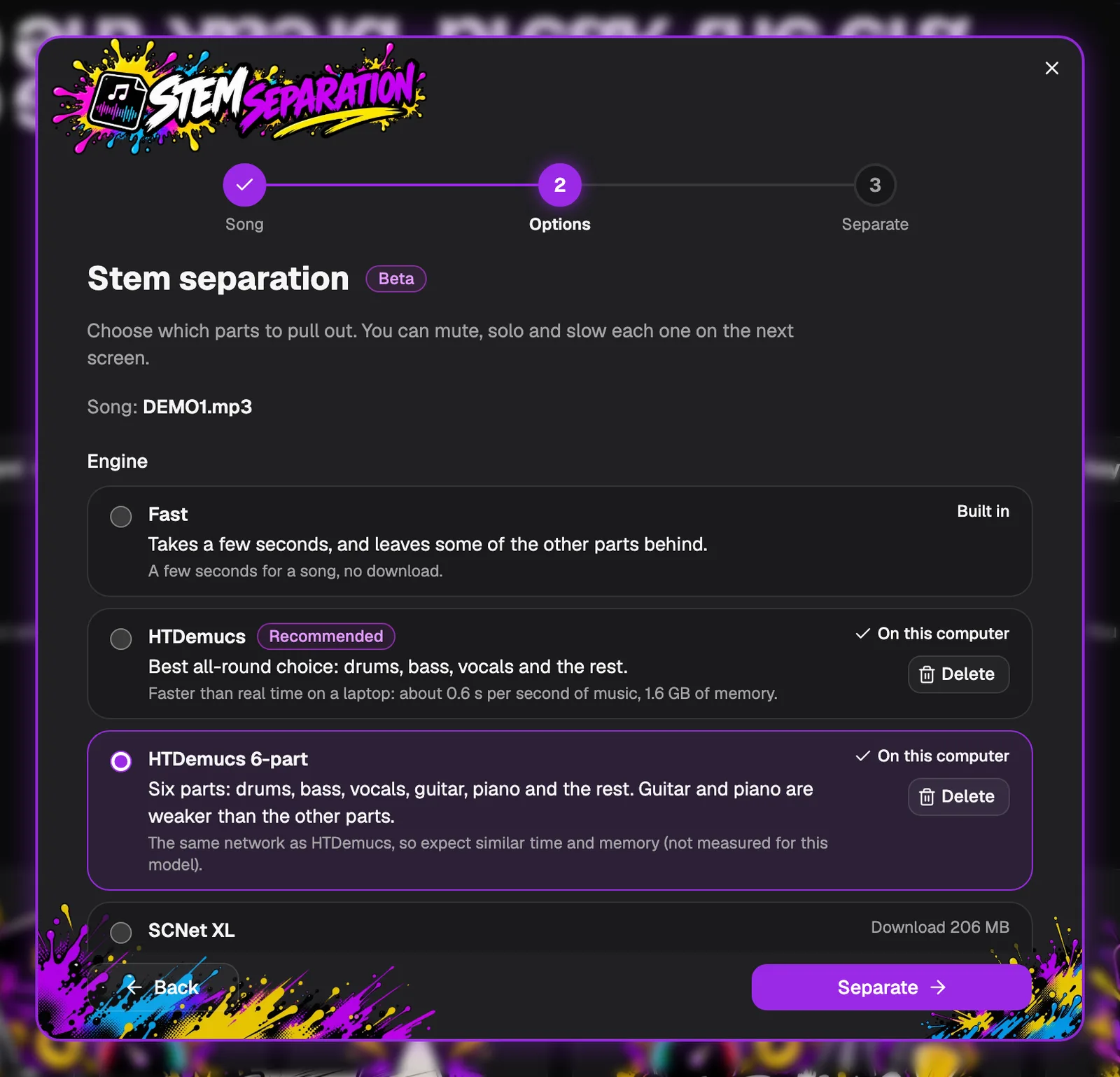
Under Engine, pick how the song is split. Fast is built in and takes a few seconds, but leaves some of the other parts behind. The AI models sound much cleaner: HTDemucs is the best all-round choice for drums, bass and vocals, and HTDemucs 6-part also pulls out guitar and piano.
An engine you have installed says On this computer. Choose one, then click Separate.
- With Fast you tick the parts you want yourself. The AI models always make all of their parts.
- Guitar and piano are the weaker parts of HTDemucs 6-part: some guitar can end up in Other.
Install the AI models you want
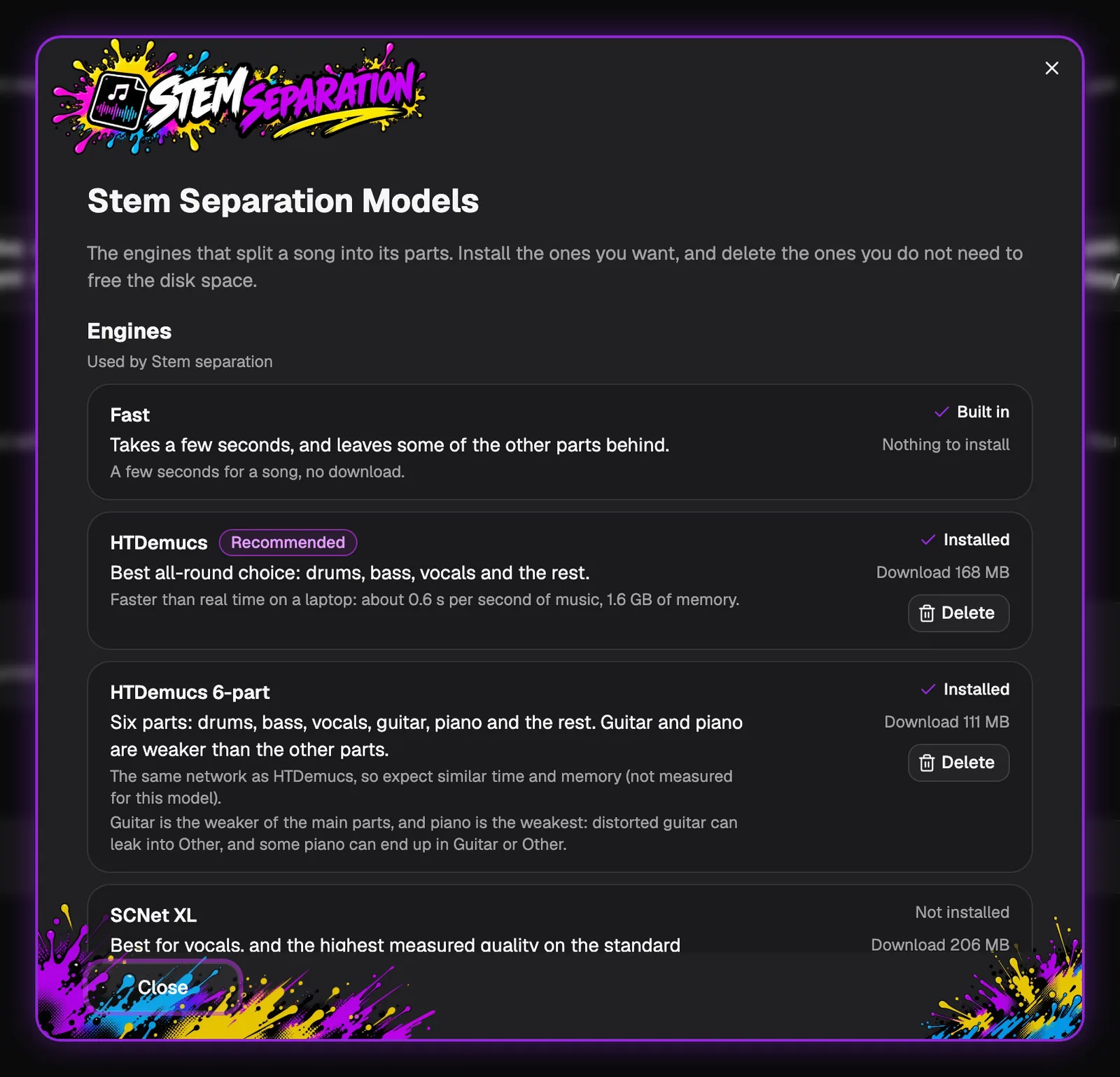
The AI models are optional downloads. To see them all in one place, choose AI › Stem Separation Models in the menu bar. Each engine says what it is best at, how fast it is and how big the download is.
Click Install next to a model to get it, or Delete to free the disk space. You can also download a model straight from the engine list in the Stem separation dialog.
Read and accept the model’s terms
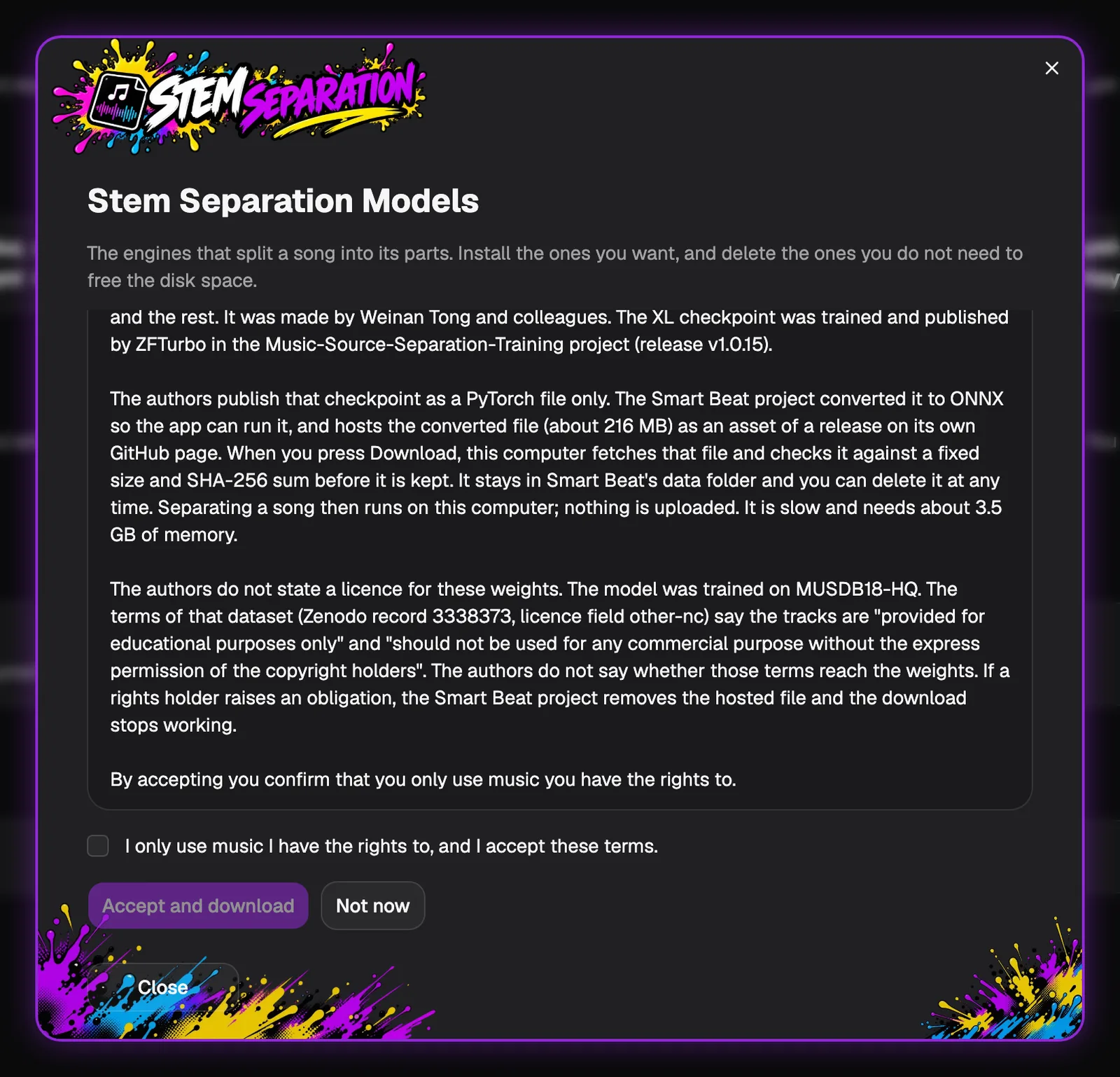
Before a model downloads, Smart Beat shows its terms: who made it, where the file comes from and what is known about its licence. Read them, tick I only use music I have the rights to, and I accept these terms, then click Accept and download.
The file is checked before it is kept, and the model then runs offline.
Wait while the song is split
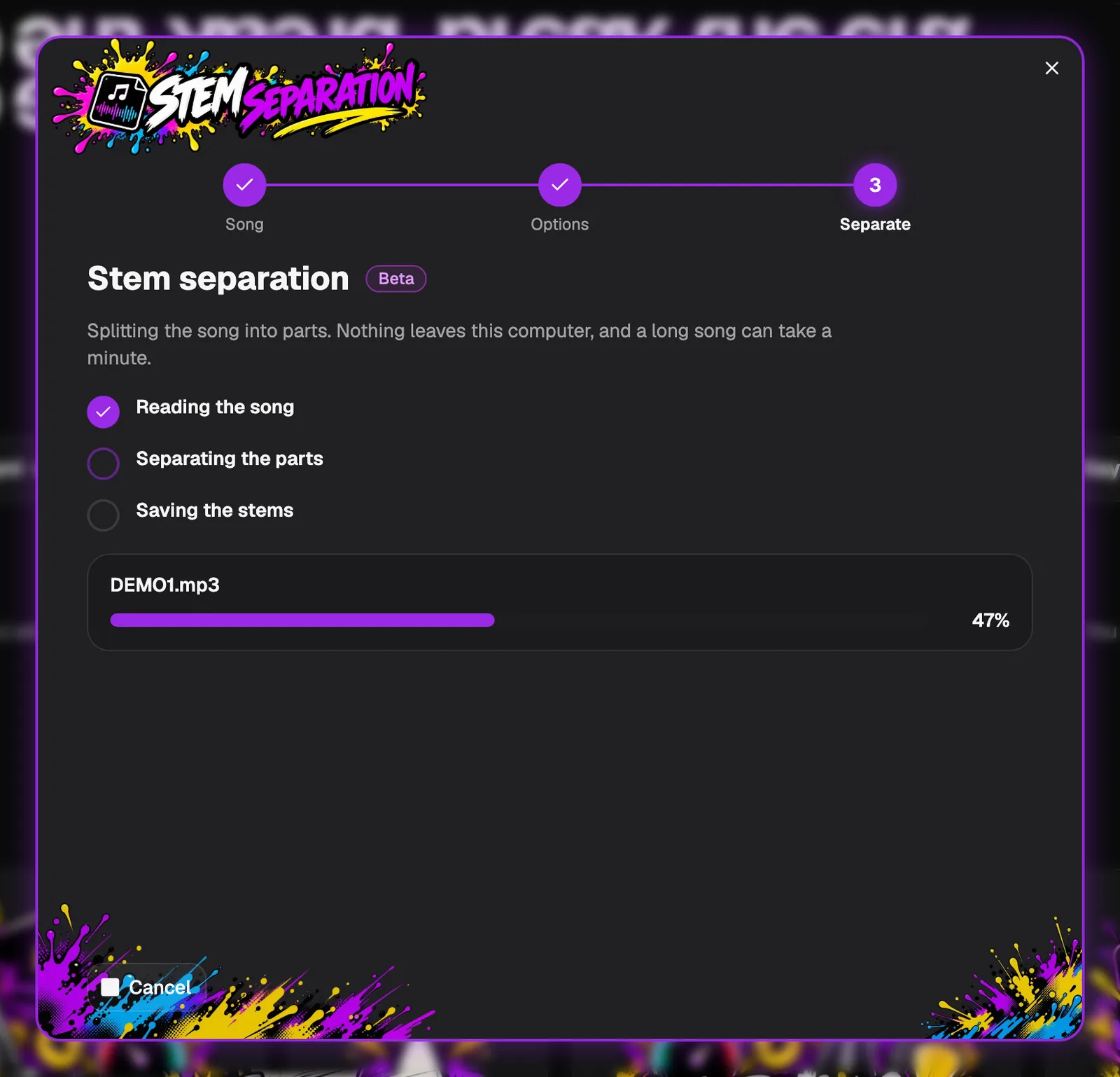
Smart Beat reads the song, separates the parts and saves the stems. The bar shows how far it is. With HTDemucs a song takes less time than it lasts on a recent laptop.
Click Cancel if you change your mind.
Mute, solo and mix the parts
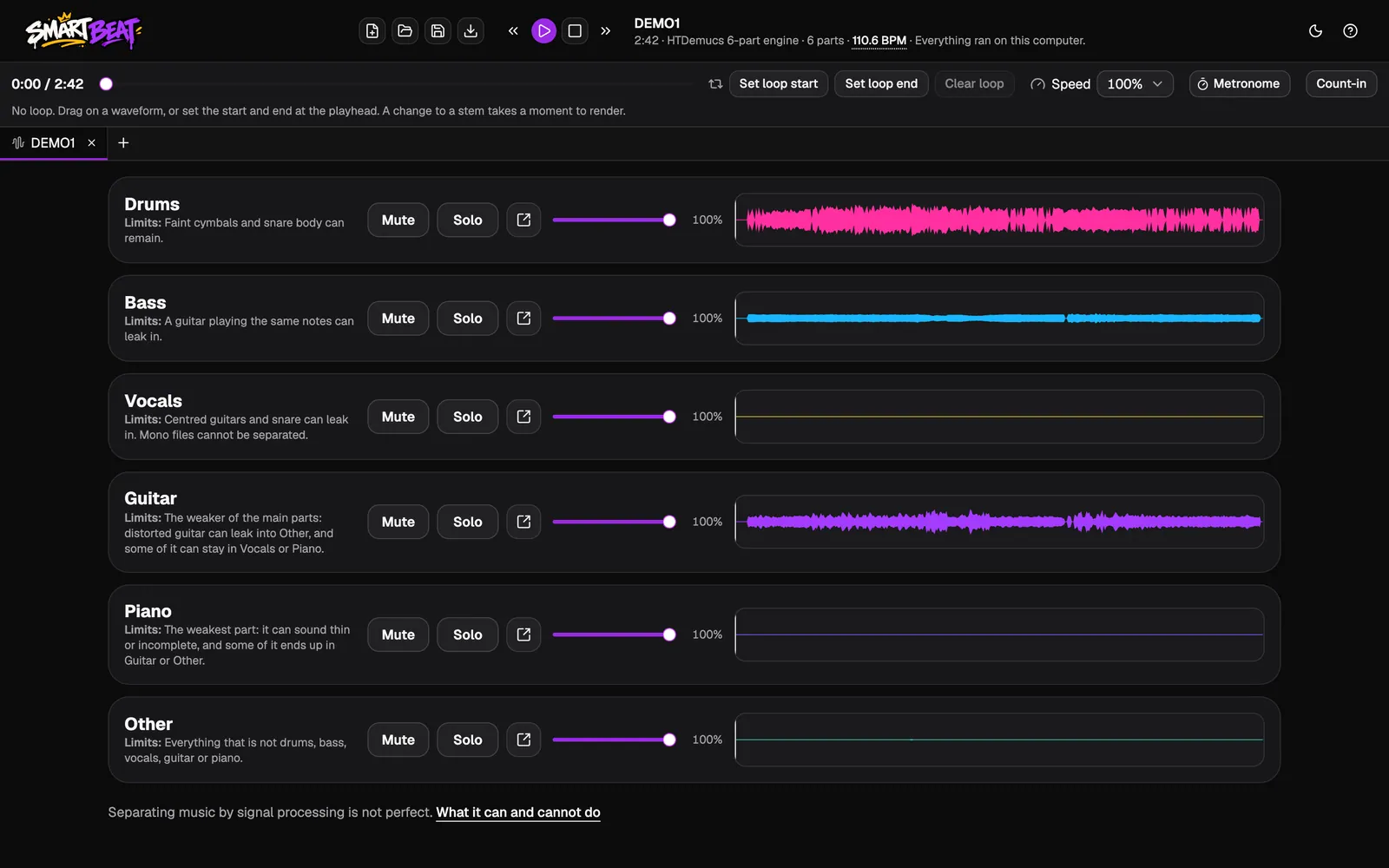
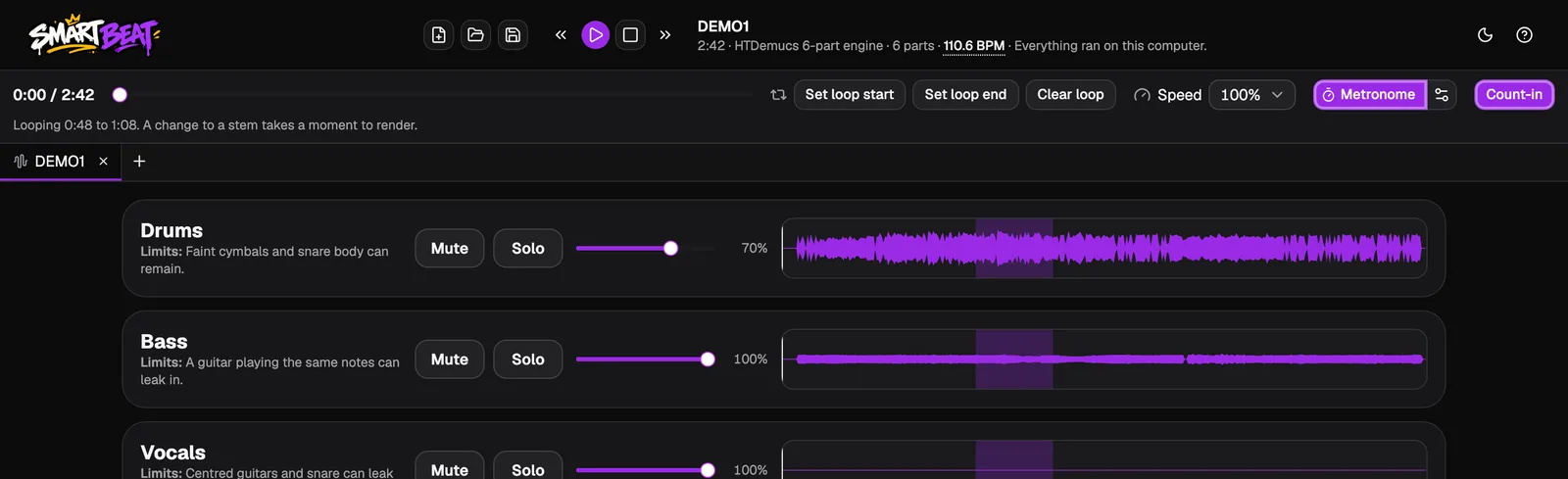
The song opens in its own tab, with a row for every part and its waveform. Press Play at the top.
Click Mute to leave a part out, for example the guitar when you play it yourself. Click Solo to hear only that part, for example the bass line you want to learn. Drag the slider to make a part quieter.
The button after Solo exports that one part as an audio file (see Export the stems as audio files, below).
- Under each part, Limits says what can still leak in.
- This band demo is instrumental, so the Vocals and Piano rows stay almost flat.
Loop a part, slow it down and add the click
The bar under the header is for practice. Drag across any waveform to loop that part of the song, or use Set loop start and Set loop end at the playhead. Clear loop removes it.
Speed slows the song to 90, 80, 70, 60 or 50 percent without changing its pitch. Metronome clicks along with the beat, and Count-in counts you in for four seconds before the song plays.
- When the song is slowed down, a change to a part takes a moment to render.
Check the tempo
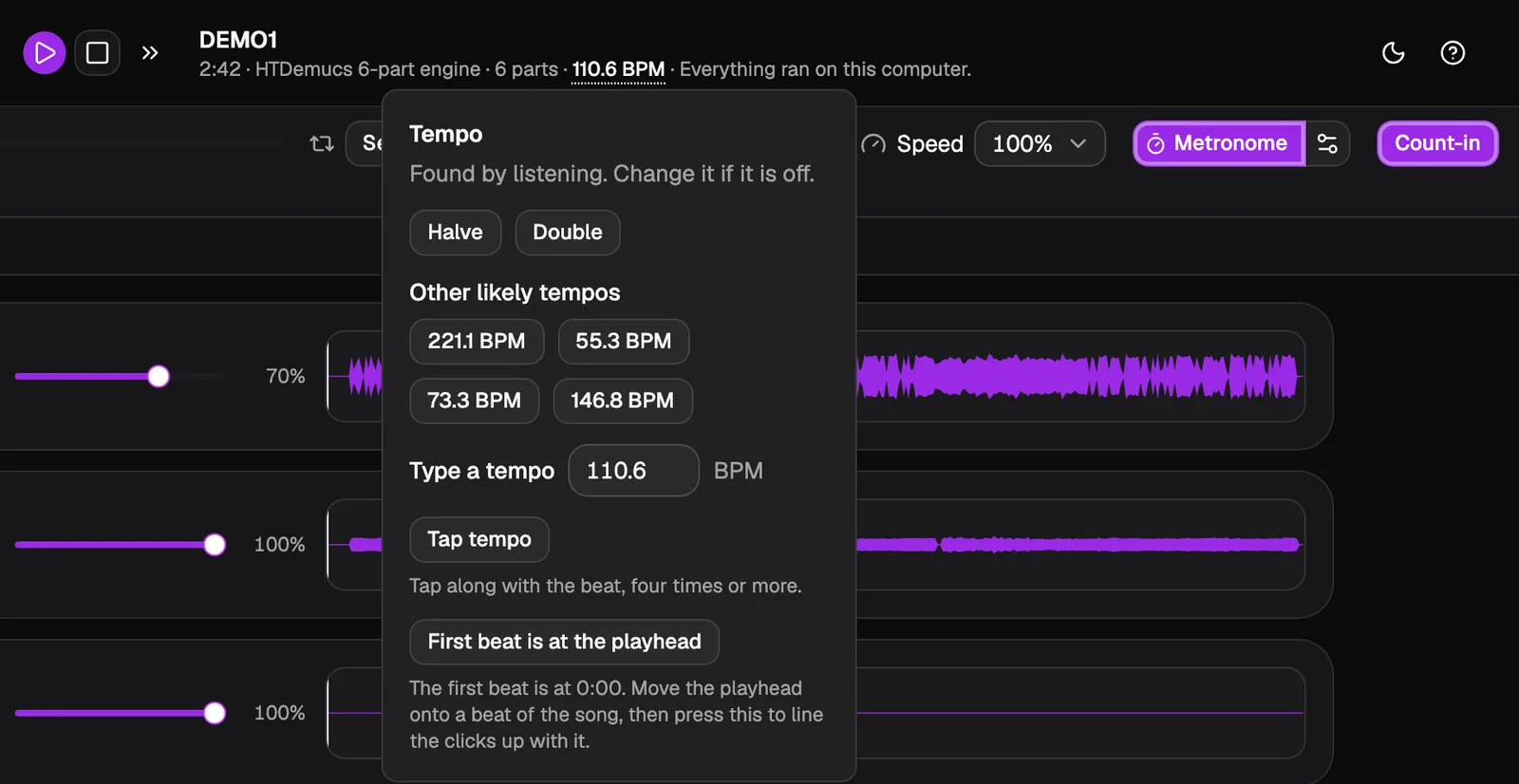
Smart Beat finds the tempo by listening to the stems and shows it in the song details at the top, here 110.6 BPM. The metronome uses it.
Click the tempo to change it: Halve or Double it, pick one of the Other likely tempos, type one, or use Tap tempo and tap along. If the clicks are not on the beat, move the playhead onto a beat and click First beat is at the playhead.
Save the stems
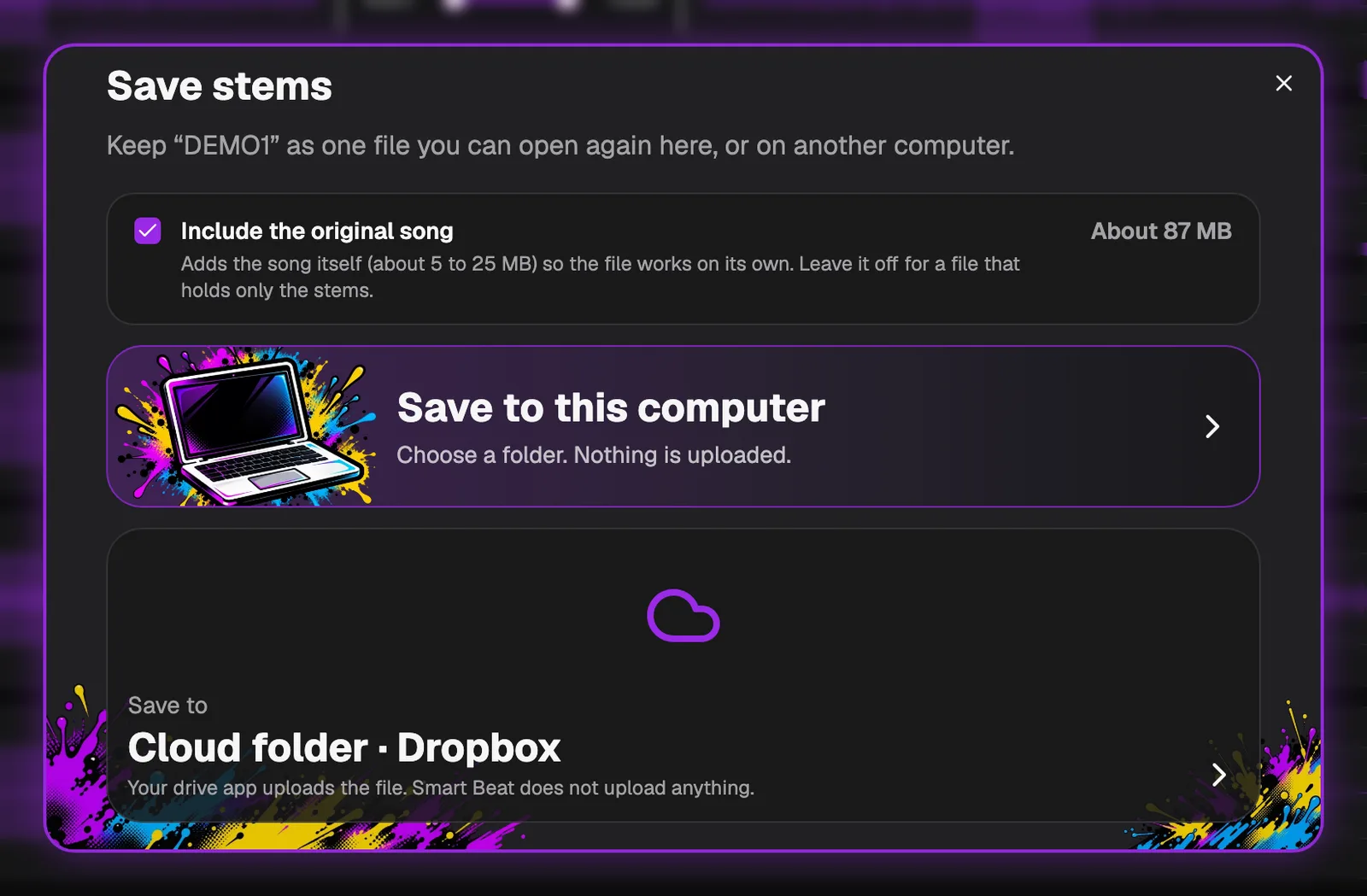
Click Save stems (the disk button at the top of the window) to keep the parts as one file you can open again, here or on another computer.
Leave Include the original song ticked for a file that works on its own, or clear it for a smaller file with only the stems. Then click Save to this computer, or save to your cloud folder or a connected cloud account so you have the stems on all of your computers.
- To use a cloud folder or account, link it in Settings first.
Export the stems as audio files
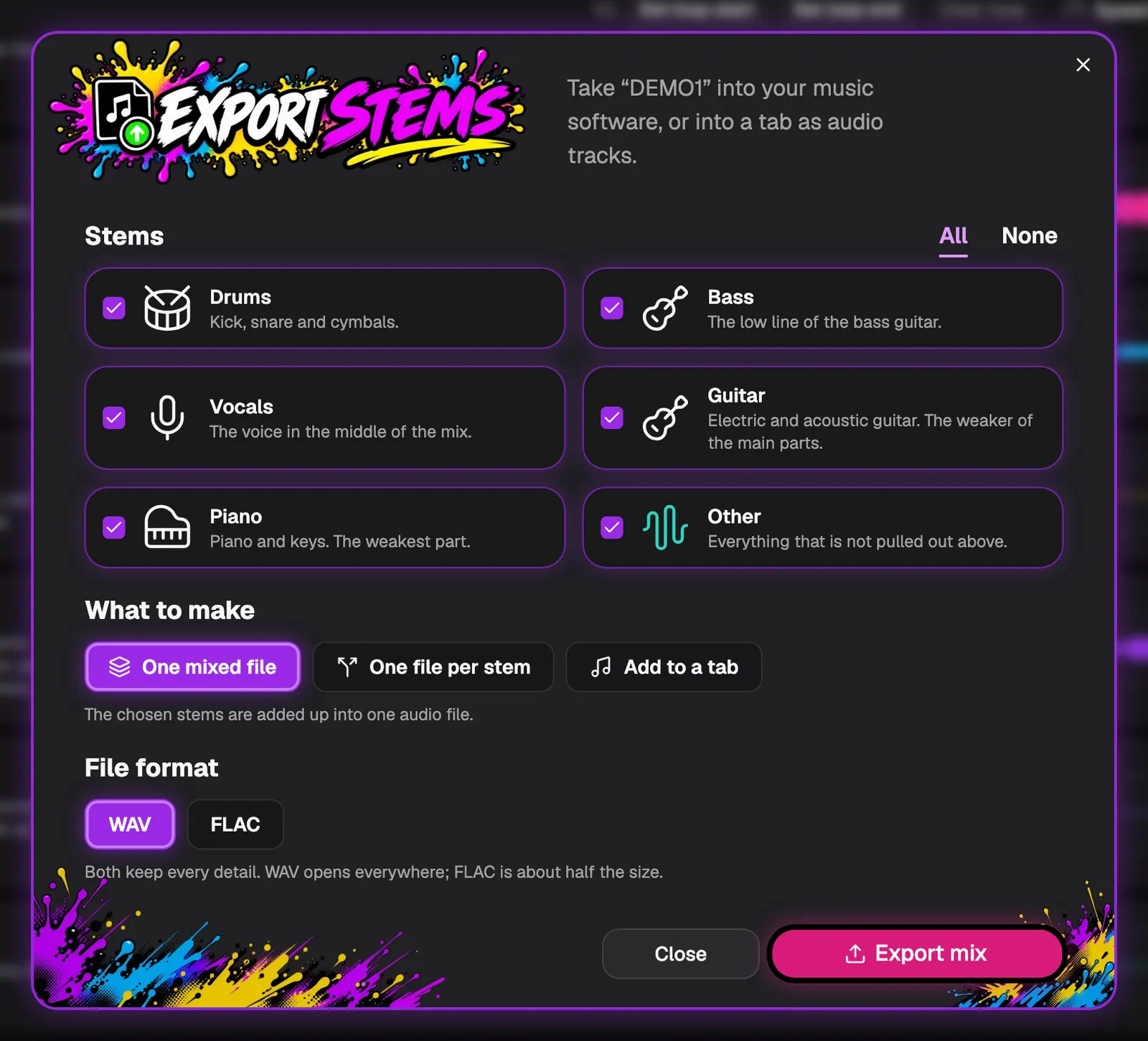
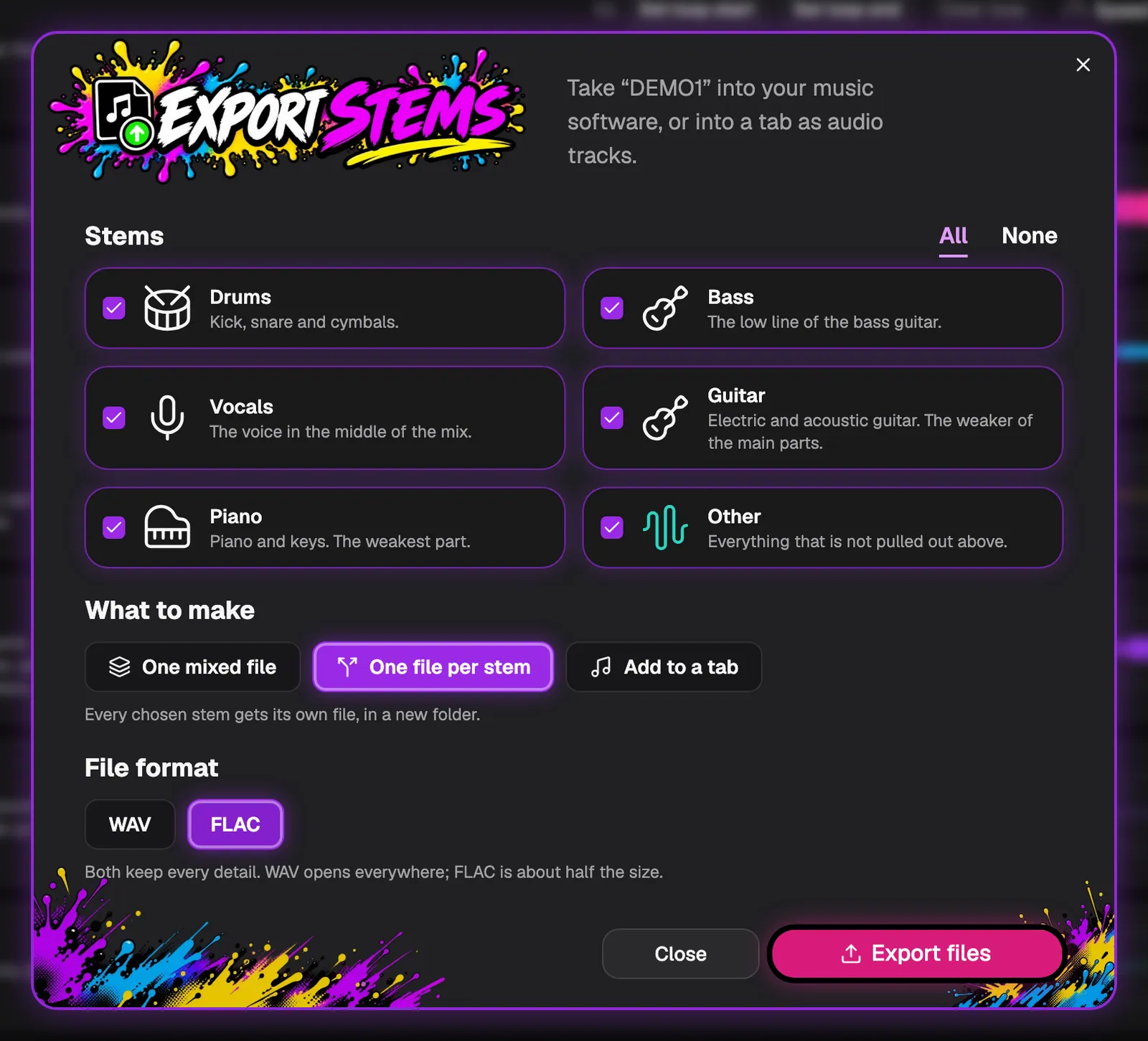
To use the parts in other music software, or to play them anywhere, click Export stems (the download button at the top of the window). Choose the stems you want, or click All or None.
One mixed file adds the chosen stems up into a single audio file, for example a backing track without the vocals. Pick WAV or FLAC: both keep every detail, WAV opens everywhere and FLAC is about half the size. Then click Export mix.
- The button after Solo on a stem row opens the same window with only that stem chosen.
- If a mix is louder than a file can hold, Smart Beat says that the loudest peaks were limited.
Or export one file per stem
Choose One file per stem to get a separate file for every stem you ticked. Smart Beat puts them in a new folder called “<song> stems” and names each file after the stem and the song.
The export shows its progress and you can cancel it; a cancelled export leaves no file behind. With no stem ticked, Export is off and says why.
Add the stems to a tab as audio tracks
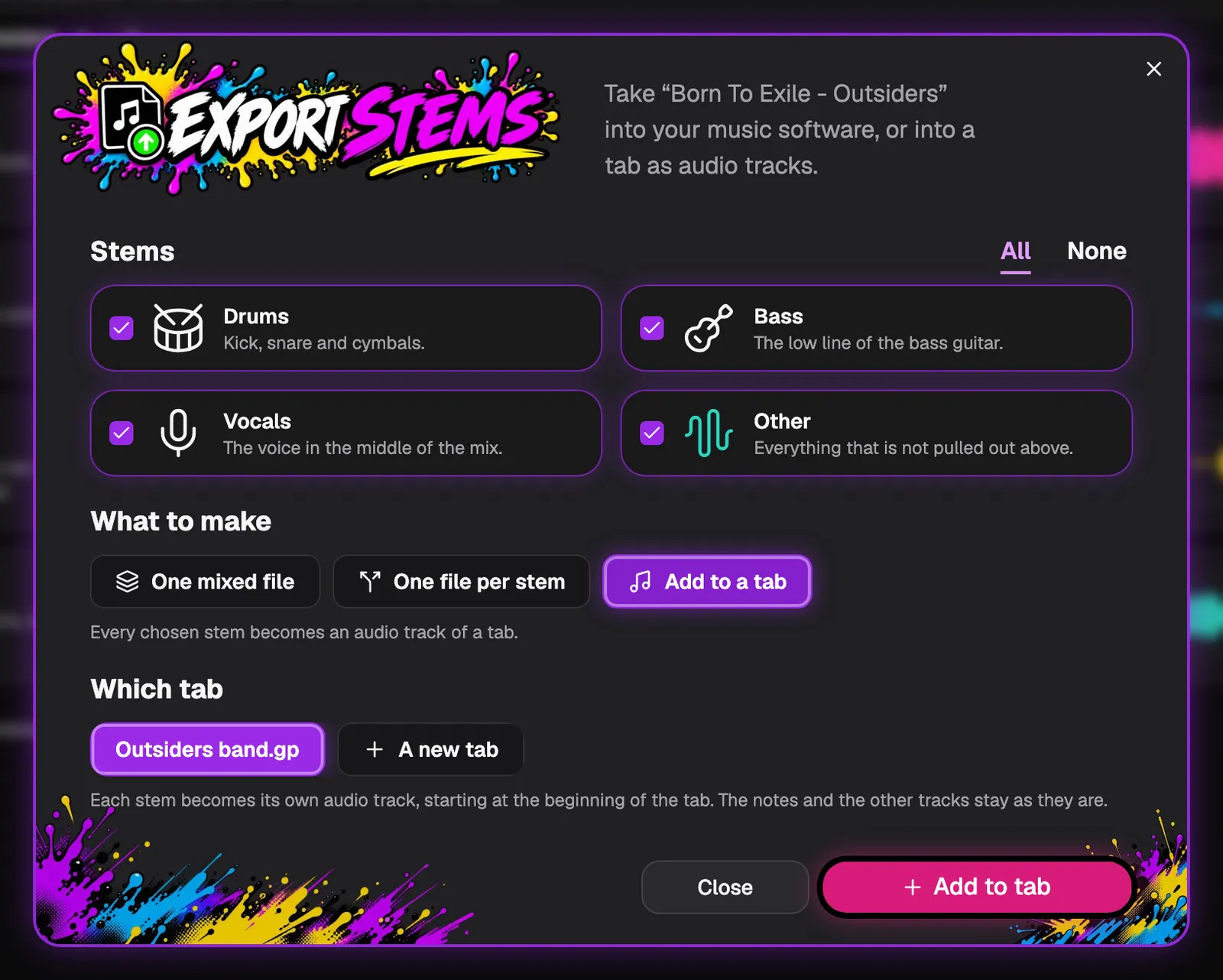
Choose Add to a tab to put each ticked stem on an audio lane of a tab, so you can play it together with the notes. Under Which tab, pick one of your open tabs or A new tab, then click Add to tab.
Each stem becomes a lane of its own, starting at the beginning of the tab. The notes and the other tracks are not touched.
- A tab holds up to 16 audio lanes.
- Open the tab first if you want to add the stems to a tab you already have.
Play along with the stems in your tab
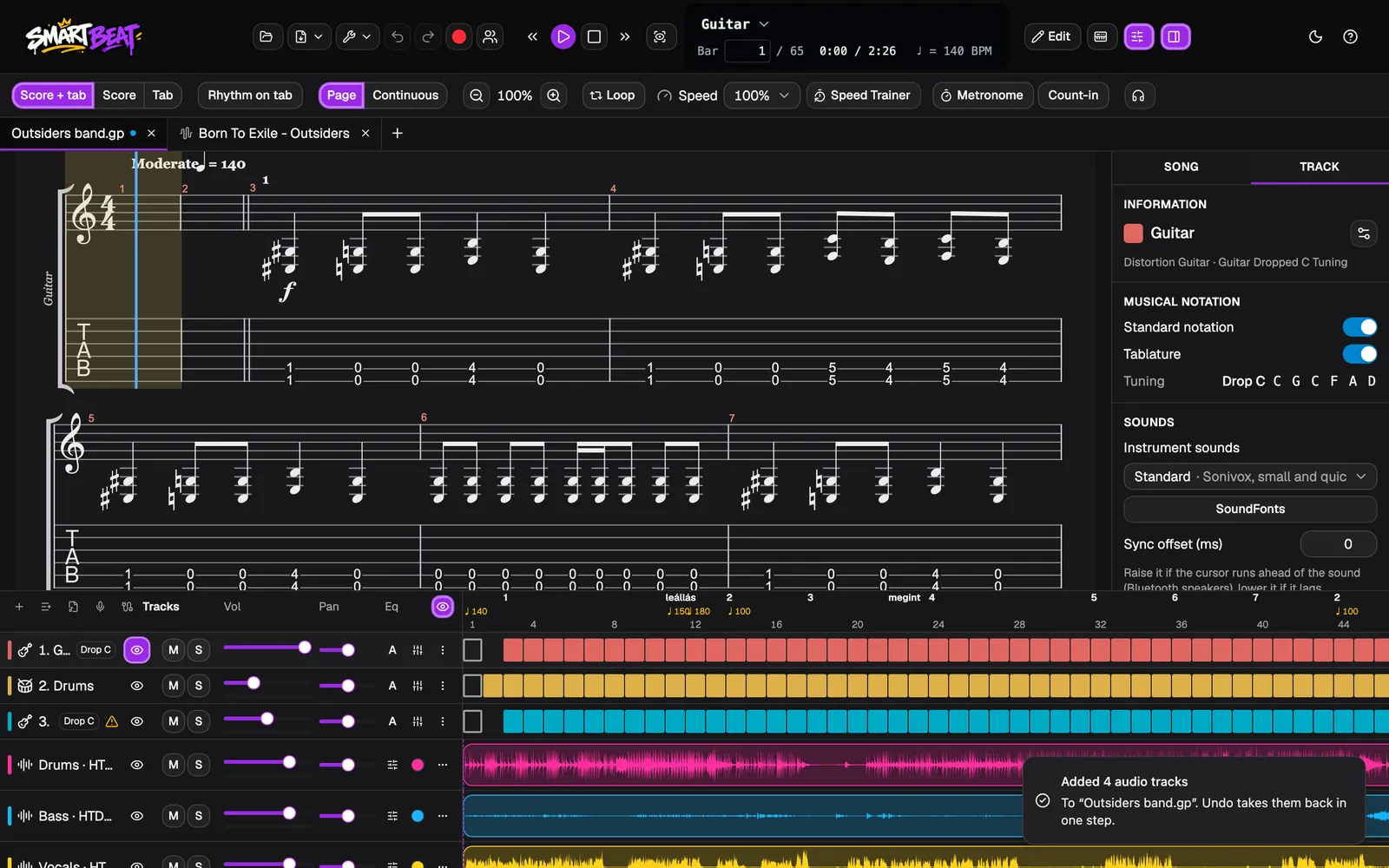
The tab opens with the new lanes under its tracks, each in the colour of its stem and named after the stem and the engine, for example Drums · HTDemucs. Smart Beat tells you how many tracks it added, and one Undo takes them all back.
Mute the lane of the part you play yourself, or solo one to learn it. The audio is saved inside the tab’s file and comes back when you open it. The Audio tracks and editing guide shows what you can do with the lanes.
Come back to your stems
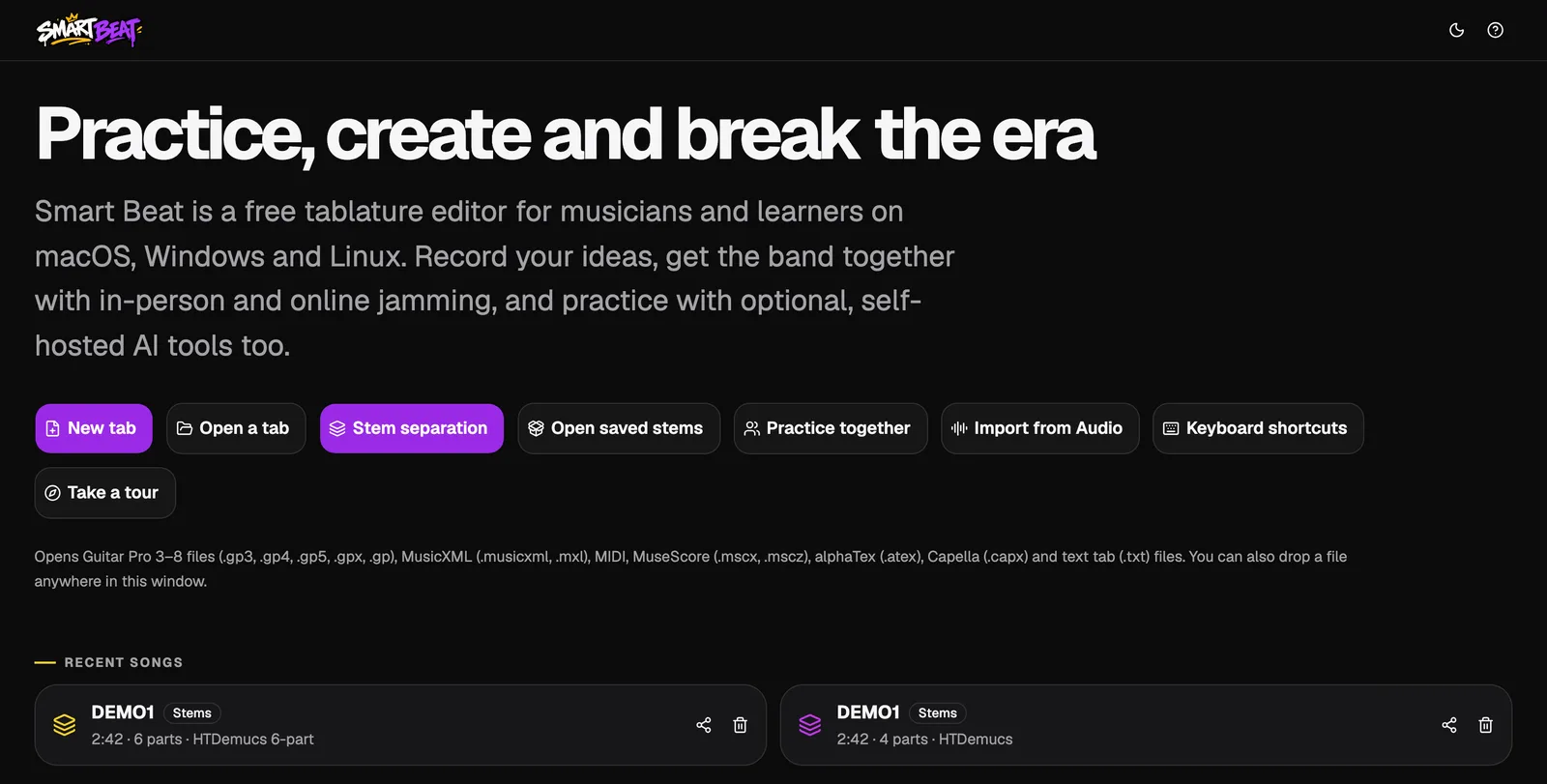
Songs you have separated wait under Recent songs on the start screen with a Stems badge, the number of parts and the engine. Click one to open it again; there is no need to separate it a second time.
Open saved stems
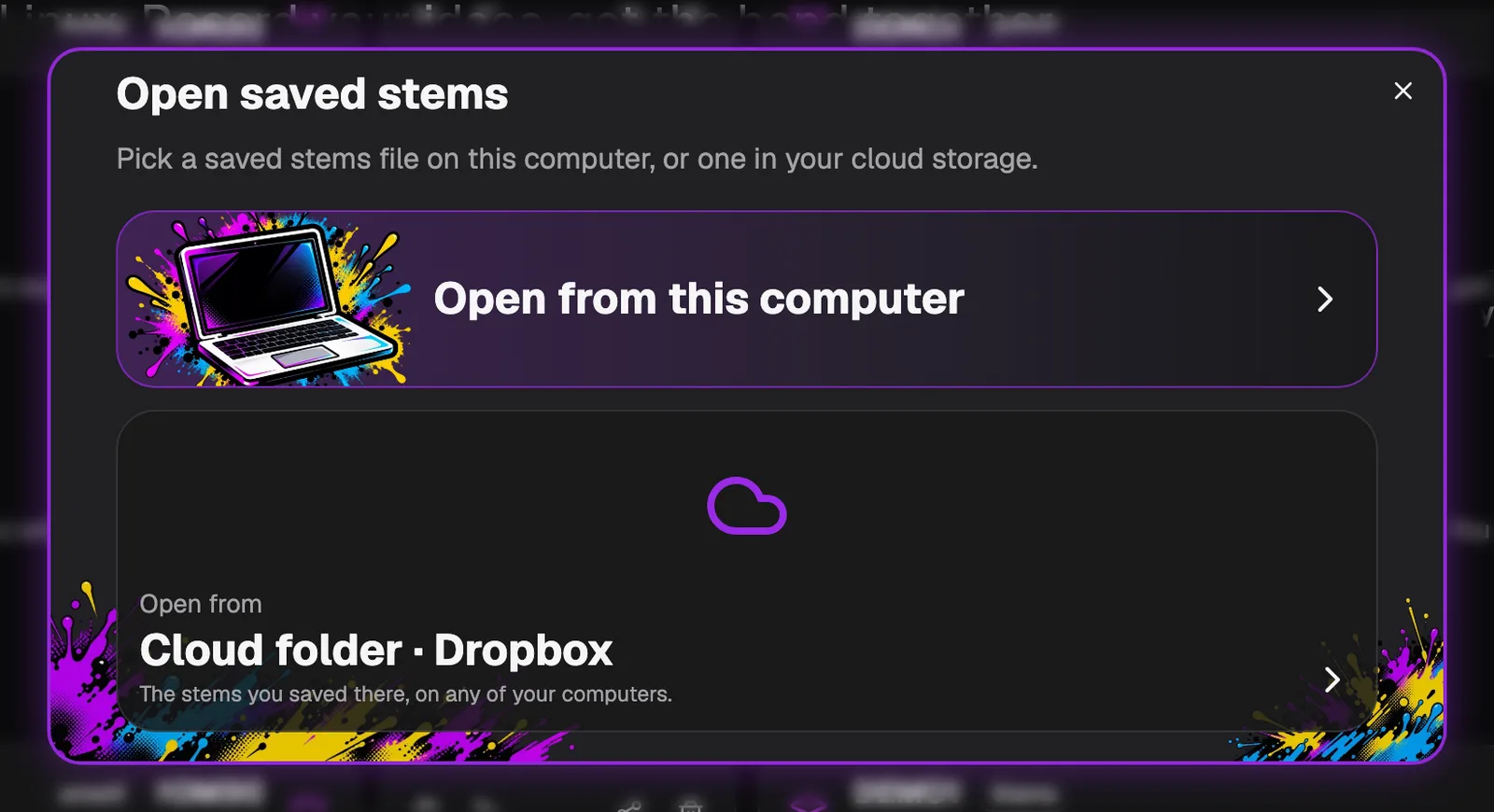
To open a stems file you saved, click Open saved stems on the start screen. Choose Open from this computer, or open it from your cloud folder or cloud account.
The song opens with all of its parts, ready to play.
Good to know
- Stem separation is in beta. Separating music is not perfect, so some of the other instruments can leak into each part.
- With the Fast engine you choose from drums, bass, vocals and guitars and keys; the app does not detect which instruments are in a song.
- A mono file cannot be split into vocals and panned parts.
- Slowing a song down re-renders it after every mute, solo or volume change.
- It runs offline on your computer. Your song and its parts are not uploaded anywhere.
- The AI models are optional downloads. Each one shows its terms before it downloads, and you can delete it at any time.
- Exported files and lanes are made from the stems on your computer, with the length and sample rate of the stems. Nothing is uploaded.
- Only use music you have the rights to, such as your own recordings.