How to use Record to tab
Play your idea and get it as tab
Beta
Record to tab turns a take of you playing guitar, bass, piano or drums into notes you can edit. It runs on your computer, with a built-in Default mode and an optional AI mode. This guide goes from the Record to Tab button to correcting the result.
Before you start
- Smart Beat on macOS, Windows or Linux.
- A microphone or an audio interface with your instrument, and headphones if you record with the click.
- For the AI mode, the optional MuScriptor model (a one-time download). The Default mode works without it.
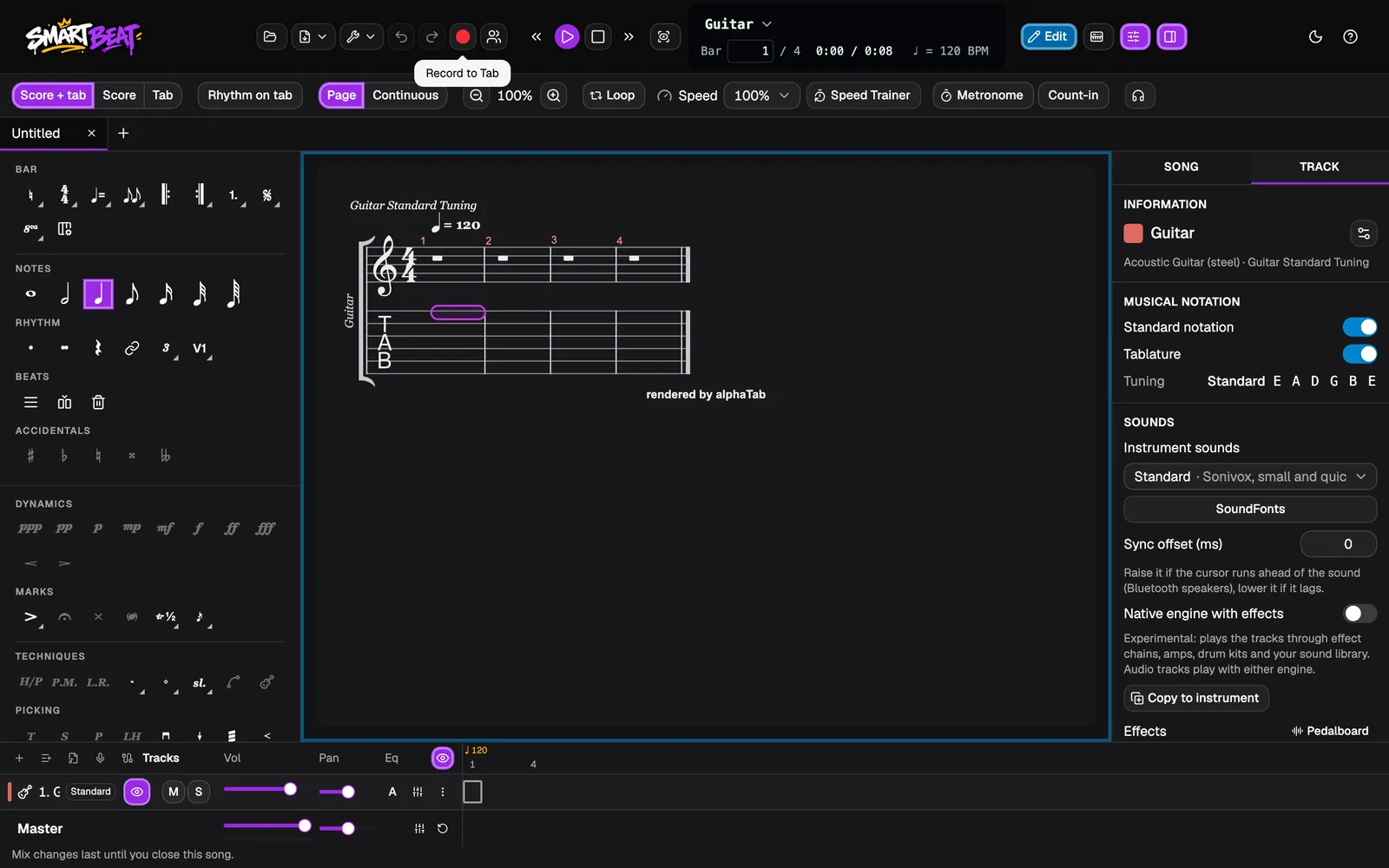
Open a tab and click Record to Tab
Open the tab you want to write into, or start a new one with New tab. Then click the red Record to Tab button in the toolbar. You can also choose AI › Record to Tab in the menu bar.
What you play is written as notes on a track of this tab, ready to edit.
Choose the instrument and how to record
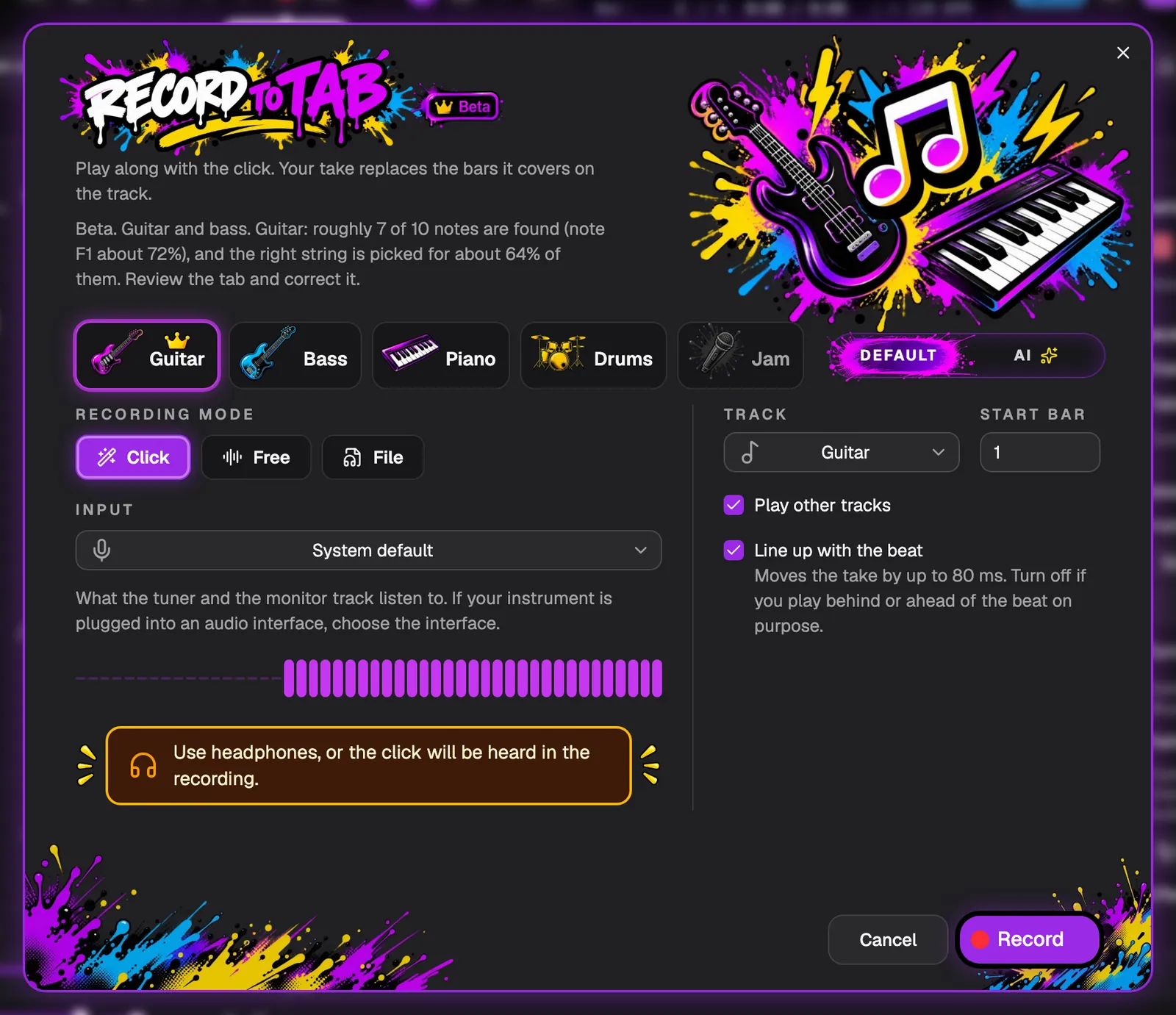
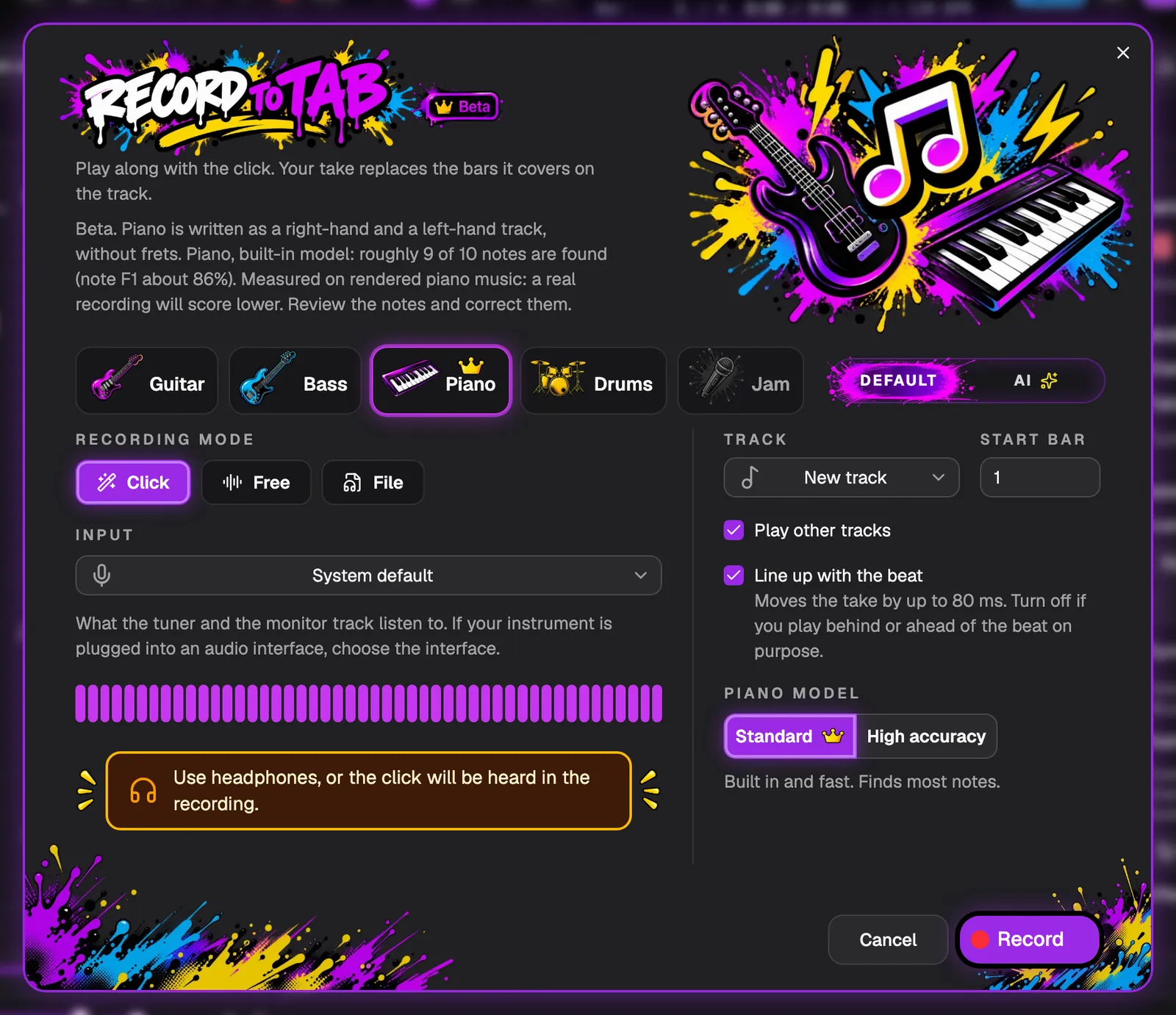
Pick what you play: Guitar, Bass, Piano or Drums. Record to tab listens to one instrument at a time. Jam, for several players at once, is marked coming soon.
Under Recording mode, Click plays a click while you record, Free records without one, and File uses a recording you already have. Choose your Input, the Track to write to (an existing track or a new one) and the Start bar.
Play other tracks lets you hear the rest of the tab while you play. Line up with the beat moves your take by up to 80 ms; turn it off if you play behind or ahead of the beat on purpose.
- With the click on, use headphones, or the click will be heard in the recording.
- Your take replaces the bars it covers on the track.
Piano and drums
A piano take is written as a right-hand and a left-hand track, without frets. Piano has a Piano model choice: Standard is built in and fast and finds most notes, High accuracy finds nearly every note and is a one-time download of about 55 MB.
A drum take is written to a drum track. Kick, snare and hi-hat are found well. Toms and crash cymbals are experimental and often wrong.
Or use the AI mode
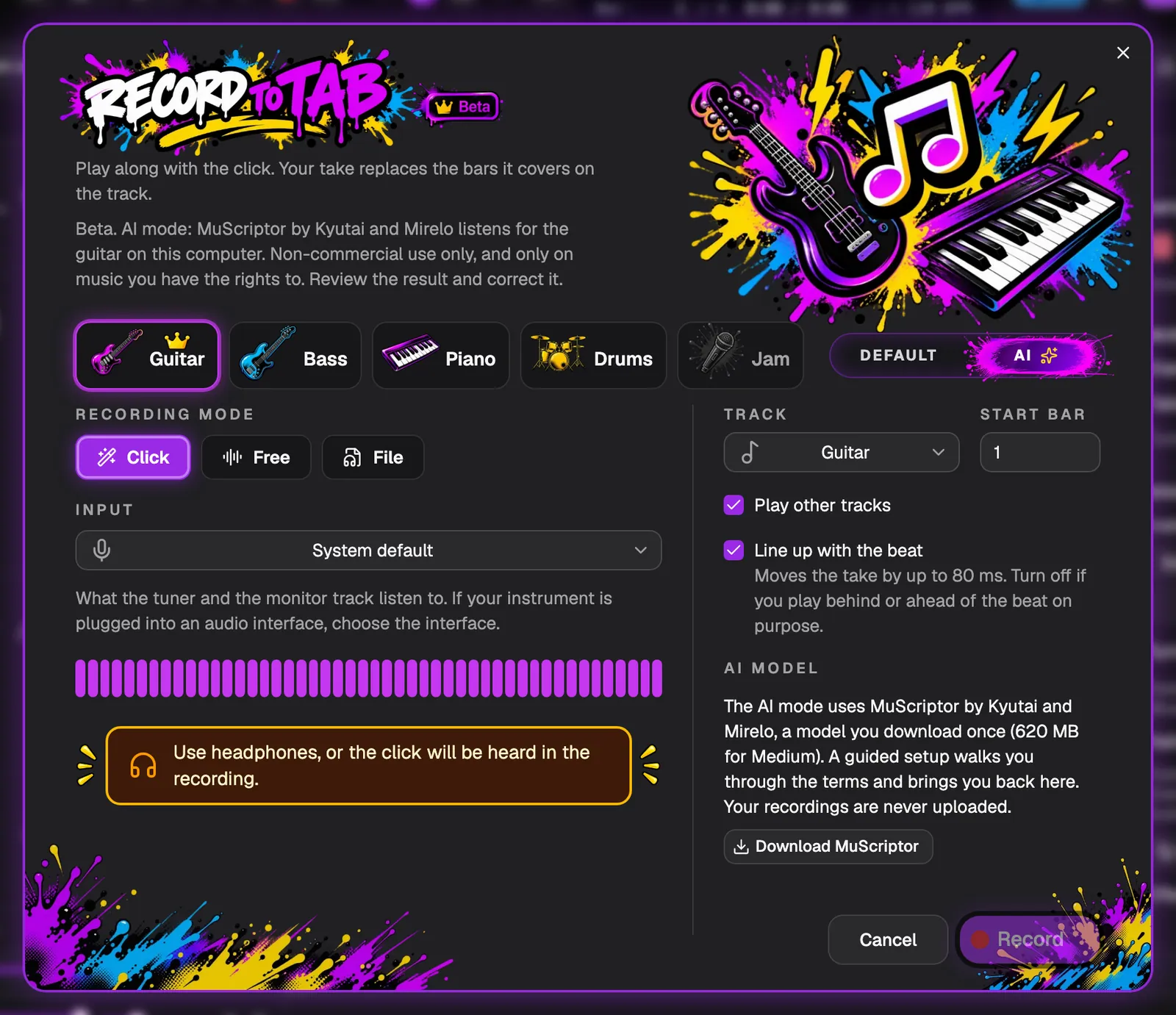
Default uses a small note-finding model that runs on your computer. AI uses MuScriptor by Kyutai and Mirelo, an optional model that you download once (about 620 MB for the Medium size). A guided setup walks you through the terms and brings you back to this window.
It also runs on your computer and your recordings are never uploaded. MuScriptor is for non-commercial use only, and only on music you have the rights to.
Record your take
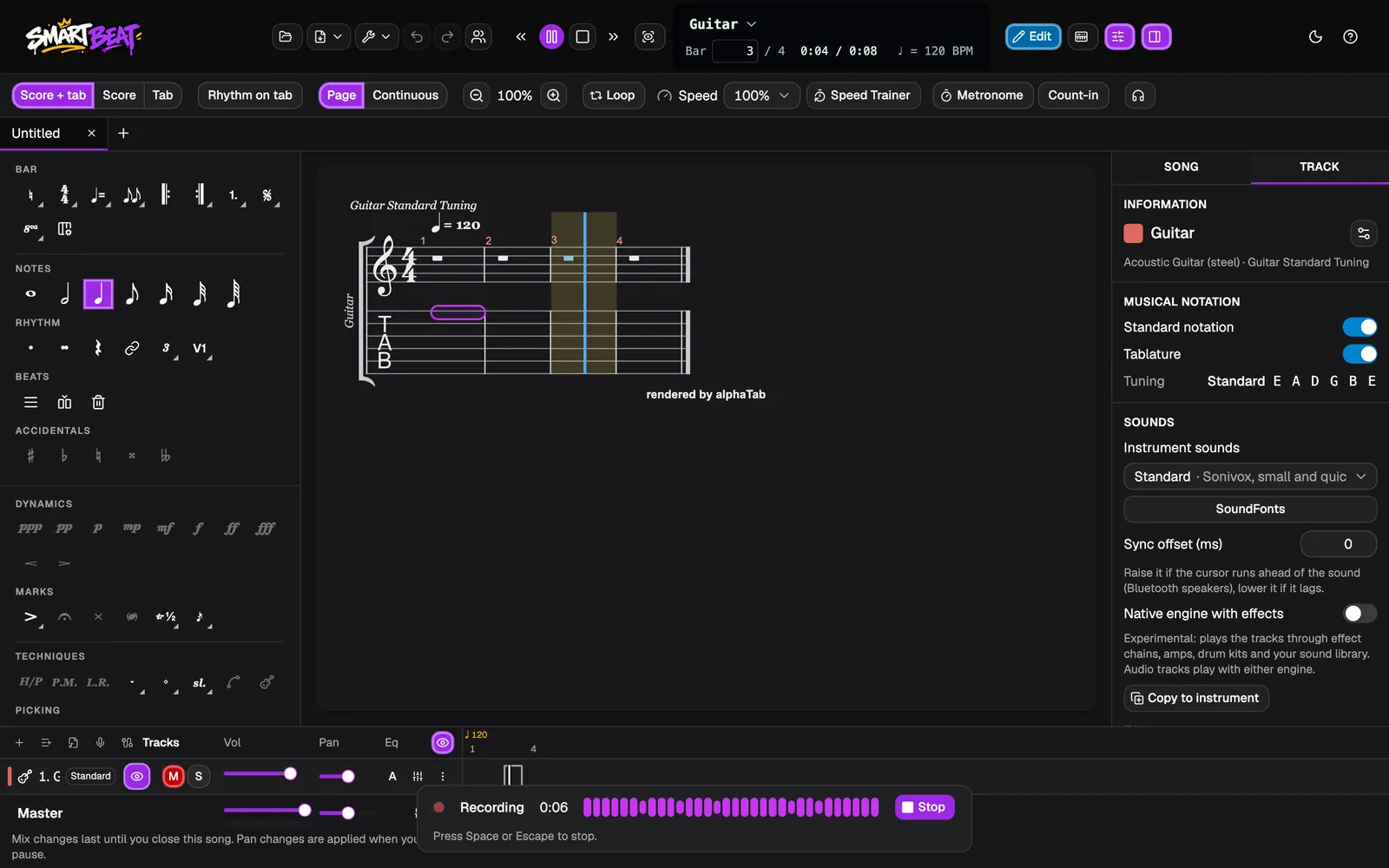
Click Record. A count-in starts if you chose Click, then the recording begins and the tab plays along. A small bar at the bottom shows the time and the level of your sound.
Press Space or click Stop when you are done. Press Escape to throw the take away.
Wait while the notes are found
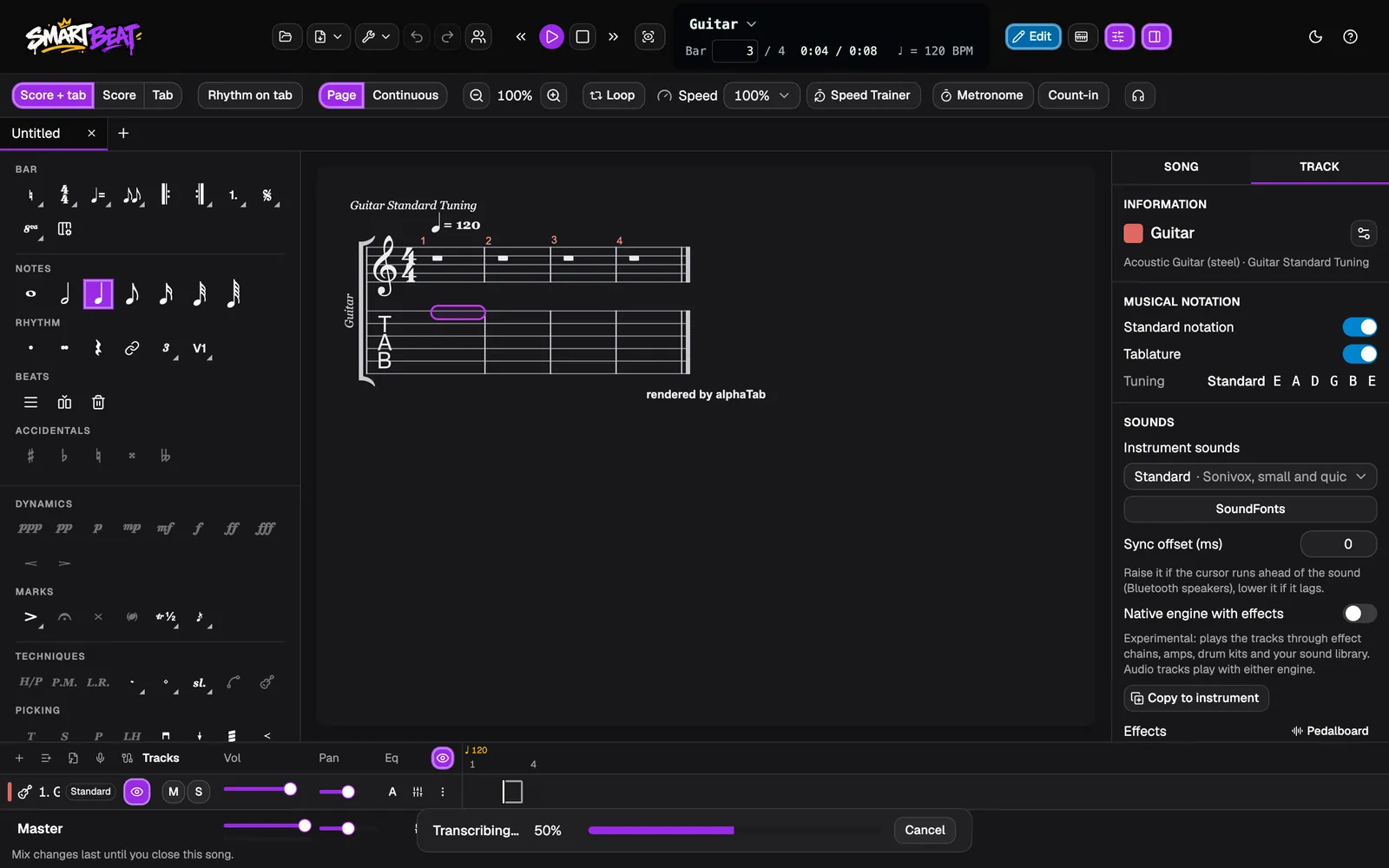
Smart Beat now listens to your take and finds the notes. The bar shows Transcribing and how far it is. It all happens on your computer.
Click Cancel if you change your mind. The take is not written to the tab.
Review the result and fix it
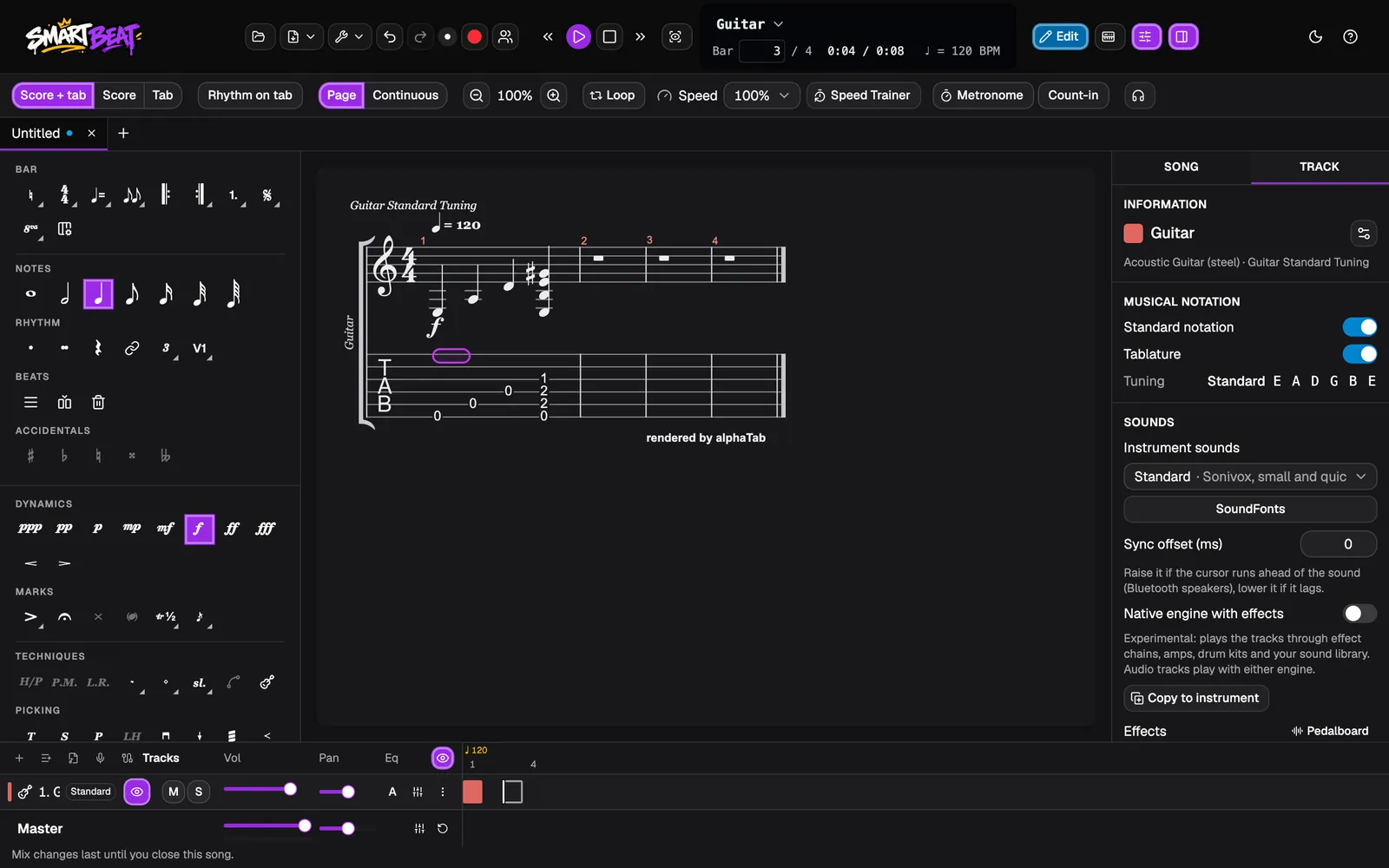
The notes appear in the tab: open strings, a chord, whatever you played. Record to tab gives you a starting point to edit, not a finished transcription, so listen to it with Play and correct what is wrong.
Everything is a normal part of the tab. Undo takes the whole take back in one step.
- Edit works as usual: click Edit in the toolbar, then move, add or delete notes.
Good to know
- Record to tab is in beta. It gives you a starting point to edit, not a finished transcription. Review the result and expect to correct it by hand.
- One instrument at a time: guitar, bass, piano or drums. A recording of a whole band or a full mix is not supported.
- Guitar: roughly 7 of 10 notes are found, and the right string is picked for about 64% of them.
- Piano: the built-in model finds roughly 9 of 10 notes. The High accuracy model (a one-time 55 MB download) finds nearly every note.
- Drums: kick, snare and hi-hat are found well. Toms and crash cymbals are experimental and often wrong.
- These numbers were measured on rendered audio. A real room and microphone will score lower.
- The AI mode uses MuScriptor by Kyutai and Mirelo, a model you download yourself. It is for non-commercial use only and has not been measured on its own yet.
- Nothing is uploaded. Only use recordings of music you have the rights to.