
How to use Learning mode
Practise a song until you can play it
Available
Learning mode is the set of practice tools of Smart Beat: slow a song down, loop a hard bar, let the Speed Trainer raise the tempo, play with a metronome and a count-in, and watch the notes on a fretboard. This guide walks through them with the demo song that comes with the app.
Before you start
- Smart Beat on macOS, Windows or Linux.
- A tab to learn, or the demo song (Help › Open Demo Song).
Open a song
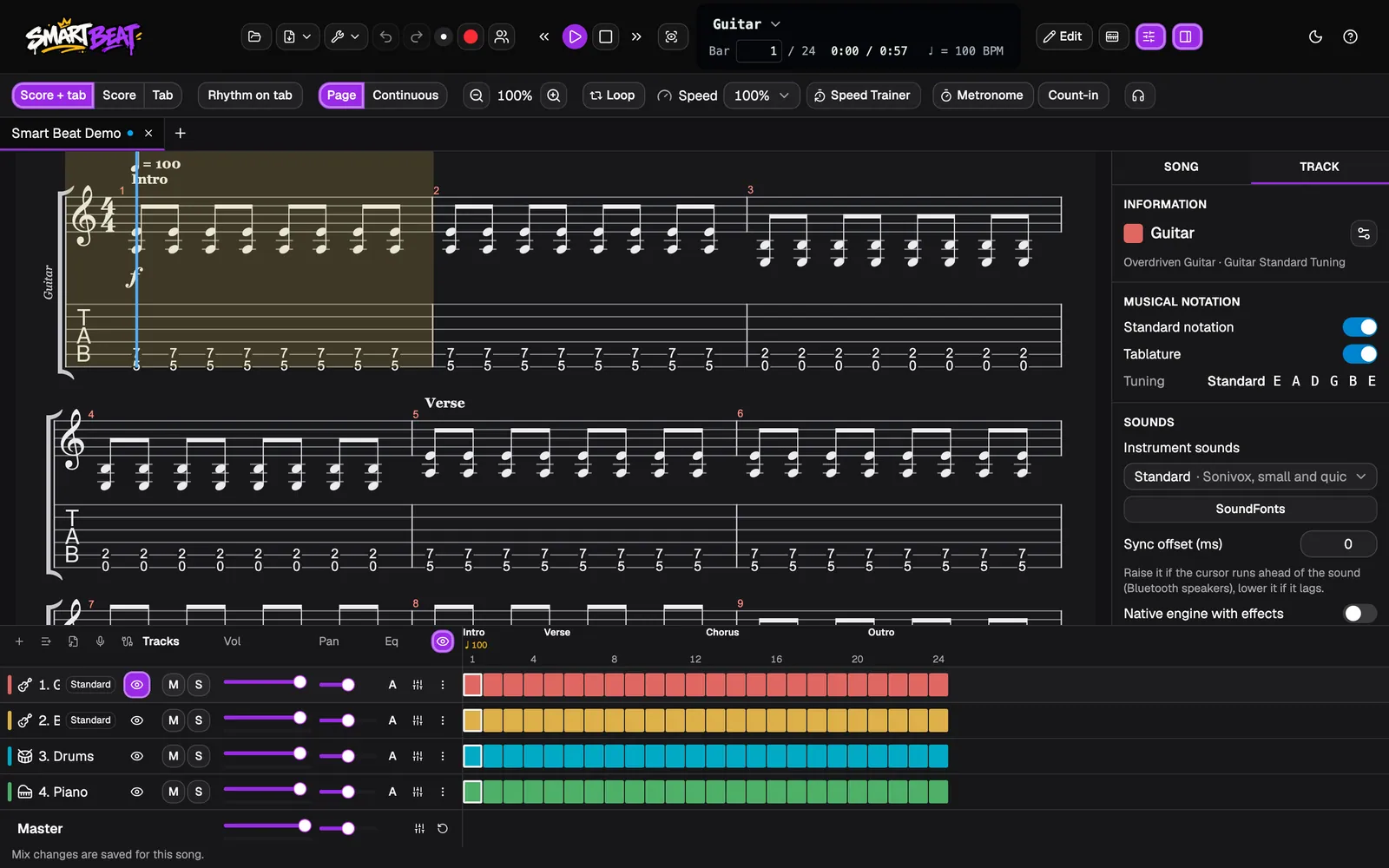
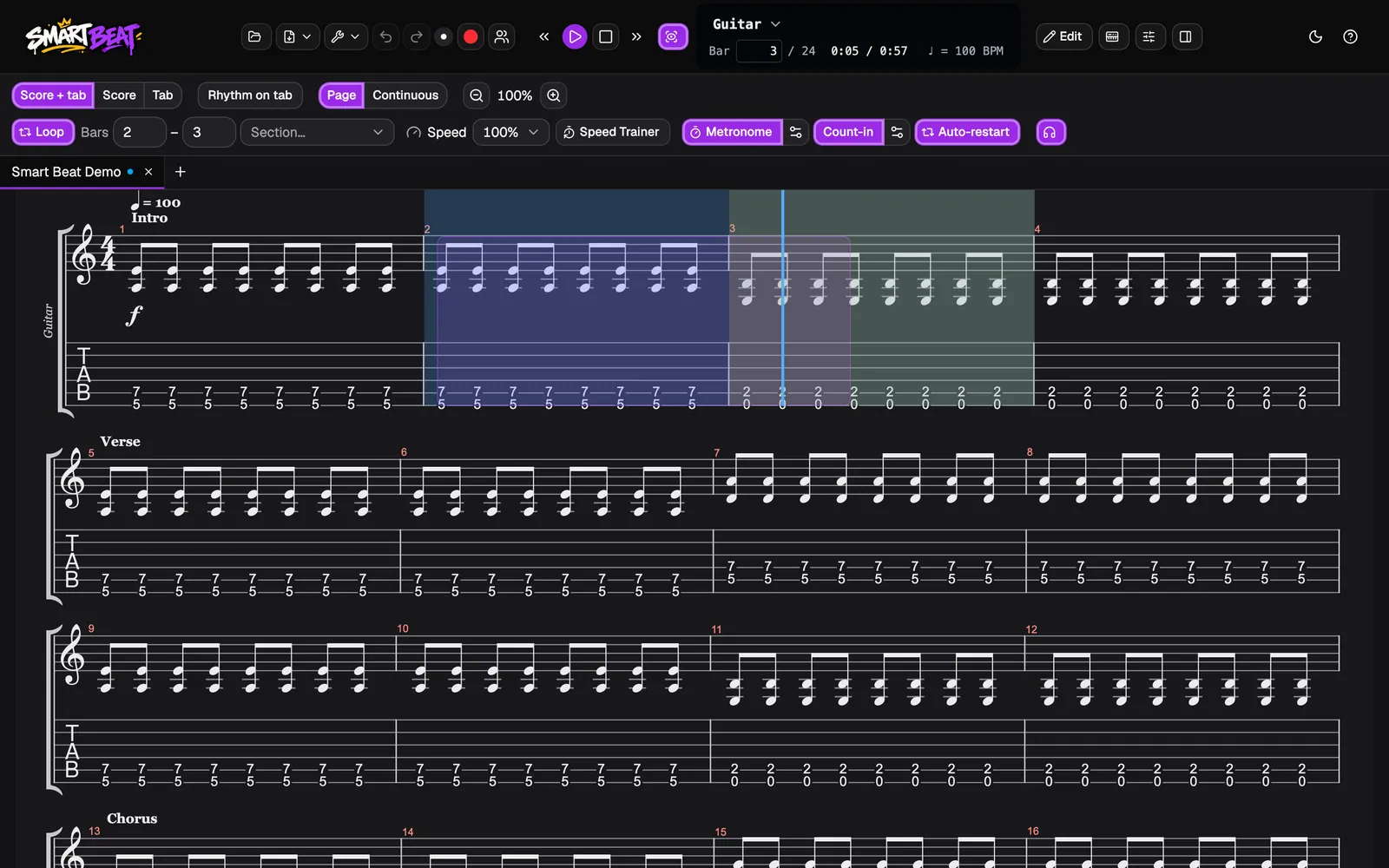
Open a tab you want to learn: a Guitar Pro file, MusicXML or MIDI. Everything for practising is in the second row of the toolbar: Loop, Speed, Speed Trainer, Metronome and Count-in.
No song at hand? Choose Help › Open Demo Song, a short song that comes with Smart Beat.
Slow it down
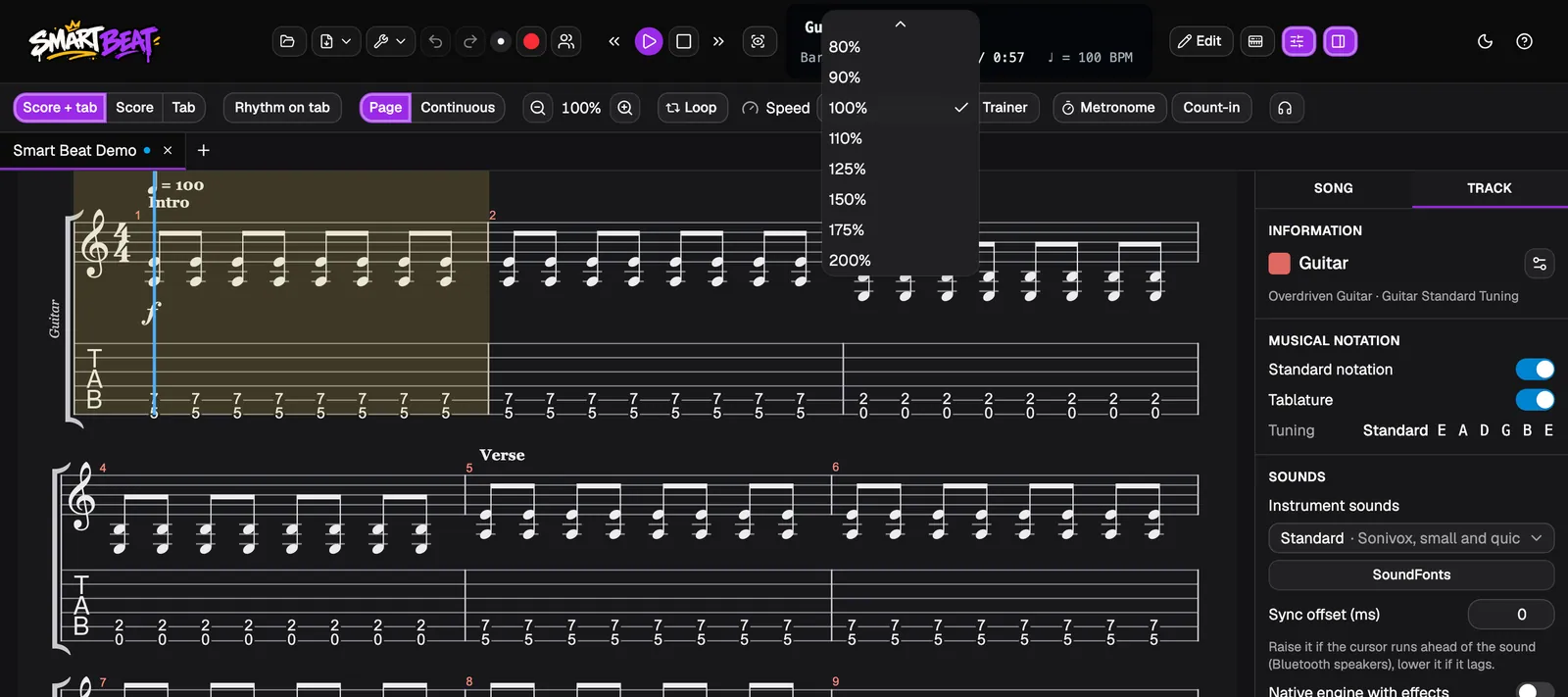
Open the Speed menu and choose a lower speed to play a hard part slowly. Speed goes from 25 to 200 % of the song’s tempo, and the pitch stays the same.
Start at a speed where you can play it cleanly, then work your way up.
Loop a hard part
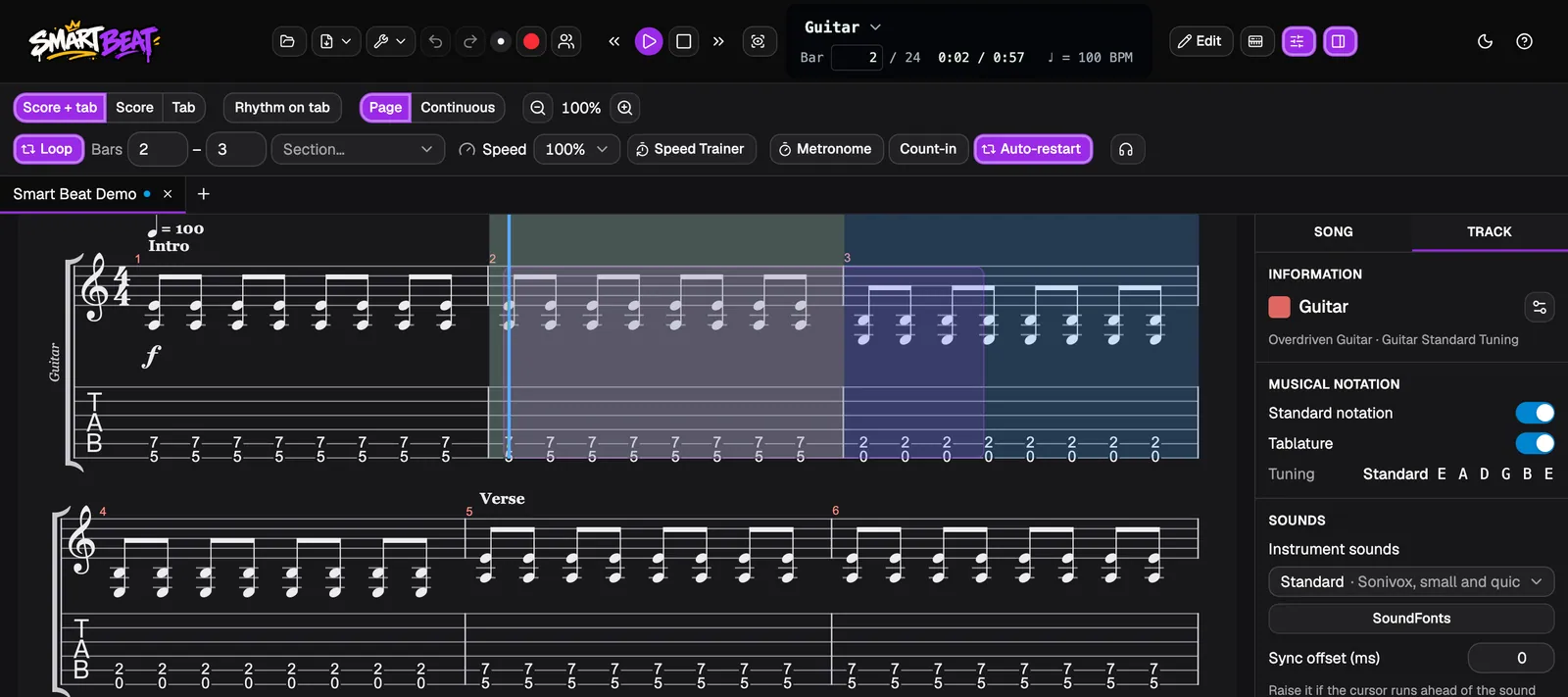
Drag across the bars in the score to select them, then click Loop. Smart Beat plays just those bars over and over. You can also type the first and last bar next to Loop, or pick a Section of the song such as Verse or Chorus.
The selection is shaded in the score. Click Loop again to play the whole song.
Let the Speed Trainer raise the tempo
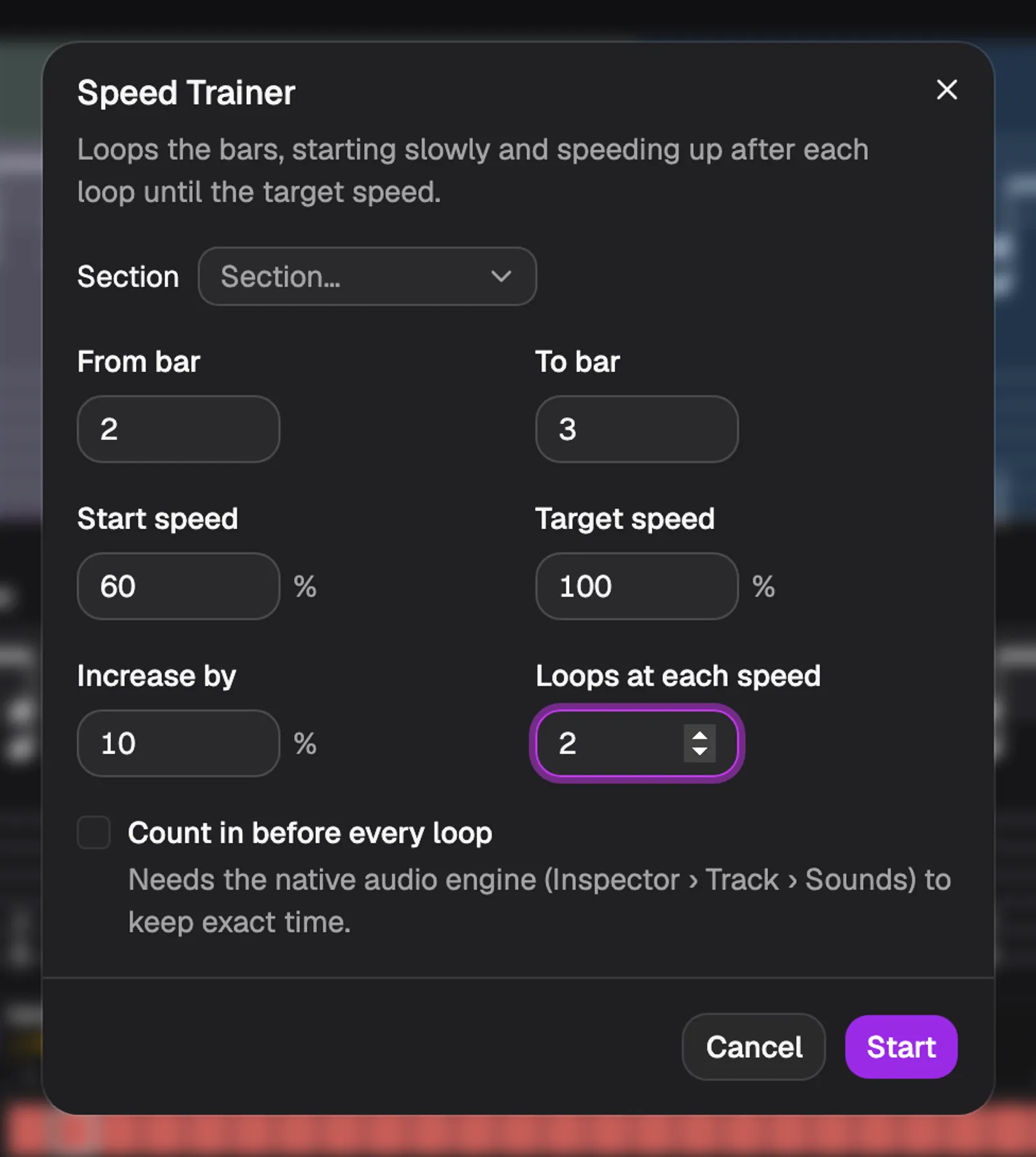
Click Speed Trainer to practise a part from slow to fast without touching anything. Set the bars (From bar, To bar, or a Section), the Start speed and the Target speed, then how much to Increase by and how many Loops at each speed.
In the picture the trainer plays bars 2 to 3 at 60 %, twice at every step, and goes up by 10 % until it reaches 100 %. Click Start.
- Count in before every loop needs the native audio engine (Inspector › Track › Sounds).
Play with a metronome
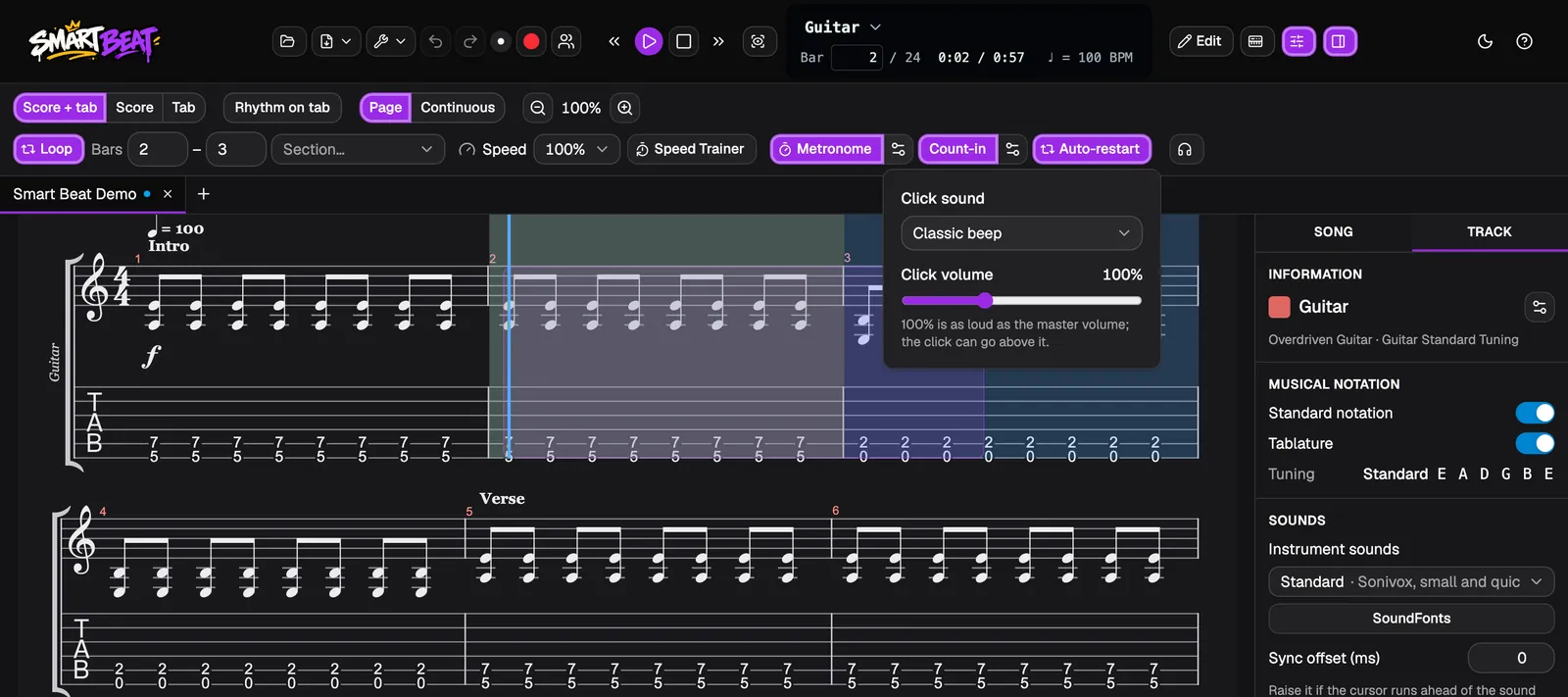
Click Metronome to hear a click on every beat while the song plays. The small button next to it opens its settings: the Click sound and the Click volume.
The click stays in time with the song when you slow it down, and Smart Beat remembers your settings between songs.
Get a count-in
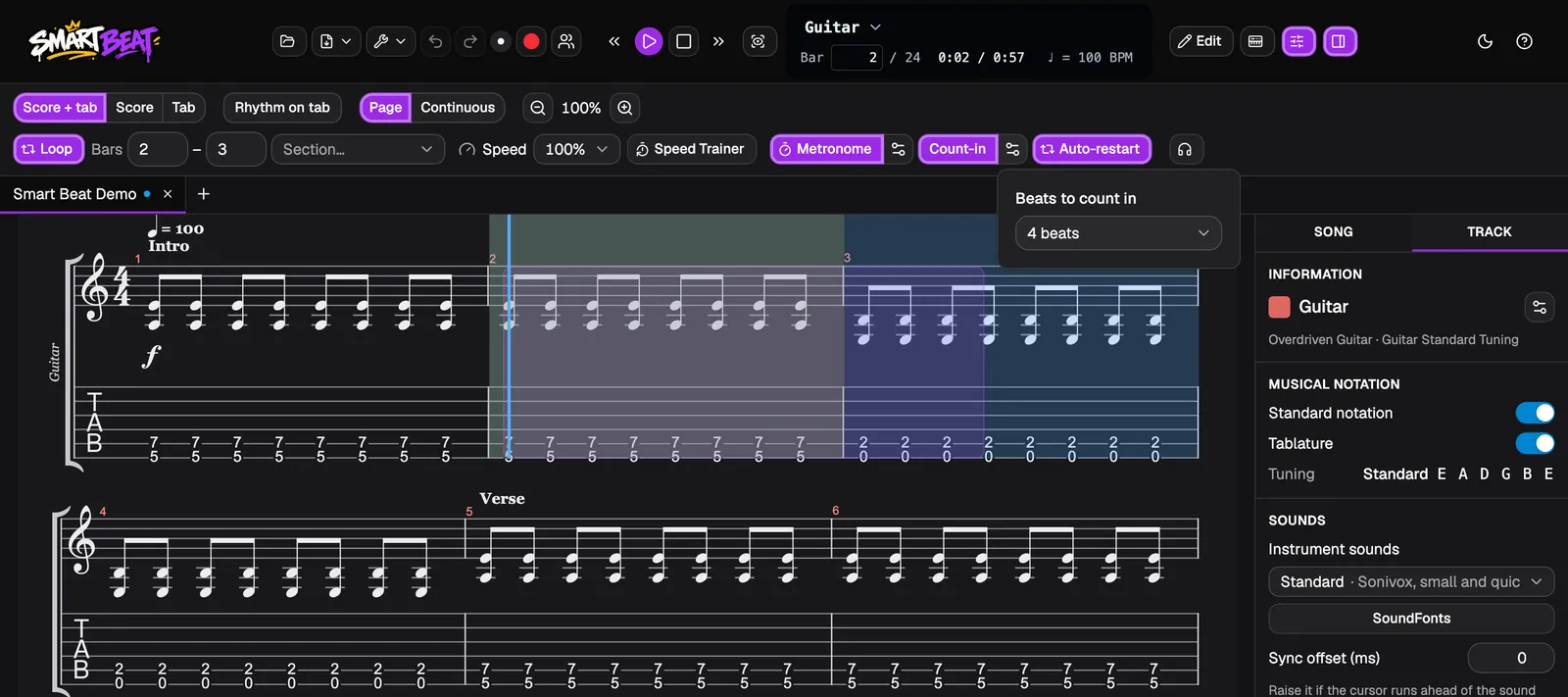
Click Count-in to hear a few clicks before the song starts, so you can get your hands ready. Its settings button sets how many beats to count in.
Turn it off again with the same button when you no longer need it.
See the notes on the fretboard
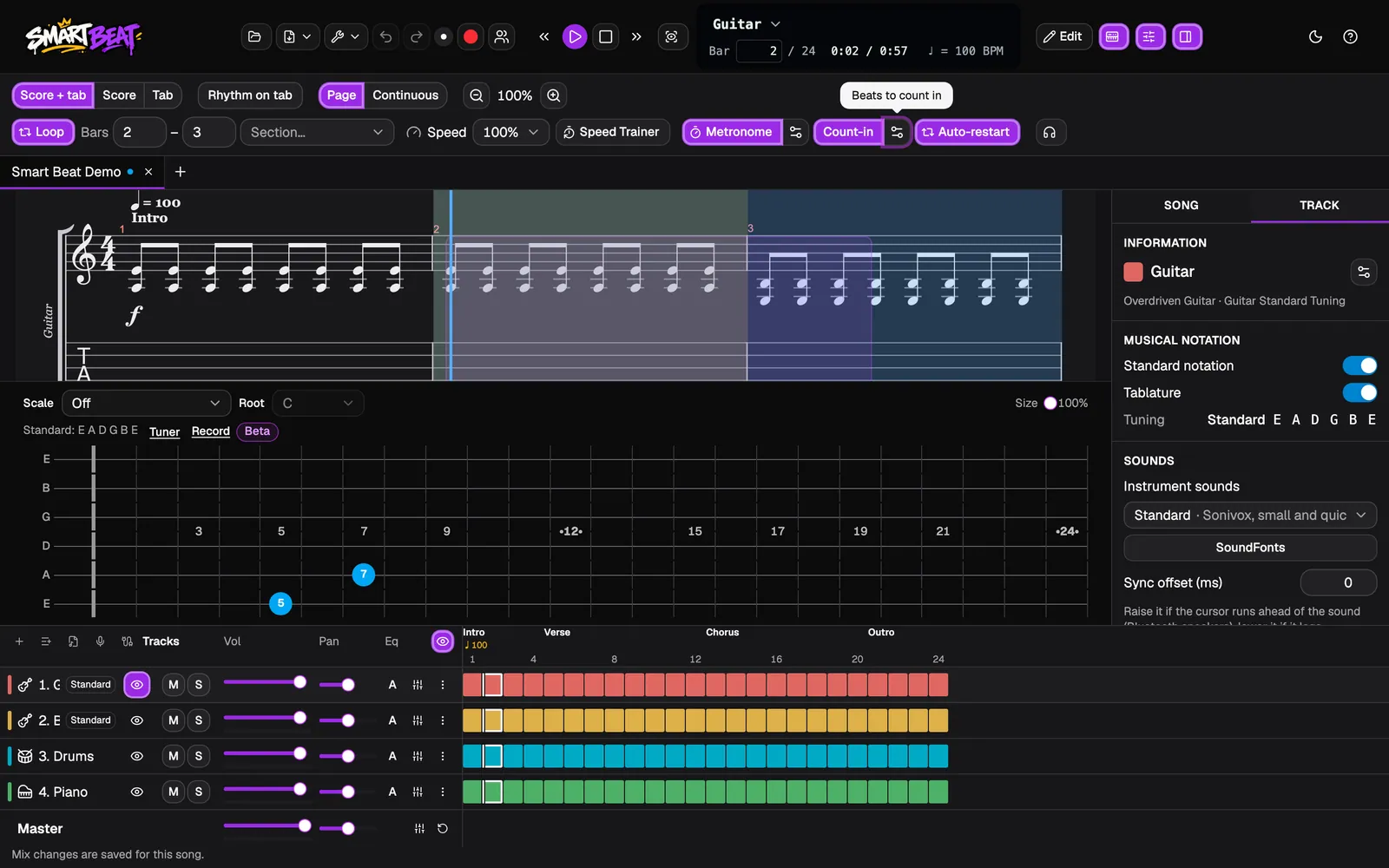
Switch on the Fretboard button in the toolbar, or choose View › Fretboard. It shows the notes being played on the instrument of the track, following its tuning and capo, so you see where your fingers go.
With Scale and Root you can show the notes of a scale to find your way around. The Tuner and Record controls are on the same panel.
Follow the cursor
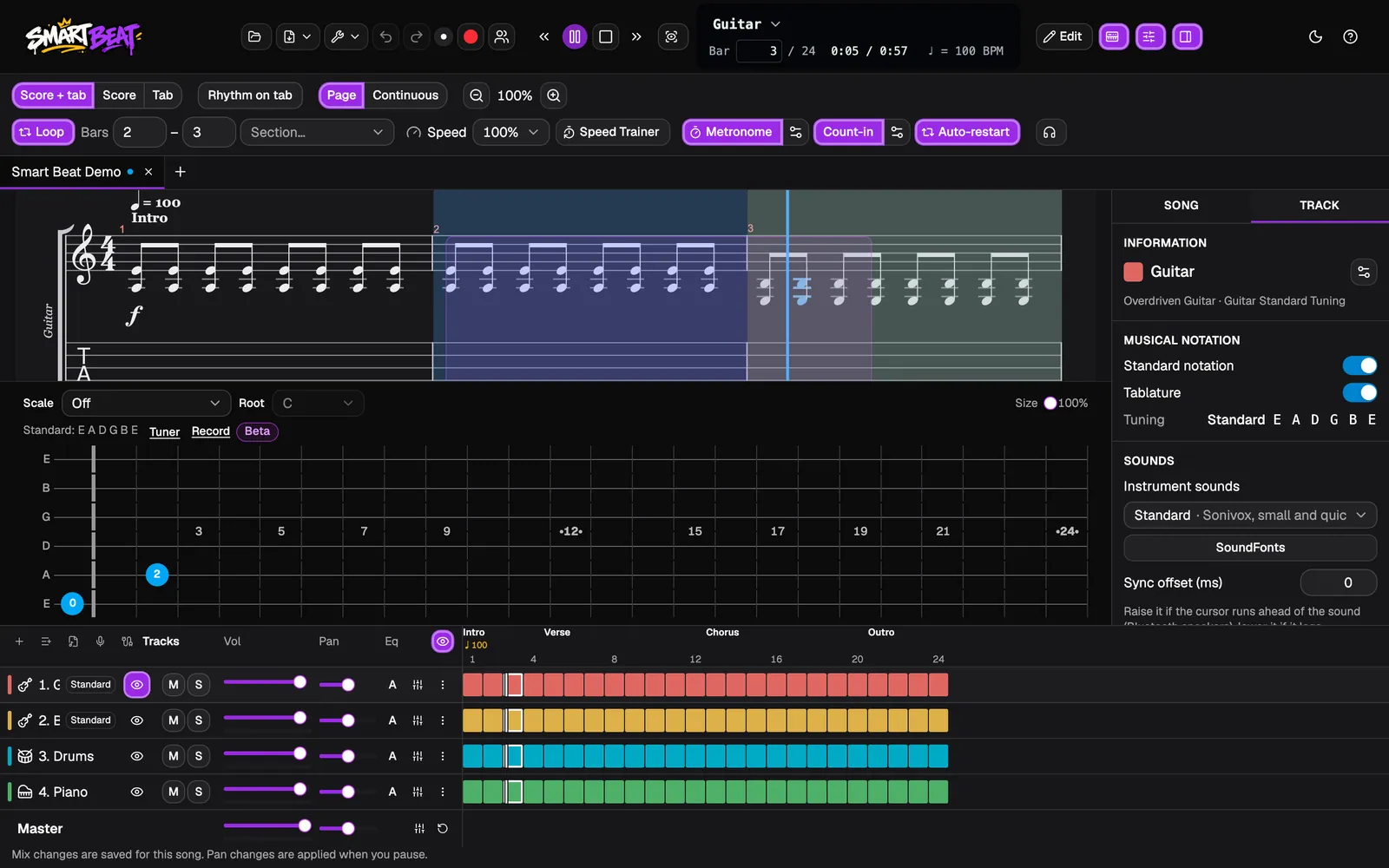
Press Play. A cursor runs through the score in time with the music and the score scrolls with it, so you always see the bar you are playing. The playhead also runs through the Tracks panel. Click any bar to start from there, or type its number next to the time.
The Practice mix button next to the toolbar lets you choose how the tracks are mixed while you practise, for example to hear your own track in focus.
Focus with Practice View
Click Practice View to hide everything except the score and the playback and practice controls, with your track in focus. The score gets the whole window, which is good for reading from a distance.
Click Practice View again, or open any panel, to get your panels back.
Good to know
- Everything here is also in the Playback menu, with shortcuts: Loop is ⌘L and Metronome is ⇧⌘M on a Mac.
- Speed, loop, metronome and count-in belong to the app and work on any open tab. In a Practice together session the host sets them for everyone.
- Your mix of the tracks is saved for the song, so the next time you open it your track is as loud as you left it.
- To learn a song from a recording, split it into parts with Stem separation, and mute the part you play.