
How to use Practice together
Play the same tab in time with your band
Available
Practice together lets up to ten Smart Beat players open the same tab and play it at the same moment, in the same room or over the internet. The host starts and stops for everyone, and each of you hears your own sound, so you can rehearse a song with the band before the rehearsal.
Before you start
- Everyone needs Smart Beat 1.2.0 or later on their own computer. Editing together and sharing audio tracks need 1.3.0 or later.
- The host needs the tab, for example a Guitar Pro file. The other players do not.
- All the computers on the same network (Wi-Fi or cable), or all of them online for Over the internet.
Host: open the song and click Practice together
One of you hosts the session. The host opens the tab the band wants to play, for example a Guitar Pro file of your song.
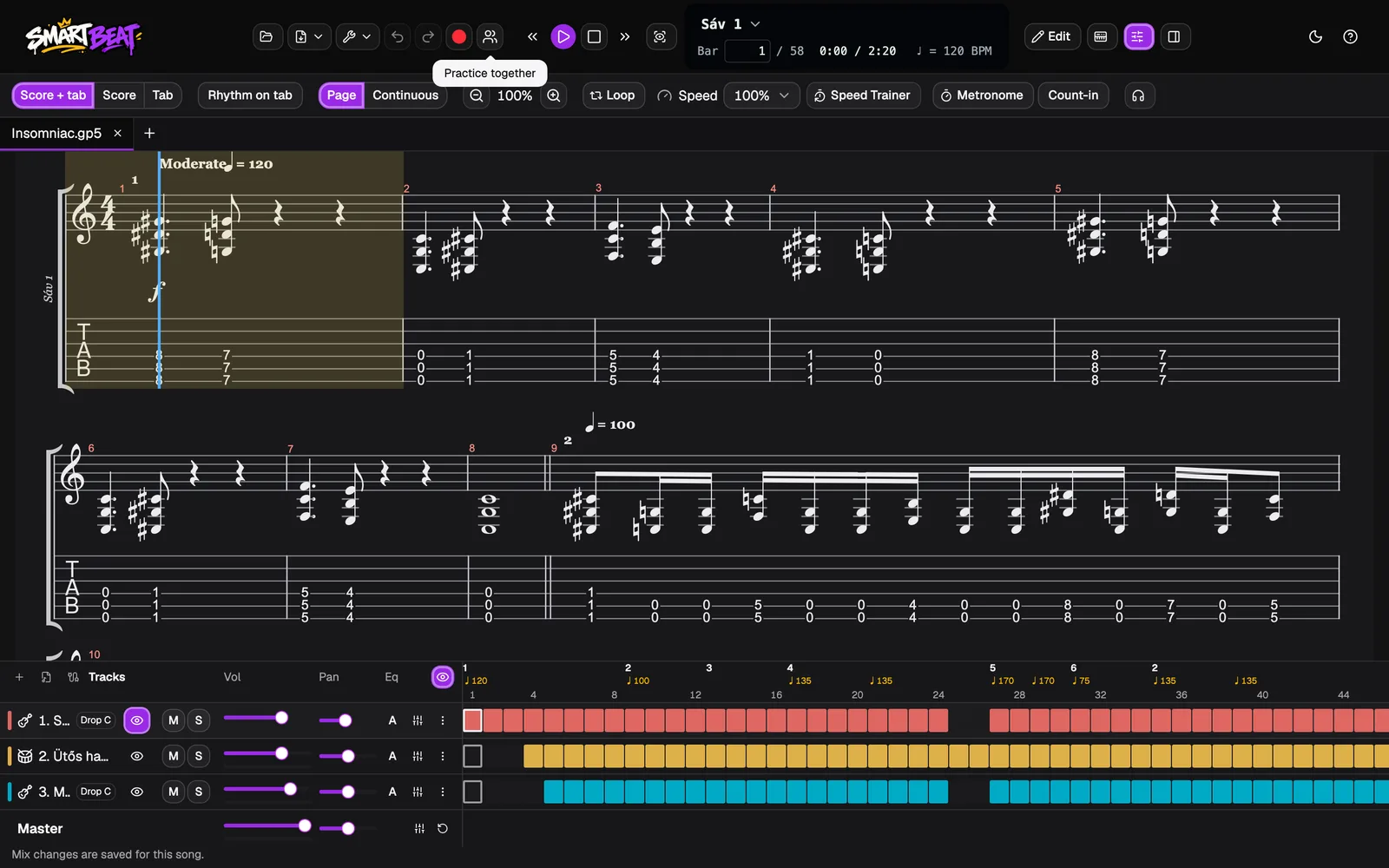
Click the Practice together button in the toolbar, next to Record to Tab. You can also choose Playback › Practice Together in the menu bar.
- Only the host needs the tab. Everyone else gets it from the host when they join.
Start a new session or join one
Practice together first asks what you want to do. Start a new session if you are the host. Join an existing session if someone else has started one and gives you the code.
You can also begin on the start screen: the Practice together button there asks the same question. If you start a session from there, you then pick a tab: a recent song, a file or a blank tab.
Host: type your name and pick how you connect
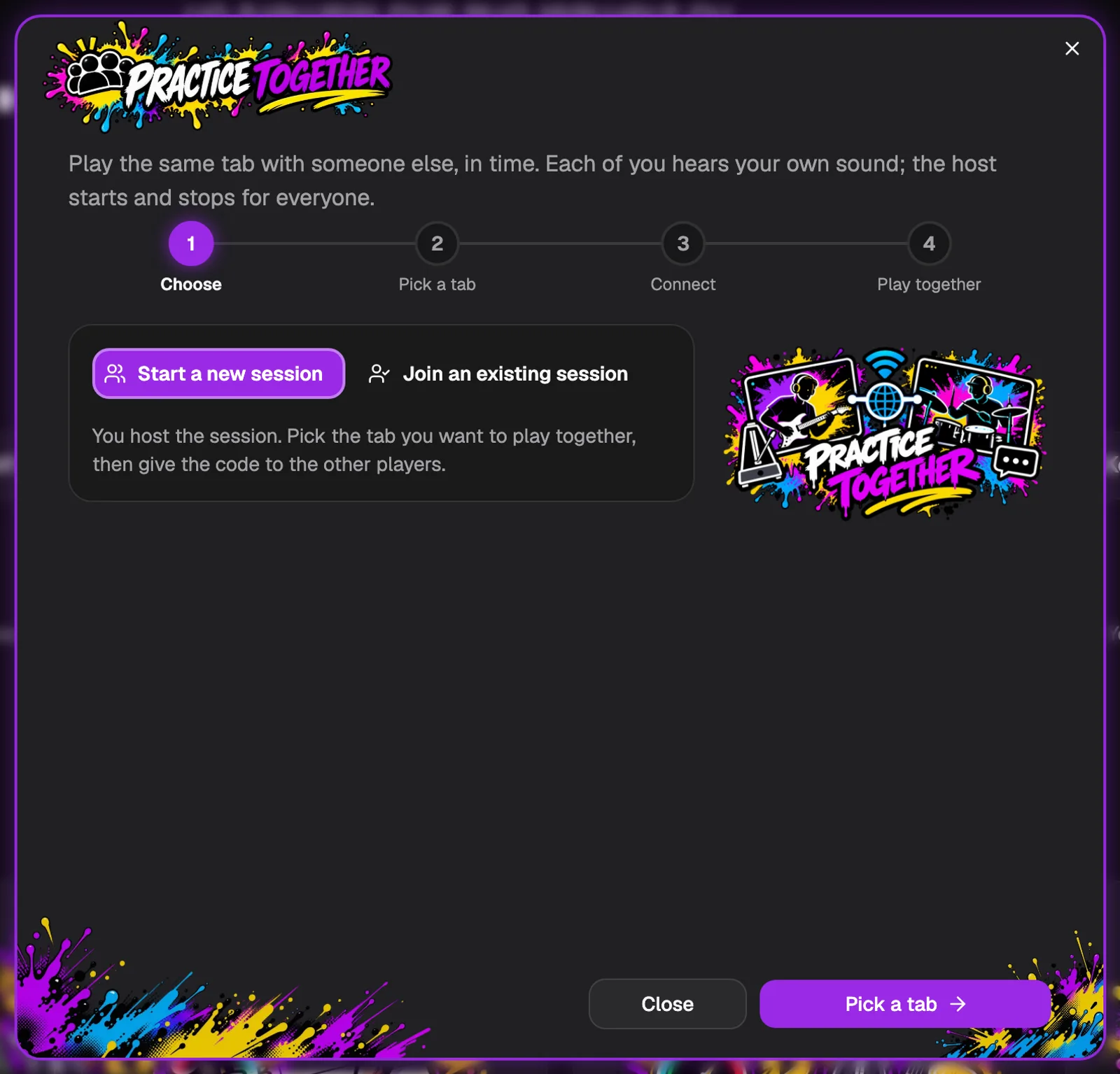
Type the name the others will see, for example Guitar. Keep Start a new session selected.
Choose Same network when everyone is in the same room on the same Wi-Fi or cable. It is the steadiest choice and nothing leaves your network. Choose Over the internet when the band is spread out: the apps meet through a small meeting service and then talk to each other directly.
Click Start a session.
Host: give the code to the others
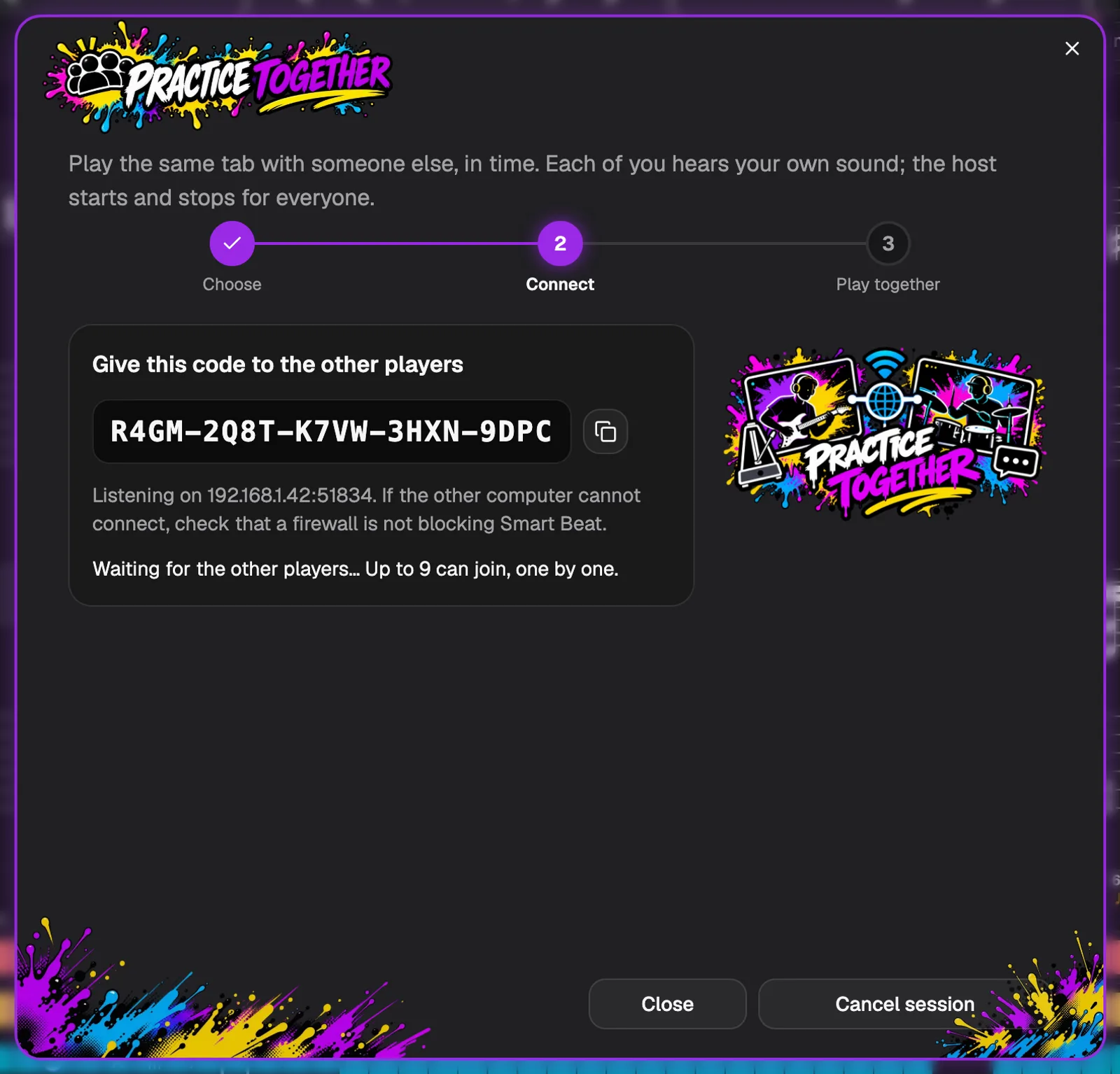
Smart Beat shows a session code. Send it to the band in a chat message or read it out. The copy button next to it copies it for you.
Up to nine other players can join, one by one.
- If someone cannot connect on the same network, check that a firewall is not blocking Smart Beat. On a Mac, allow Smart Beat in System Settings › Privacy & Security › Local Network.
Each player: join with the code
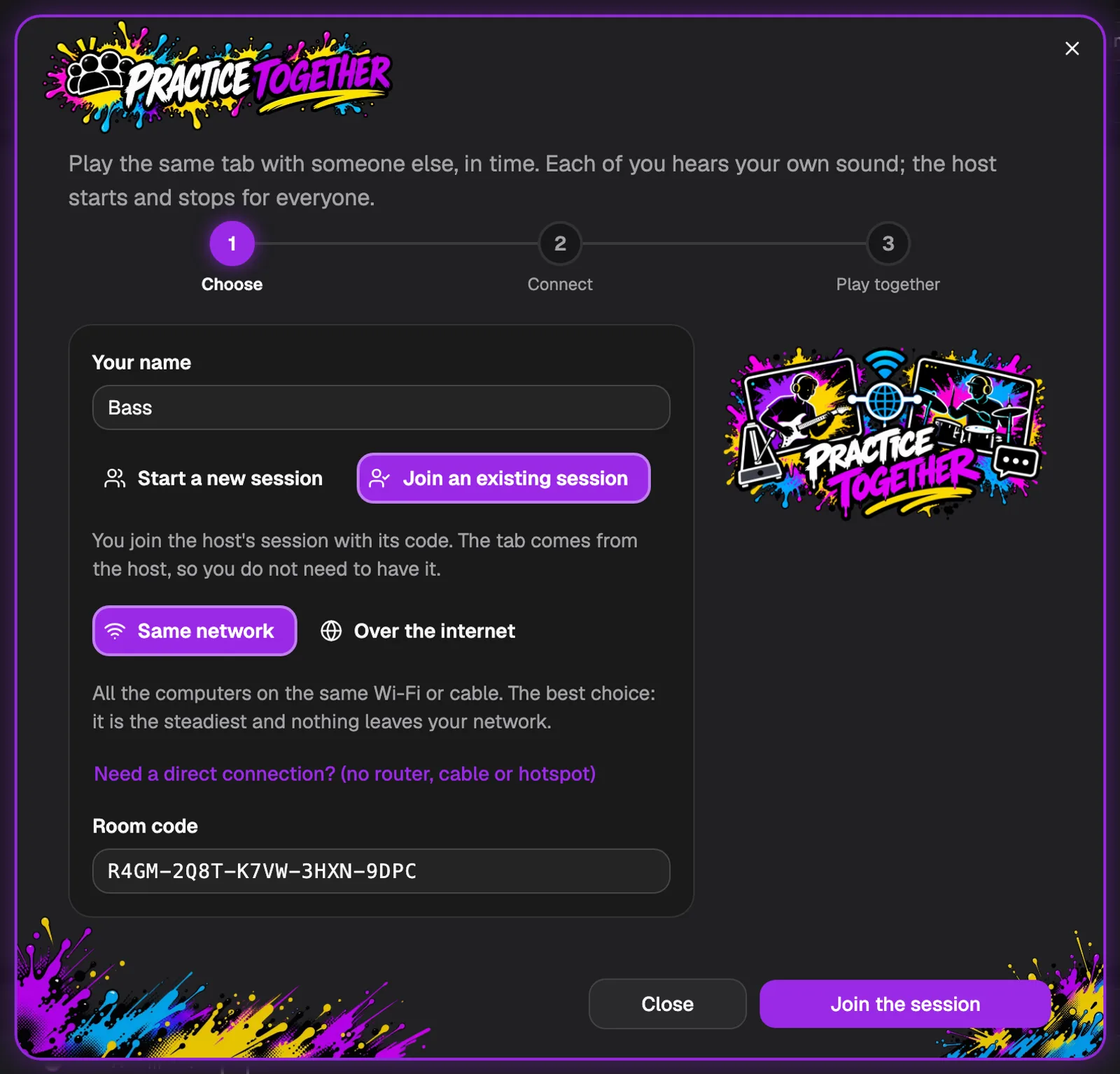
On every other computer, open Smart Beat and click Practice together on the start screen, or in the toolbar of any open tab. Choose Join an existing session.
Type your name, for example Bass or Drums, pick the same connection as the host, paste the code into Room code and click Join the session.
- You do not need the song yourself. The host’s tab comes to you.
Host: let each player in
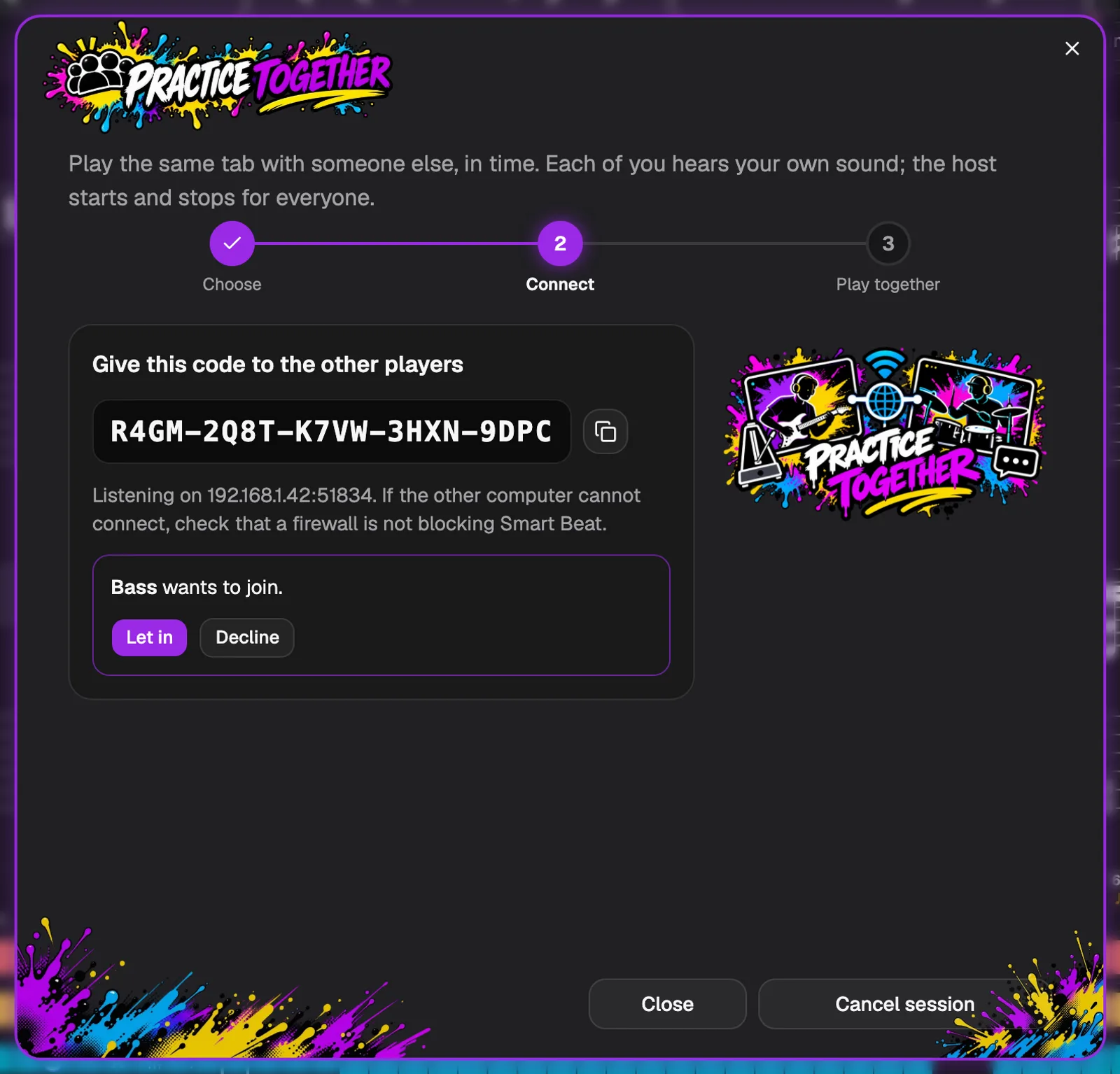
Nobody gets in by accident. When a player asks to join, the host sees their name, for example “Bass wants to join”, and clicks Let in or Decline.
When several players ask at once, the host is asked about them one at a time.
The tab arrives and the clocks are matched
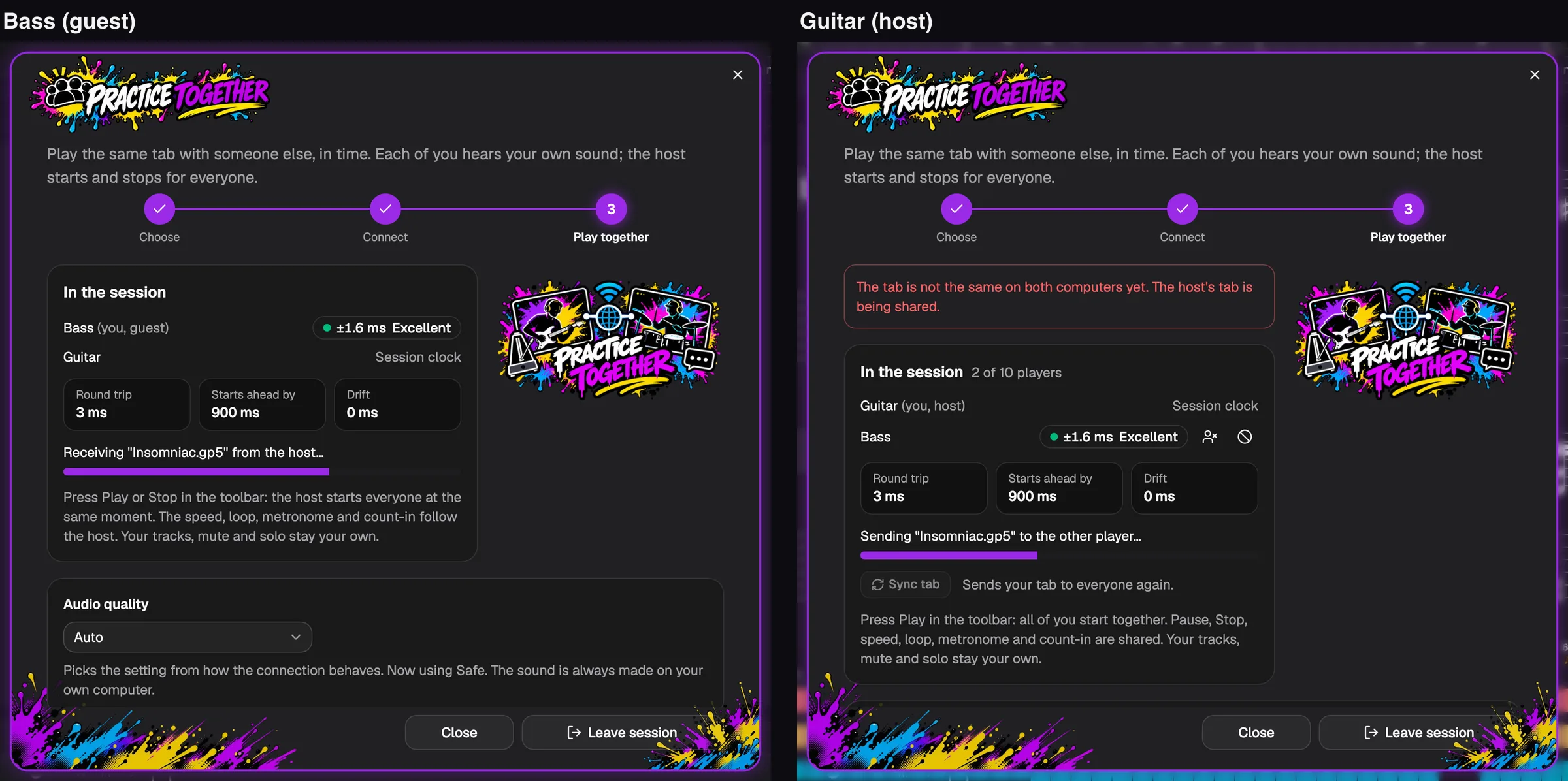
If a player does not have the song yet, the host’s tab is sent straight to them. The player sees “Receiving … from the host” with a progress bar, and the host sees “Sending …”. Until it arrives, the host’s window says the tab is not the same on both computers yet.
At the same time, Smart Beat matches the clocks of the computers. This takes a second or two. The tab opens on the player’s computer as a tab of its own, marked “(from Guitar)”.
- The tab is sent again only when someone joins, when you press Sync tab, or when two copies differ for a while. Edits made during the session reach everyone as they are made (see Edit the tab together, below).
Press Play: everyone starts together
When everyone is in, the Practice together button turns into a small chip that shows how closely you are in sync, for example ±1 ms. A green dot means everything is fine.
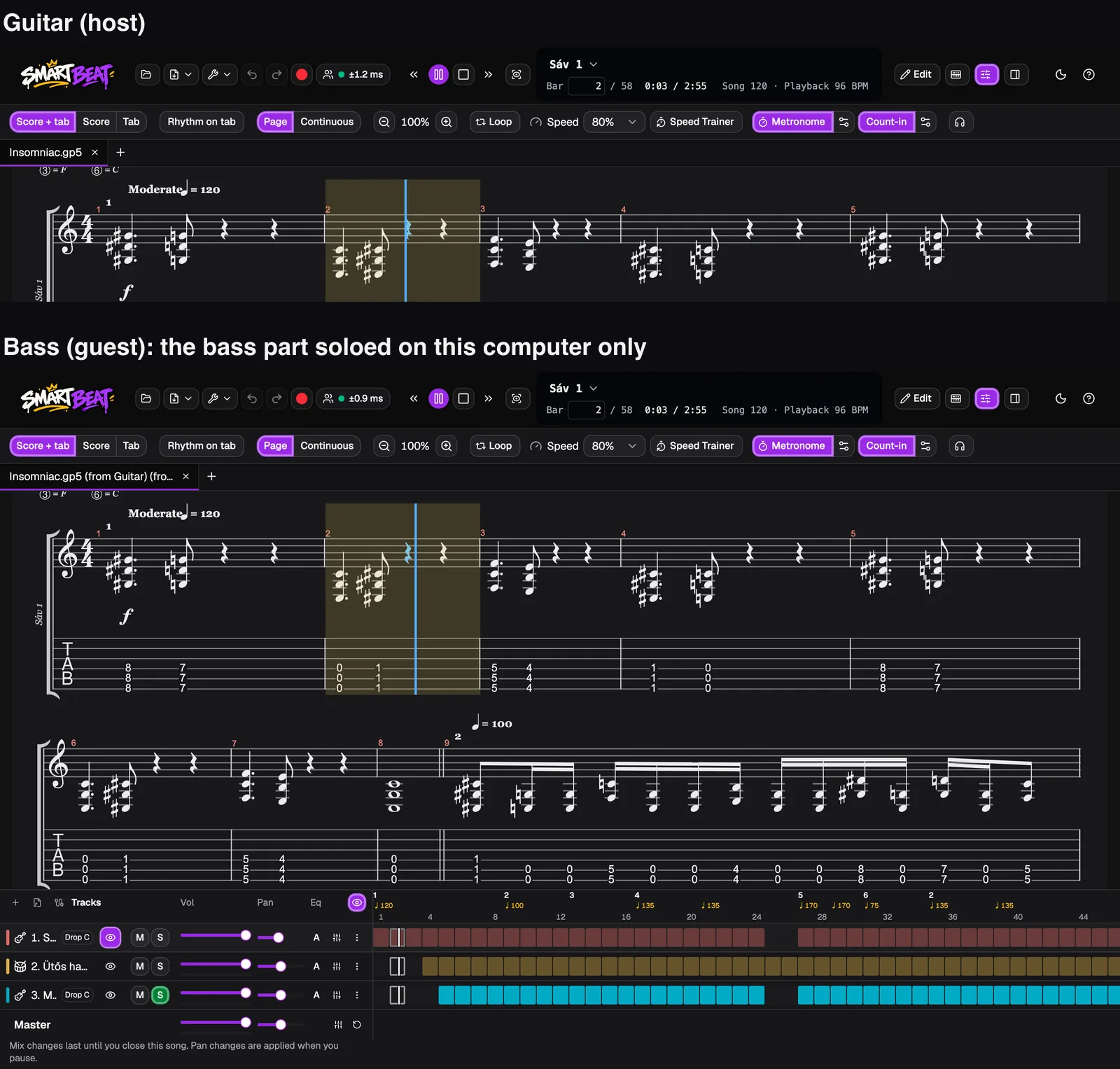
Now anyone can press Play, Pause or Stop. The host starts everyone at the same moment, so the band plays the song in time. The speed, the loop, the metronome and the count-in are shared: when the host slows the song to 80% or turns on the metronome, everyone gets it.
Each player keeps their own sound. Mute the part you play, or solo it to learn it: that only changes your own computer. It is a great way to rehearse a song before you meet, with each player hearing their own part.
Host: watch the players and the sync quality
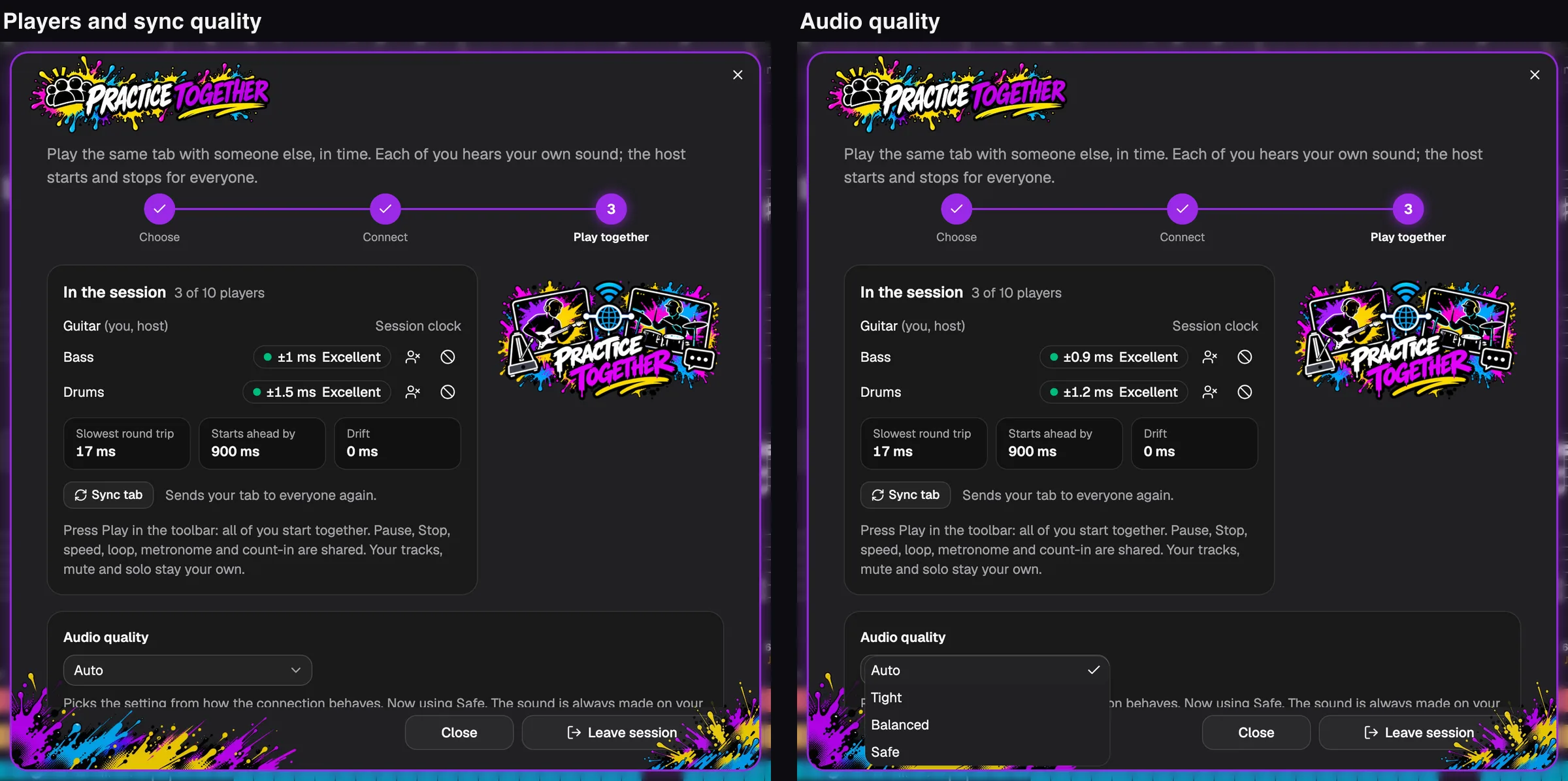
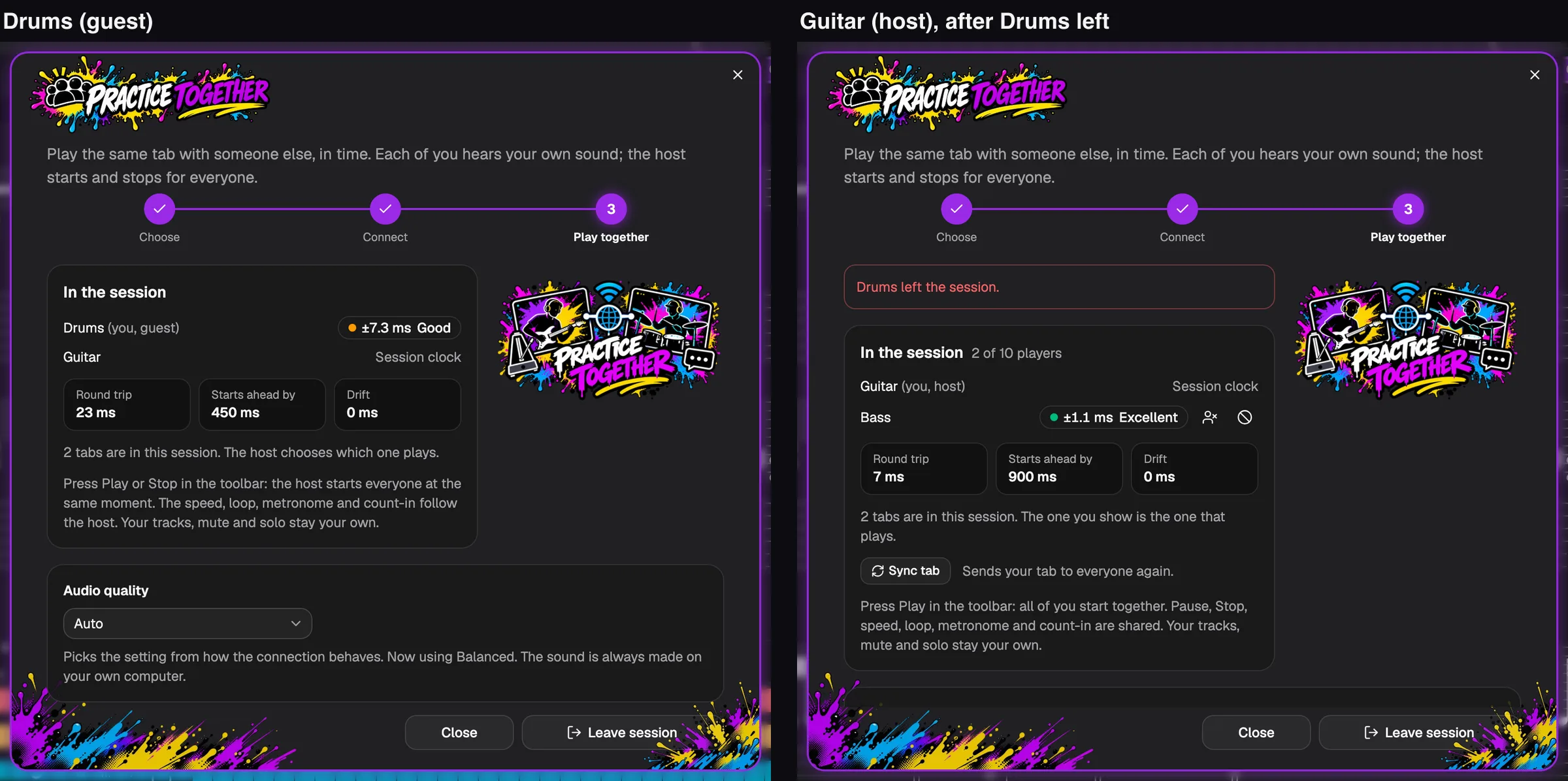
Click the chip to open Practice together again. Under In the session, the host sees every player with their sync quality: Excellent, Good or Unstable, with the timing in milliseconds.
The two buttons next to a player remove them: Kick lets them come back with the code, Ban keeps them out of this session. Sync tab sends your tab to everyone again, in case someone’s copy is out of date.
Audio quality is set to Auto, which picks the setting from how the connection behaves. You can also choose one yourself: Tight starts soonest and suits a quiet wired or 5 GHz network, Balanced is a good start for most rooms, and Safe waits longer before it starts, for a busy or distant connection.
Edit the tab together
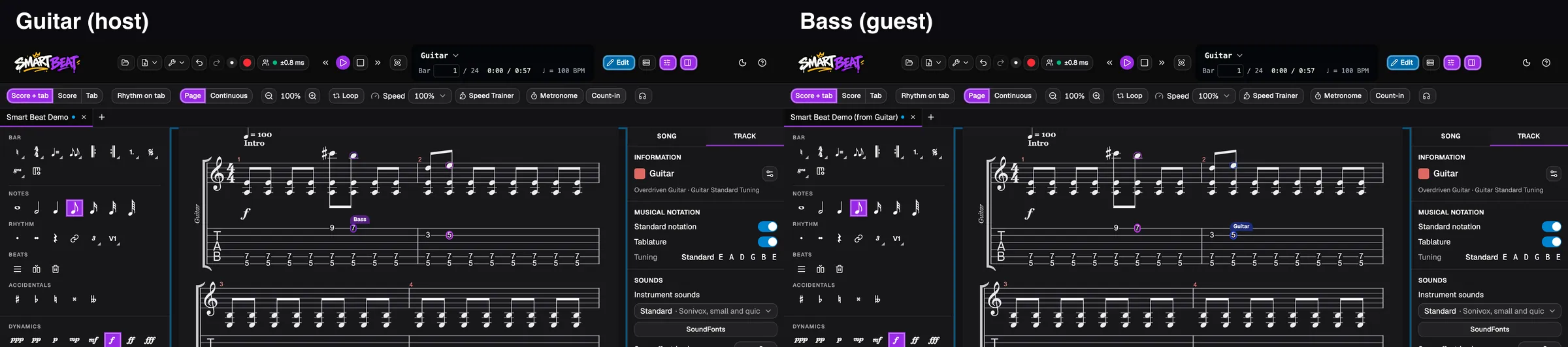
Everyone in the session can edit the same tab at the same time. Click Edit in the toolbar and write as usual: each change shows up on the other computers within a moment, and you see where the others are, in their colour and with their name.
Undo and Redo only take back your own edits. The host can turn editing off for guests with Guests can edit the tab in the Practice together window, which is switched on by default.
- The full walk-through, with a host and a guest writing on one tab, is in the Edit the tab together guide at smart-beat.app/edit-together.
Share audio tracks with the band
Audio tracks of the tab (a backing track, a recording, the stems of a song) are shared too. When the host adds, moves, cuts or removes an audio track or a clip, the other players get the same tracks.
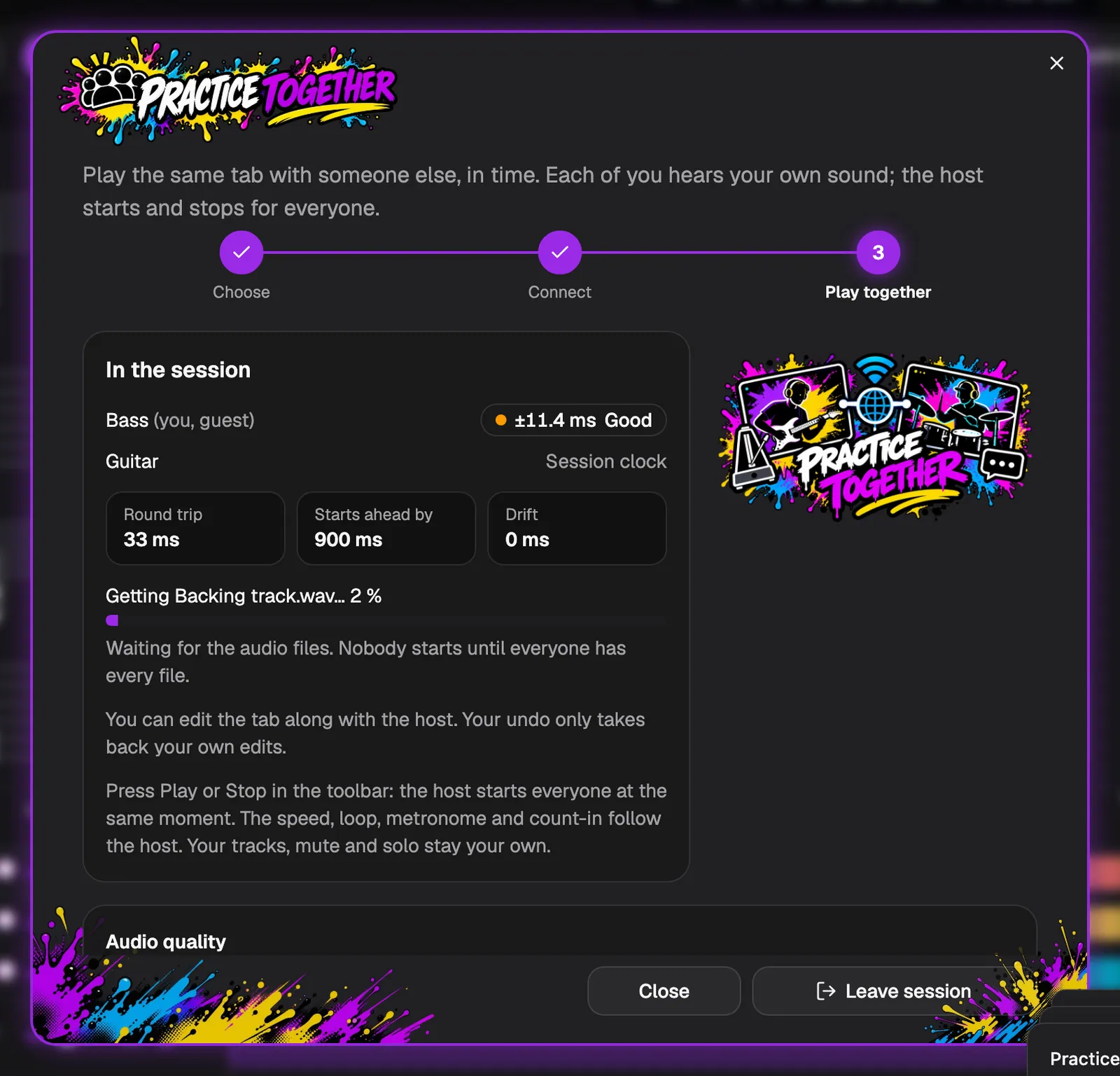
The audio files travel once each, directly between the computers, and are checked on arrival. The Practice together window shows the progress, for example “Getting Backing track.wav… 2 %”, and so does the session button in the toolbar. Nobody can start until everyone has every file, so nobody plays a track in silence.
Everyone keeps their own mix
Once the files have arrived, the audio lane is in every player’s Tracks panel. Each of you keeps your own mix of it: volume, pan, mute, solo, effects and EQ. When the bass player mutes the backing track, only their computer goes quiet.
Undo only takes back your own edits of the tracks, as it does for notes.

Host: add another song to the session
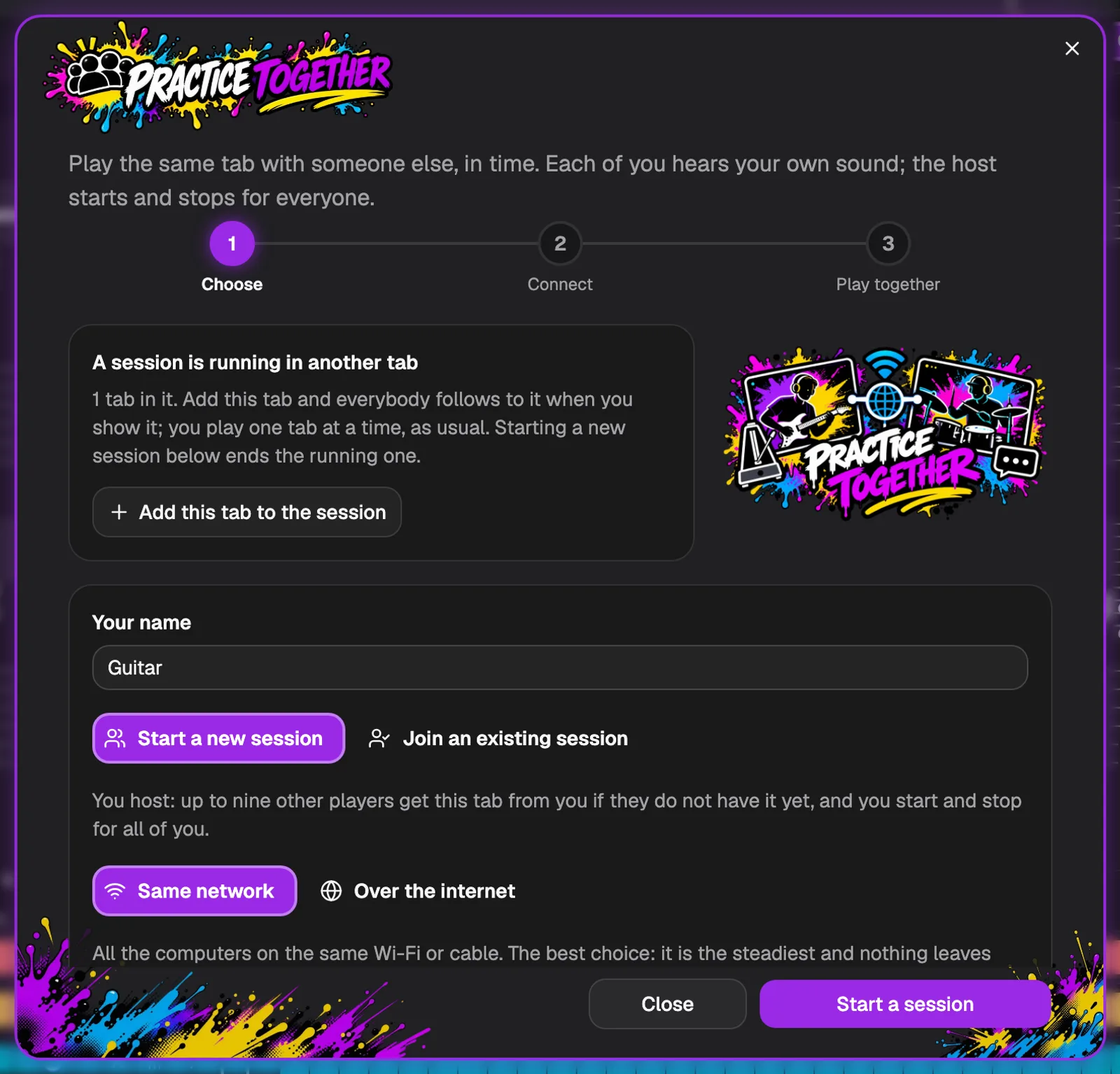
To play the next song, the host opens it in a new tab, for example Outsiders, and clicks Practice together. The window says that a session is running in another tab. Click Add this tab to the session.
Everyone gets the new song over the same connection. Nobody has to leave or join again.
Switch between the songs
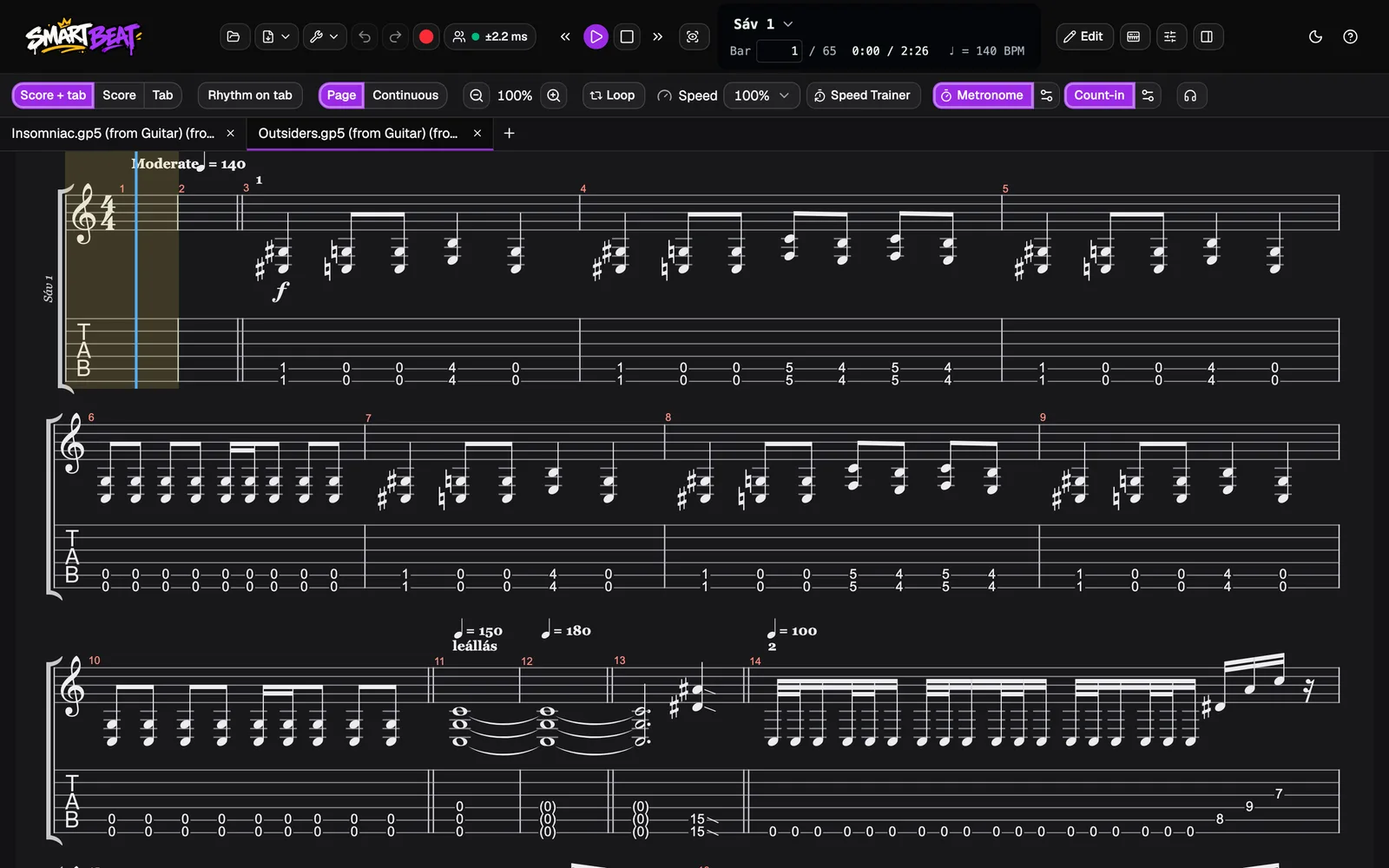
Each player now has both songs open as tabs. One song plays at a time: the tab the host shows is the one in play, and the players follow when the host switches.
When the host switches songs during playback, the song stops for everyone. Press Play again when the band is ready.
No router? Use a cable or a hotspot
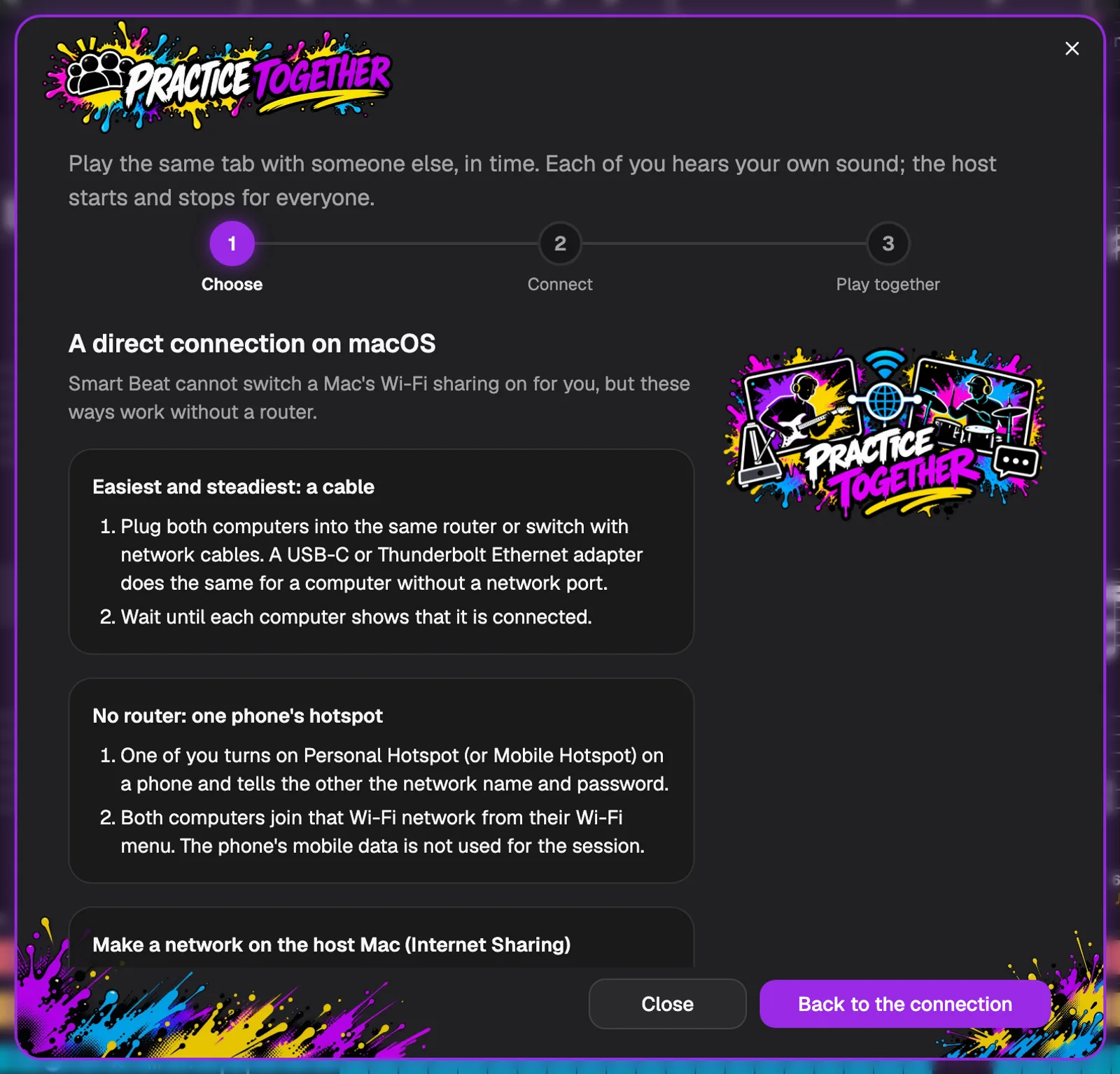
Rehearsing somewhere without Wi-Fi? Under Same network, click Need a direct connection? (no router, cable or hotspot). Smart Beat shows the steps for your computer’s system: connect the computers with a cable, share a phone’s hotspot, or let one computer make a network.
After everyone is on the same network, the host starts a session again and the others type the new code.
Leave the session
When you are done, open Practice together and click Leave session. A player who leaves frees their place, and the others play on. When the host leaves, the session ends for everyone.
The songs you received stay open as ordinary tabs. Save them if you want to keep them.
Good to know
- Up to ten players: the host and nine others.
- No sound is sent between computers. Everyone hears their own playback, with their own mute, solo and volume. Audio files of the tab are the exception: they are copied once, so every computer can play them.
- In a session, playback always uses the SoundFonts, so every computer can start at an agreed moment.
- While the song plays, a click on another bar is refused, to keep everyone together. Pause or Stop first, then pick the bar: the host’s choice is shared, and a player’s choice is sent to the host.
- If your connection drops or your app closes, you can rejoin within ten minutes with the same code. Choose Rejoin in Practice together and you get your place back without being asked again.
- The sync chip in the toolbar shows how closely you are in time; click it to open Practice together. Audio quality can be Auto (the default), Tight, Balanced or Safe: the steadier the connection, the sooner a start can happen. The sound is always made on your own computer.
- The tab goes straight from the host to the players, never through a server. Over the internet, only the setup messages go through the meeting service.