
How to use Audio to tab
Turn a recording into notes you can edit
AI · Beta
Audio to tab, called Import from Audio in the app, listens to an audio file and writes MIDI and tab for it, on your computer. It uses MuScriptor by Kyutai and Mirelo, an optional AI model that you download once. This guide goes from the start screen to editing the result.
Before you start
- Smart Beat on macOS, Windows or Linux.
- An audio recording as an MP3, WAV, FLAC or OGG file of up to 100 MB and 15 minutes, of music you have the rights to use, such as your own band’s recording.
- A one-time download of the MuScriptor model (210 MB, 620 MB or 2.7 GB, depending on the size you pick). It is for non-commercial use only.
Start from the start screen
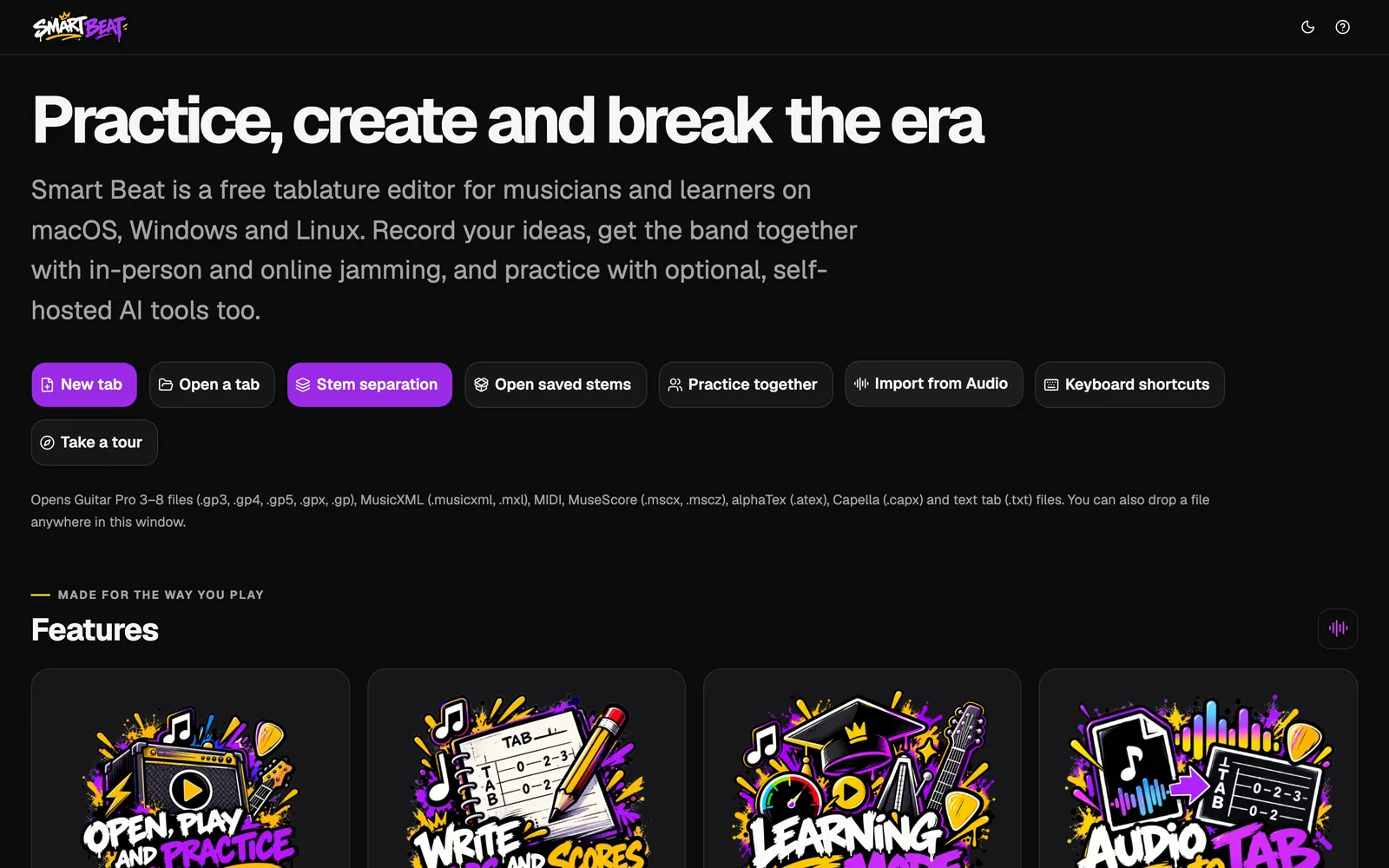
Open Smart Beat and click Import from Audio on the start screen. With a tab open, choose AI › Import from Audio in the menu bar.
Import from Audio listens to a recording, such as an MP3 of a song or a take of your band, and turns it into MIDI that opens in Smart Beat as a tab you can edit.
Install the AI model once
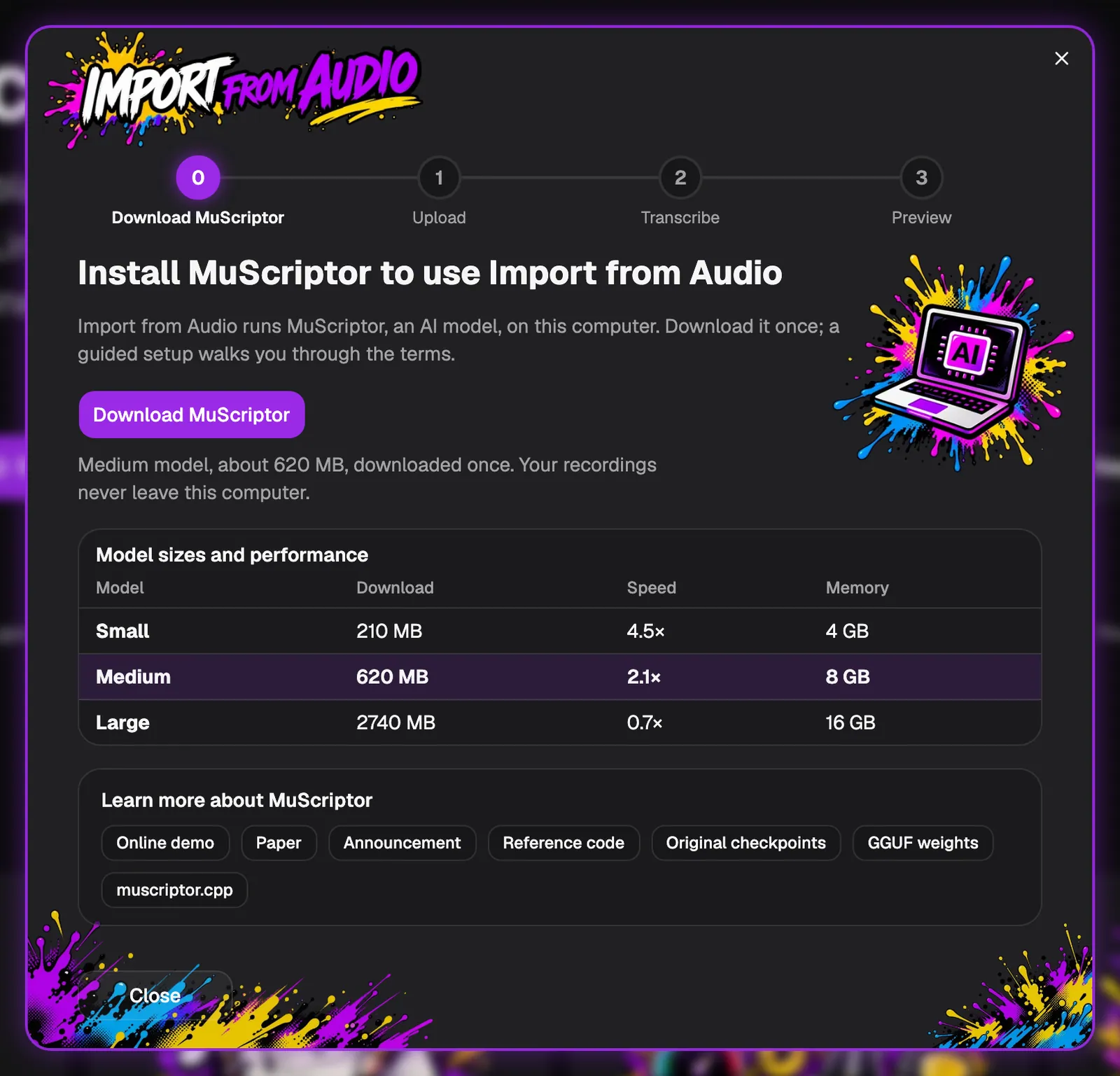
The first time, Smart Beat asks you to install MuScriptor, an AI model by Kyutai and Mirelo. It is not part of Smart Beat: you download it once, and it then runs on your computer. The window says which size will be downloaded, here Medium at about 620 MB.
Click Download MuScriptor. A guided setup walks you through the next steps and brings you back to this window when it is done.
- The model table shows the download size, the speed and the memory of each size, and links to the model’s authors.
Pick a model size
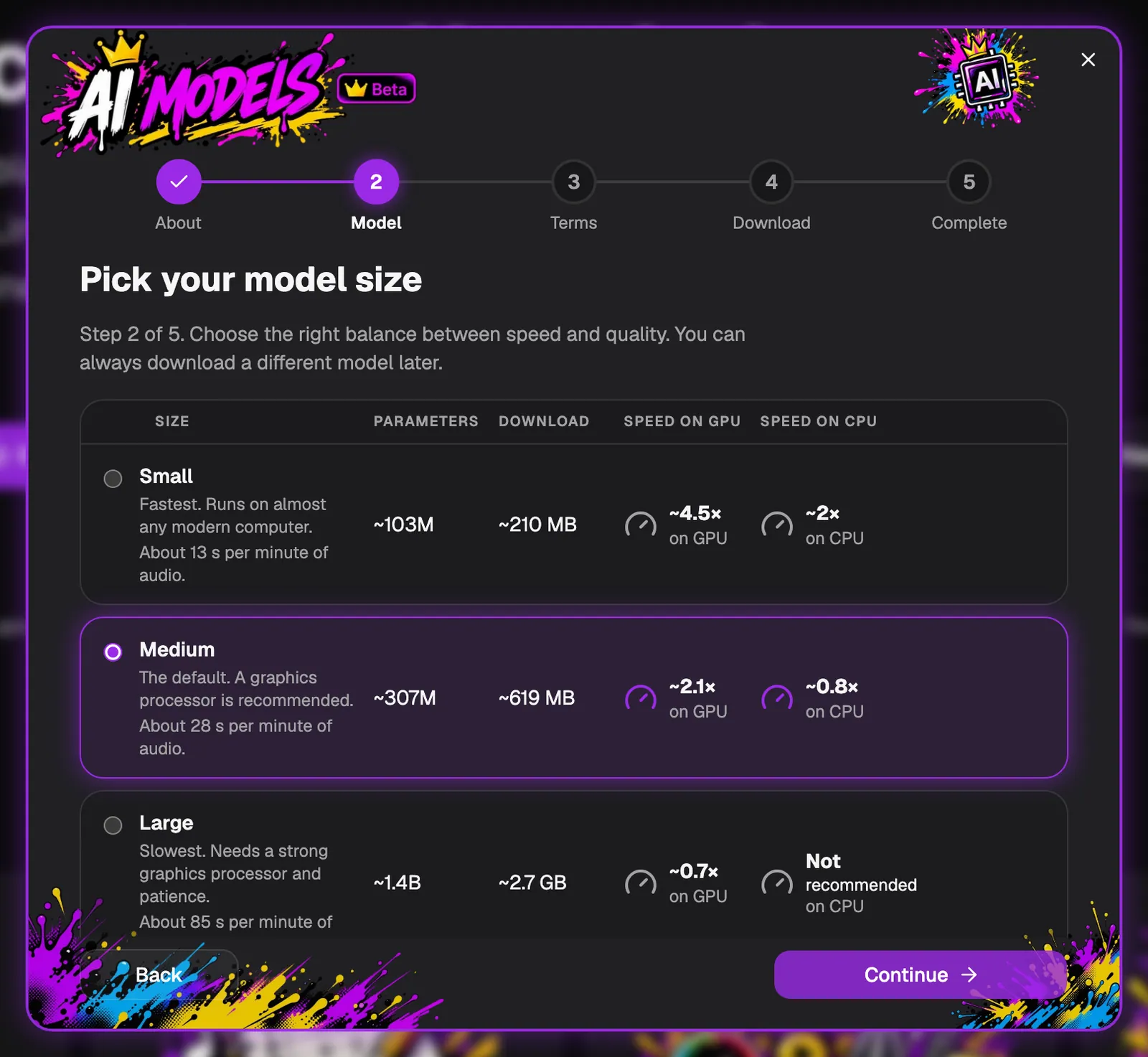
Choose the balance between speed and quality. Small is the fastest and runs on almost any modern computer. Medium is the default and works best with a graphics processor. Large is the slowest and needs a strong graphics processor and patience.
You can always download a different size later. Click Continue.
Read and accept the terms
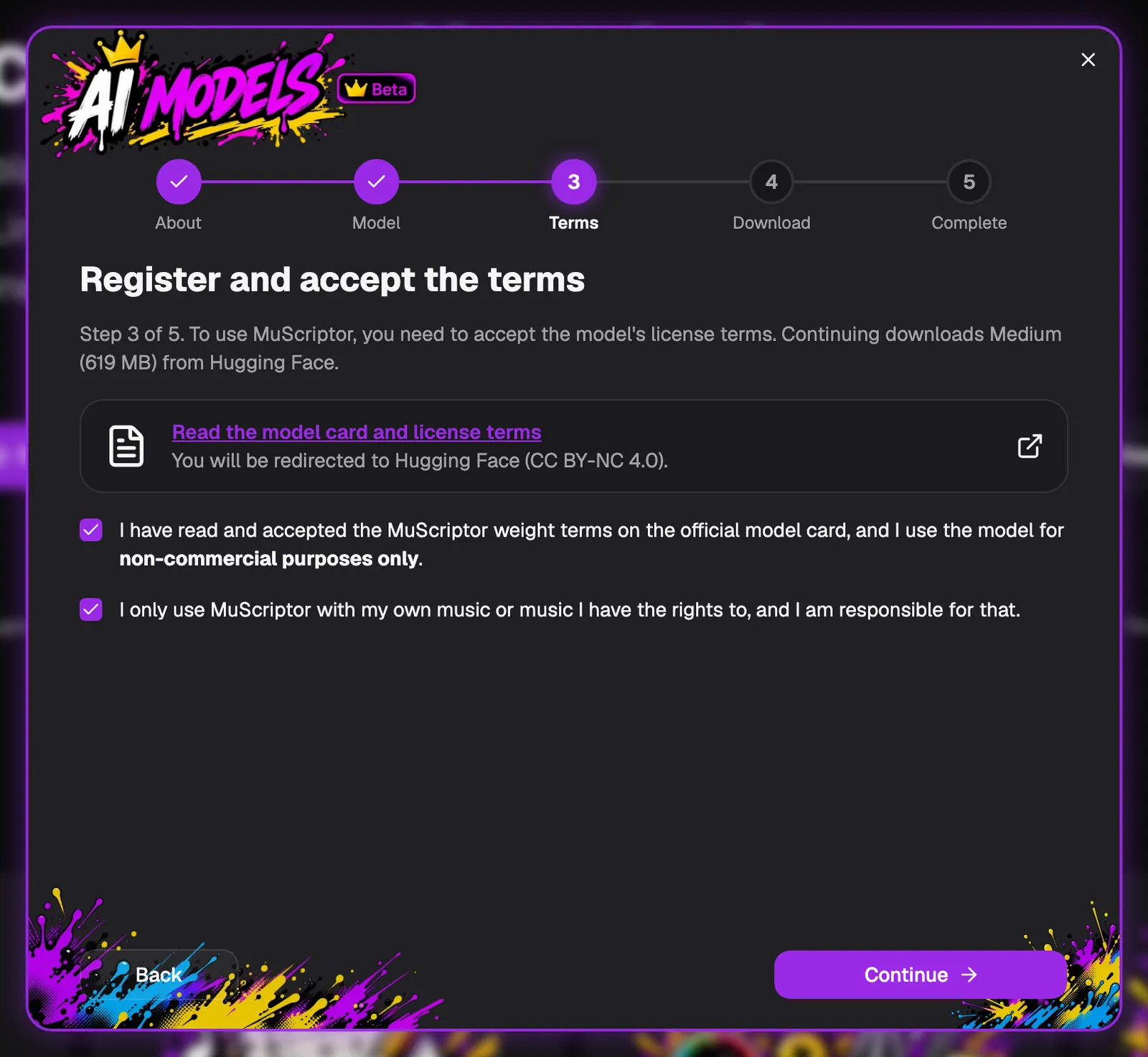
Open the model card on Hugging Face with the link and read its terms. Two boxes appear afterwards: you accept the model’s terms and use it for non-commercial purposes only, and you only use music of your own or music you have the rights to.
Tick both and click Continue. The model downloads and its file is checked.
- The model’s weights are licensed CC BY-NC 4.0: non-commercial use only.
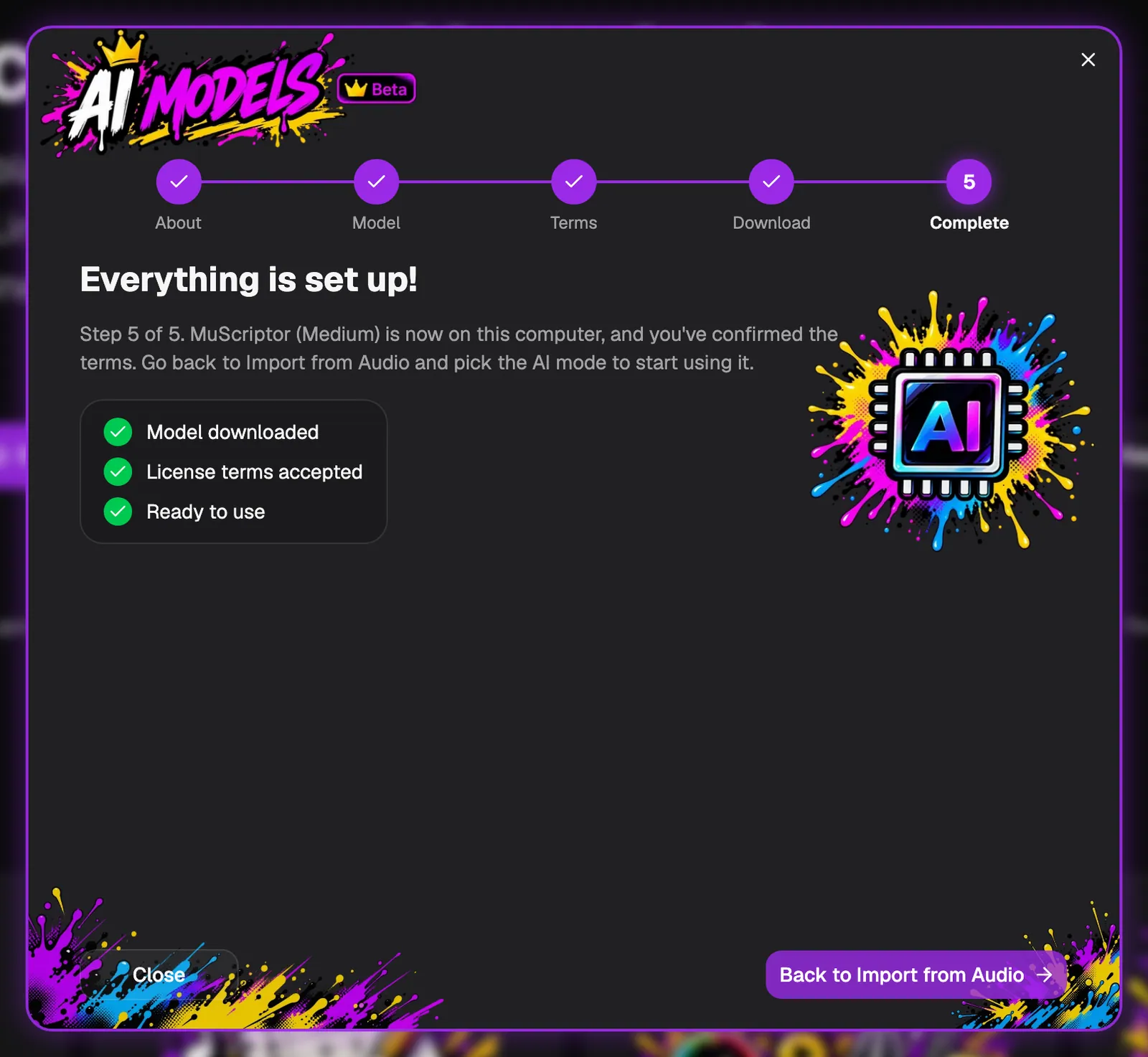
Everything is set up
When the download is done, the window says Model downloaded, License terms accepted and Ready to use. Click Back to Import from Audio.
From now on it runs offline on your computer. You can manage or delete the model in AI › Record to Tab Models.
Choose a recording
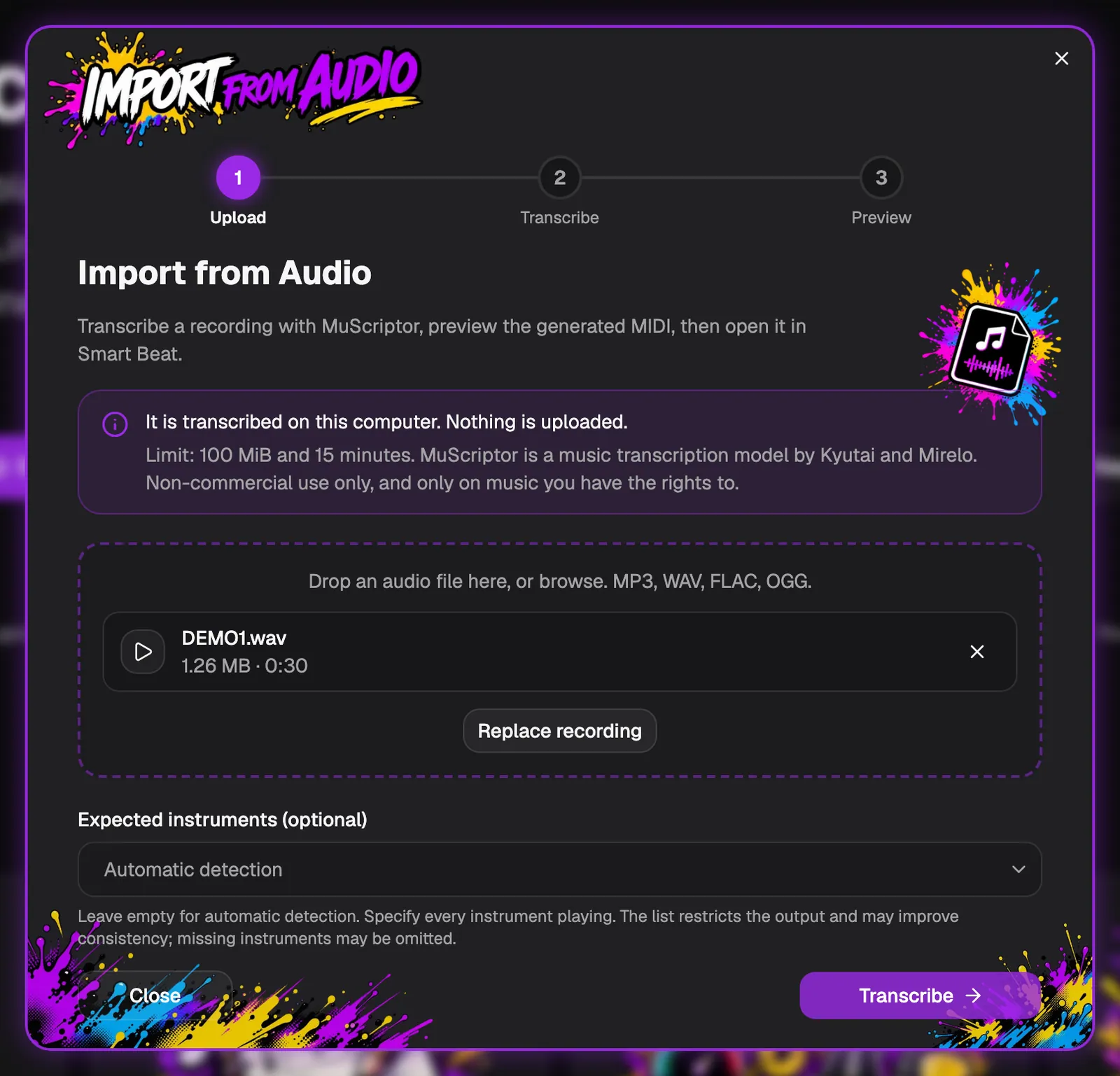
Click Choose recording, or drop an audio file on the window. MP3, WAV, FLAC and OGG files work, up to 100 MB and 15 minutes. The file name, its size and its length appear in the box, and you can play it to check that it is the right one.
If you know which instruments play, add them under Expected instruments. That is optional: leave it on Automatic detection to let the model decide. Click Transcribe.
- Your recording is transcribed on this computer. Nothing is uploaded.
- A short, clean part gives better results than a whole mixed song. Check the preview and the limits below.
Listen to the preview
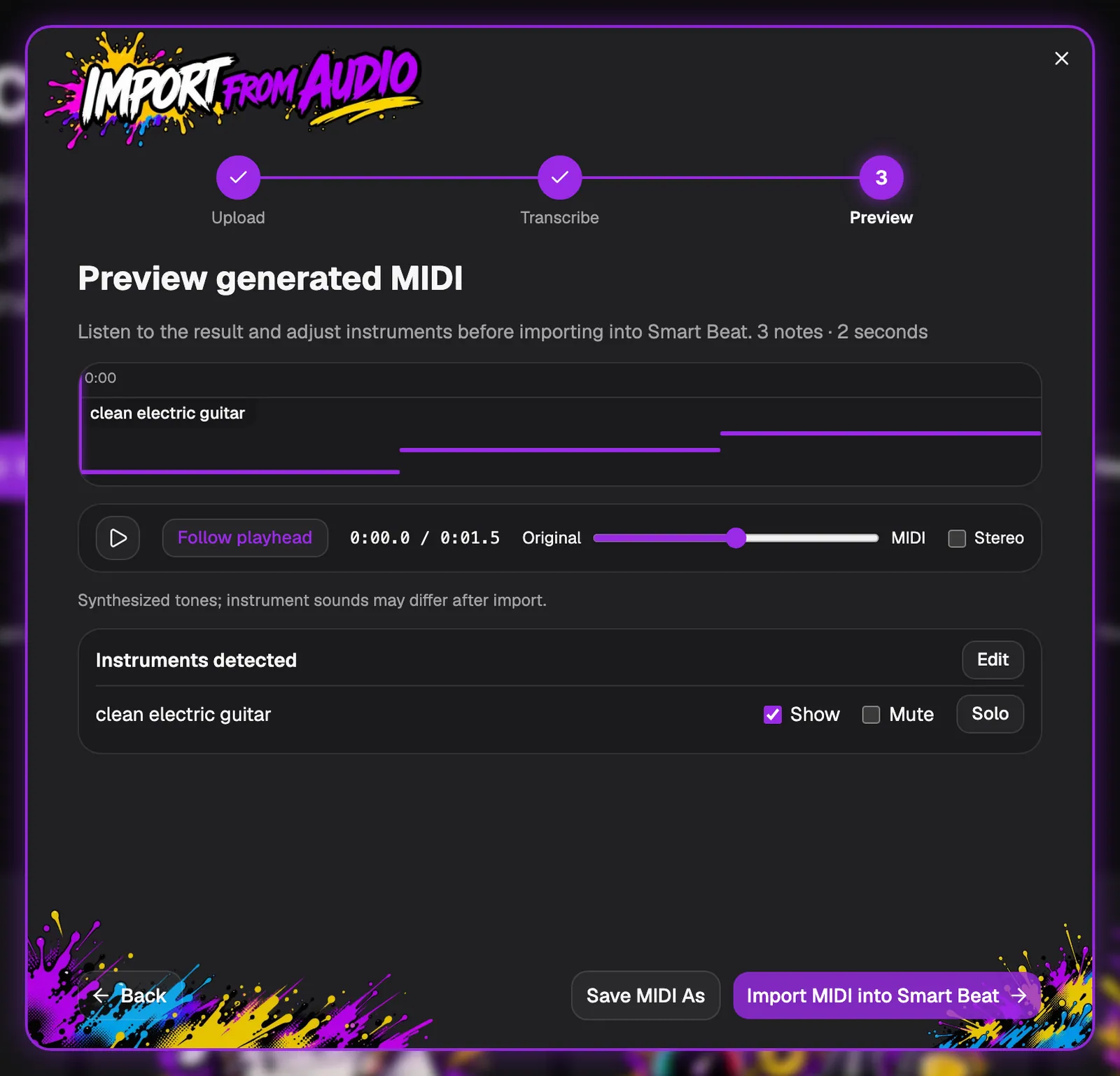
Smart Beat shows the notes it found, one line per instrument, and plays them next to your recording. Press the play button and move the mix between Original and MIDI to compare them.
Under Instruments detected you can Show, Mute or Solo each instrument, or click Edit to change the list. Click Save MIDI As to keep the MIDI file, or Import MIDI into Smart Beat to open it as a tab.
- The preview uses simple synthesized tones. The instrument sounds can differ after the import.
Edit the tab
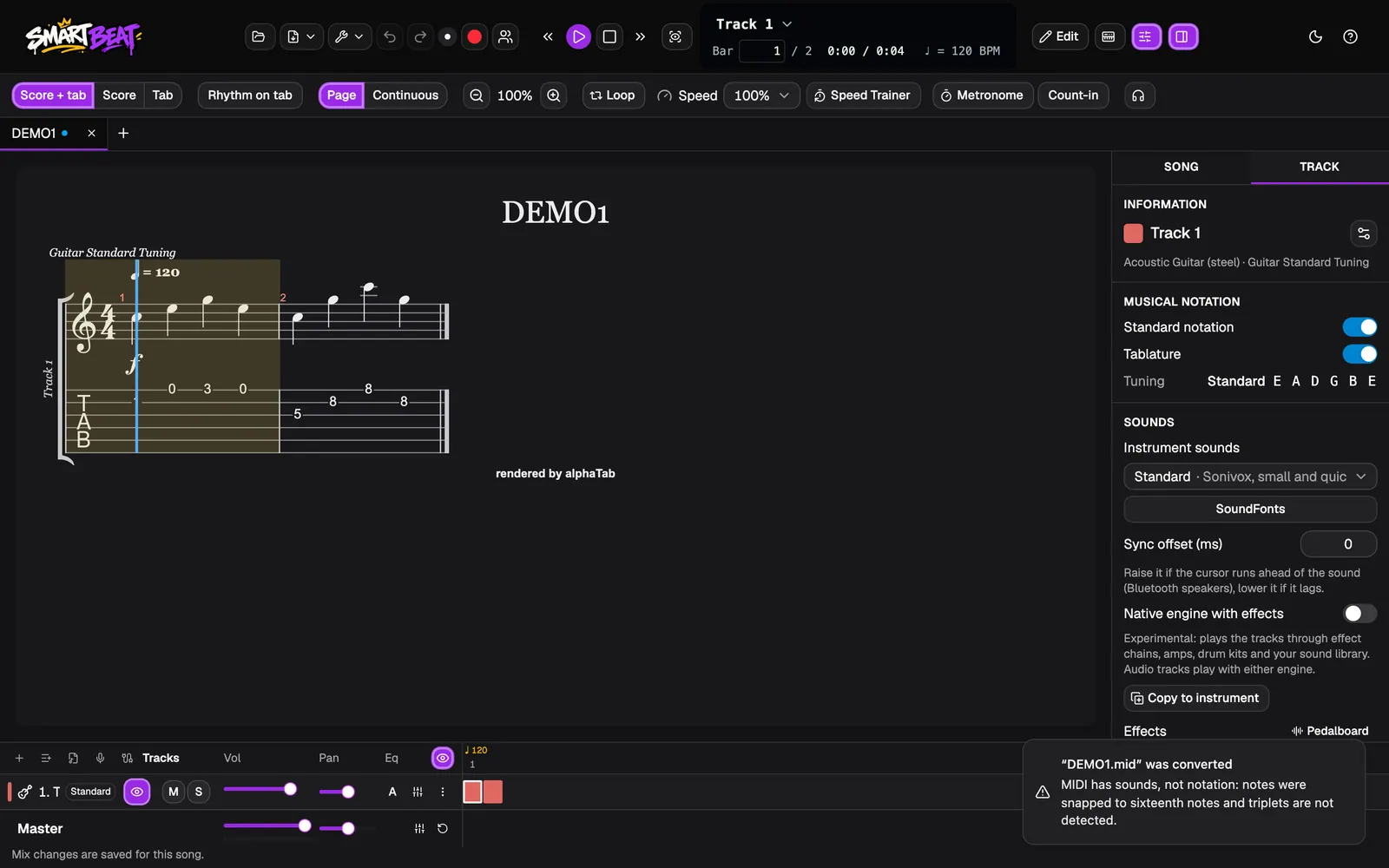
The MIDI opens as a new tab named after your recording. Press Play to hear it, then click Edit to correct the notes: move them, change the fret, fix the rhythm and add what is missing.
Smart Beat tells you what MIDI cannot hold. MIDI has sounds, not notation, so notes are snapped to the nearest beat and some rhythms, such as sixteenth notes and triplets, are not detected.
- Save the result as a Smart Beat or Guitar Pro file to keep it.
Good to know
- Audio to tab is an AI feature in beta. The result is a starting point to edit, not a finished transcription.
- MuScriptor by Kyutai and Mirelo is an optional model that is not part of Smart Beat. You download it once and accept its terms. Its weights are licensed CC BY-NC 4.0, so it is for non-commercial use only.
- Everything runs on your computer and your recordings are never uploaded. Only the one-time model download uses the internet.
- Speed depends on your computer and the model size. The authors measured about 17 seconds per minute of audio for Small and about 38 seconds for Medium on an Apple Silicon graphics processor; your computer will differ.
- MIDI cannot hold everything a tab can, so some rhythms are simplified on import.
- To record yourself and get tab straight away, see the Record to tab guide. To split a song into instruments first, see the Stem separation guide.
- Smart Beat is independent and is not affiliated with or endorsed by Kyutai or Mirelo.