How to use Cloud sync
Keep your tabs and stems on every computer
Available
Cloud sync keeps your tabs and saved stems in your own cloud drive: link a folder that Google Drive, OneDrive, Dropbox, iCloud Drive or Nextcloud already syncs, or connect Google Drive, OneDrive or Dropbox directly. Then open and save there, and share a tab with a link. This guide covers the settings, the Cloud section and sharing.
Before you start
- Smart Beat 1.2.0 or later.
- A cloud drive and its app on this computer for a linked folder: Google Drive, OneDrive, Dropbox, iCloud Drive or Nextcloud.
- To connect an account, a Google Drive, OneDrive or Dropbox account of your own. Signing in happens in your browser.
Open the cloud settings
Cloud sync lives in the settings. Choose Help › Cloud Storage Settings… in the menu bar, or click Set up cloud storage when Smart Beat asks for it, for example when you share a tab.
There are two ways to use the cloud. A linked folder is the simplest: Smart Beat saves into a folder that your drive app already keeps in sync. A connected account lets Smart Beat open and save in Google Drive, OneDrive or Dropbox directly.
See what you can connect
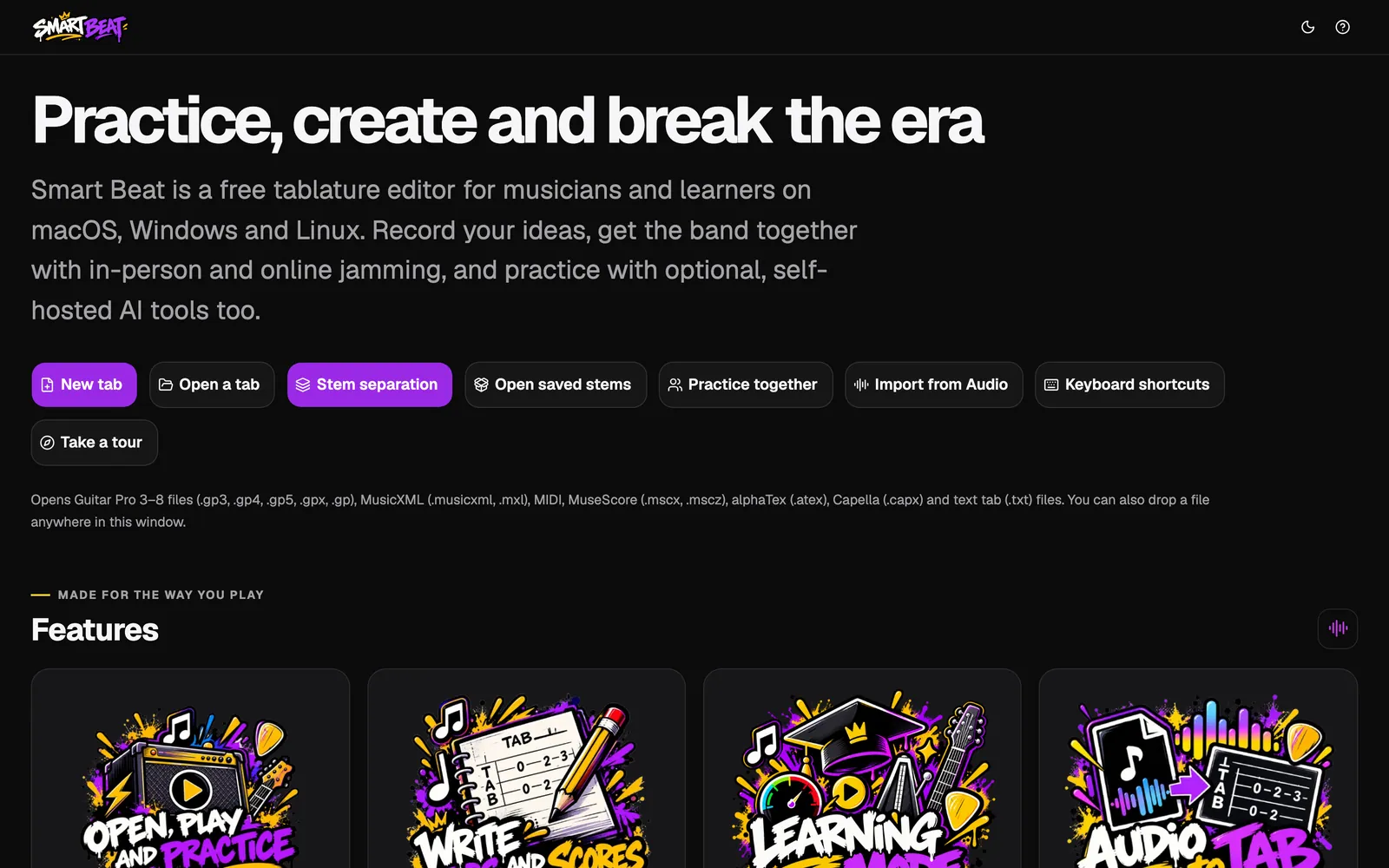
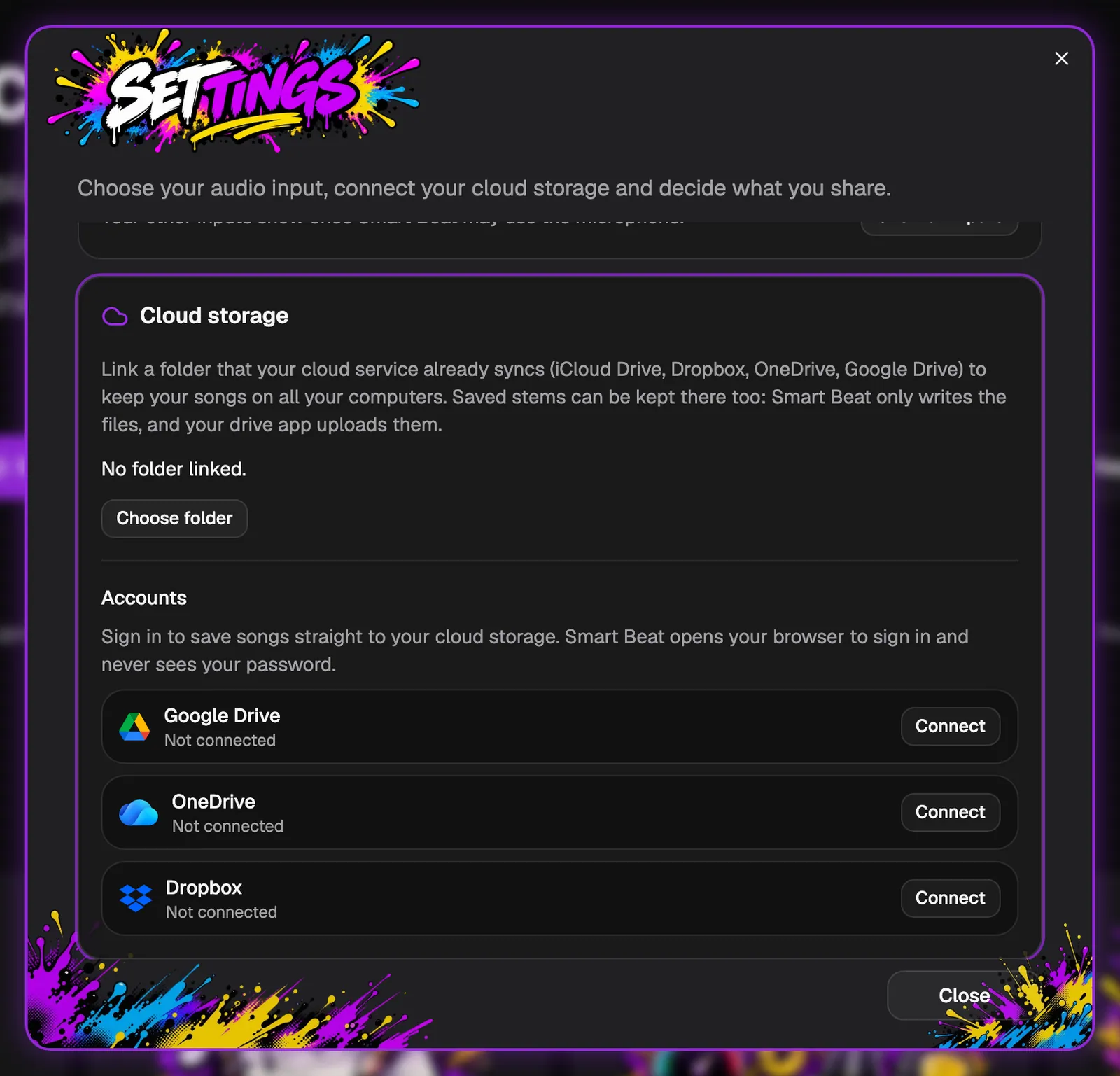
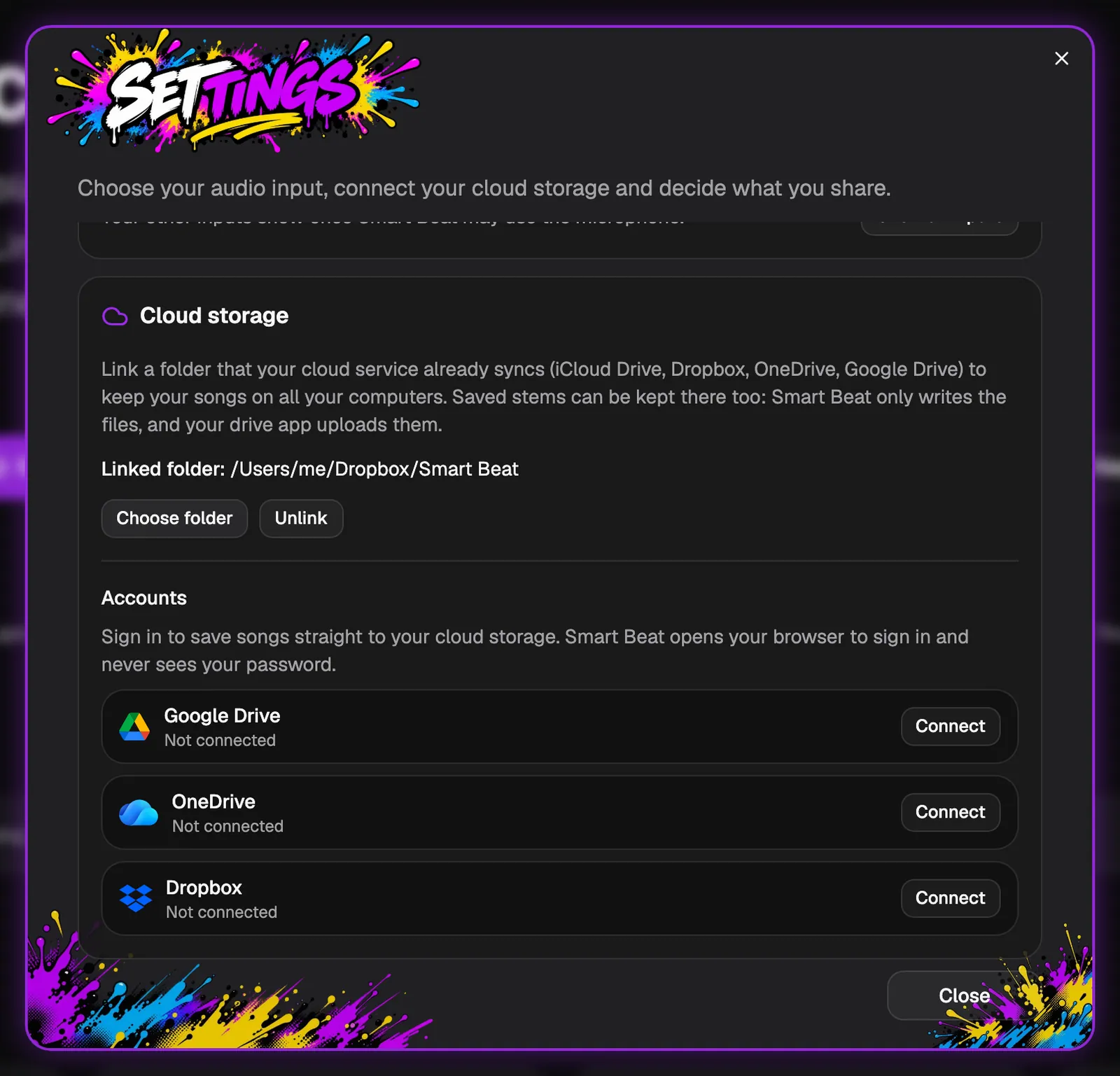
The Cloud storage part of the settings has a linked folder and the accounts. Under Accounts, each drive says Not connected until you sign in with its Connect button.
Smart Beat opens your browser to sign in and never sees your password. Nothing leaves your computer until you connect something.
Link a synced folder
Click Choose folder and pick a folder that Google Drive, OneDrive, Dropbox, iCloud Drive or Nextcloud already keeps in sync on this computer. Smart Beat then says Linked folder with its path. Unlink takes it away again.
Smart Beat only writes the files into that folder. Your drive app uploads them, so the same tabs and stems turn up on your other computers.
Open your tabs from the Cloud section
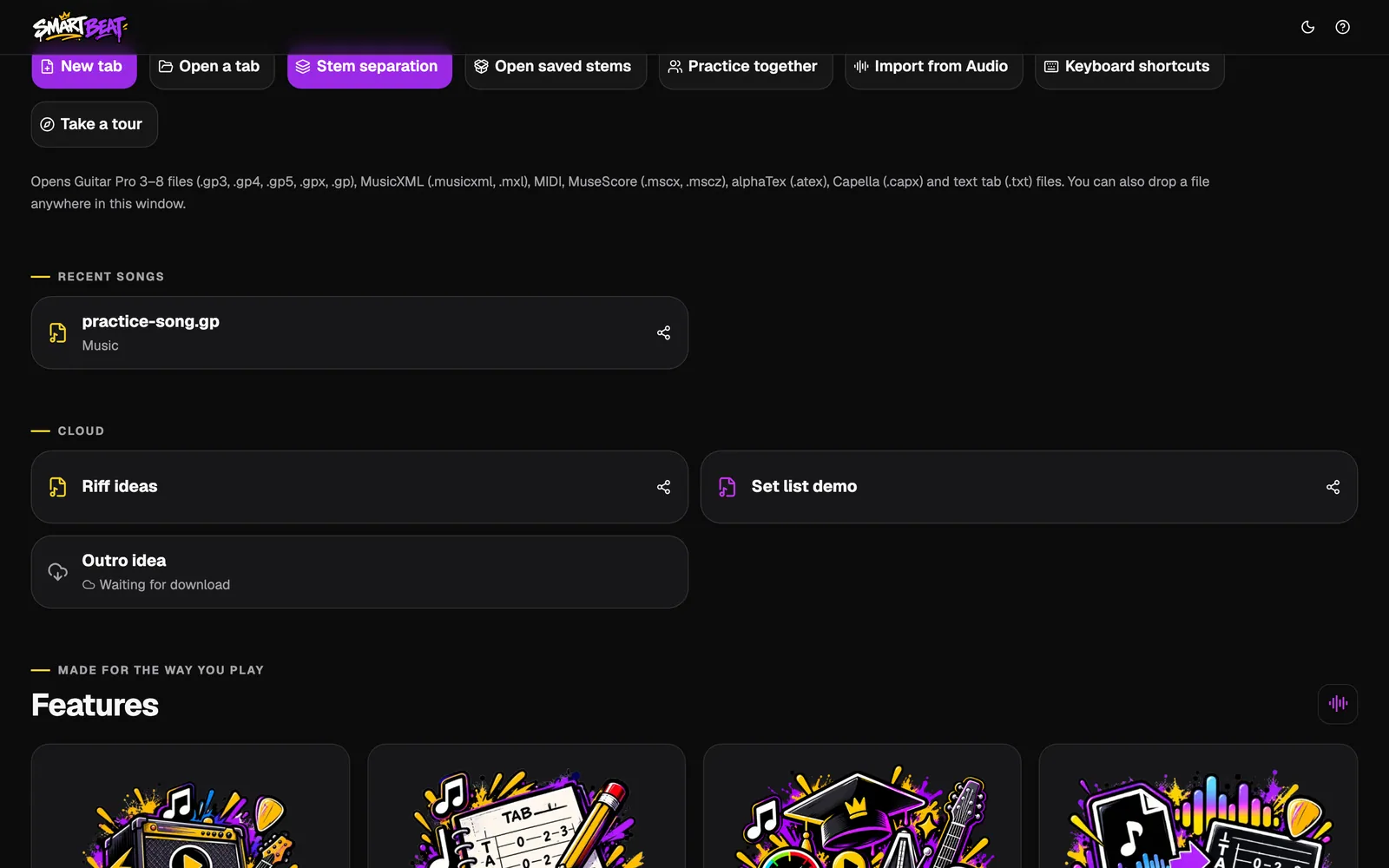
With a folder linked, the start screen gets a Cloud section with the tabs in it. Click one to open it. A file that is only online is downloaded first: its card says Waiting for download until your drive app has fetched it.
When you save, Smart Beat asks before it saves over a file that changed in the cloud since you opened it, so you never overwrite a change from another computer by accident.
- Stems you saved in the folder are listed here too. The Stem separation guide shows how to save them.
Share a tab with a link
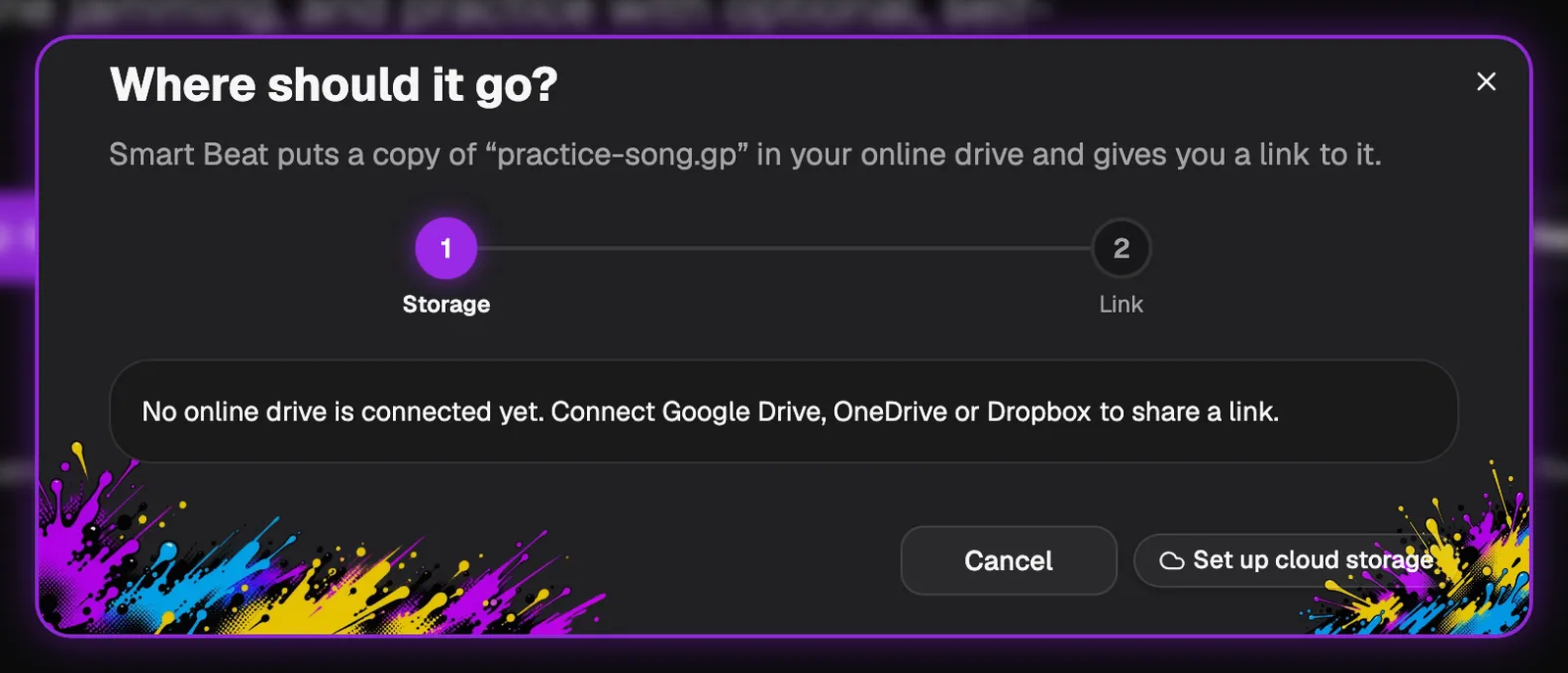
Every tab and every saved stems file has a share icon. Click it and Smart Beat copies a link to the file. For a file that is only on this computer, it first puts a copy on the drive you pick, then copies the link.
You choose whether people with the link can view or edit the file, if the drive allows it. Links open in the drive’s own page. A stems file gets its own link, without the original song.
To share, a drive has to be connected. Until then the window says so and offers Set up cloud storage, which takes you back to the settings.
- Dropbox has to be connected again once after updating to 1.2, so that it can make links.
Good to know
- The linked folder only holds files Smart Beat saved there. Your drive app does the uploading and downloading, not Smart Beat.
- A connected account sends your tab or stems file to that drive when you save or share it. That is the one place where a file leaves your computer, and only when you ask for it.
- File › Open offers your connected drives next to this computer, File › Open from Cloud… takes you straight there, and File › Cloud Library lists the tabs and stems Smart Beat keeps in each drive.
- Saving stems to a drive works for big files of 100 MB or more.
- Smart Beat never sees your password: you sign in on the drive’s own page in your browser.
- Only share music you have the rights to.