
How to edit the tab together
Write the song with your band at the same time
Available
In a Practice together session everyone can edit the same tab at once. You see where the others are, each change shows up on every computer within a moment, and Undo only takes back your own edits. This guide shows a host and a guest writing on one tab.
Before you start
- Smart Beat 1.3.0 or later on every computer in the session.
- A Practice together session with at least two players. See the Practice together guide for how to start and join one.
- The host needs the tab. The other players get it from the host.
Host: start a Practice together session
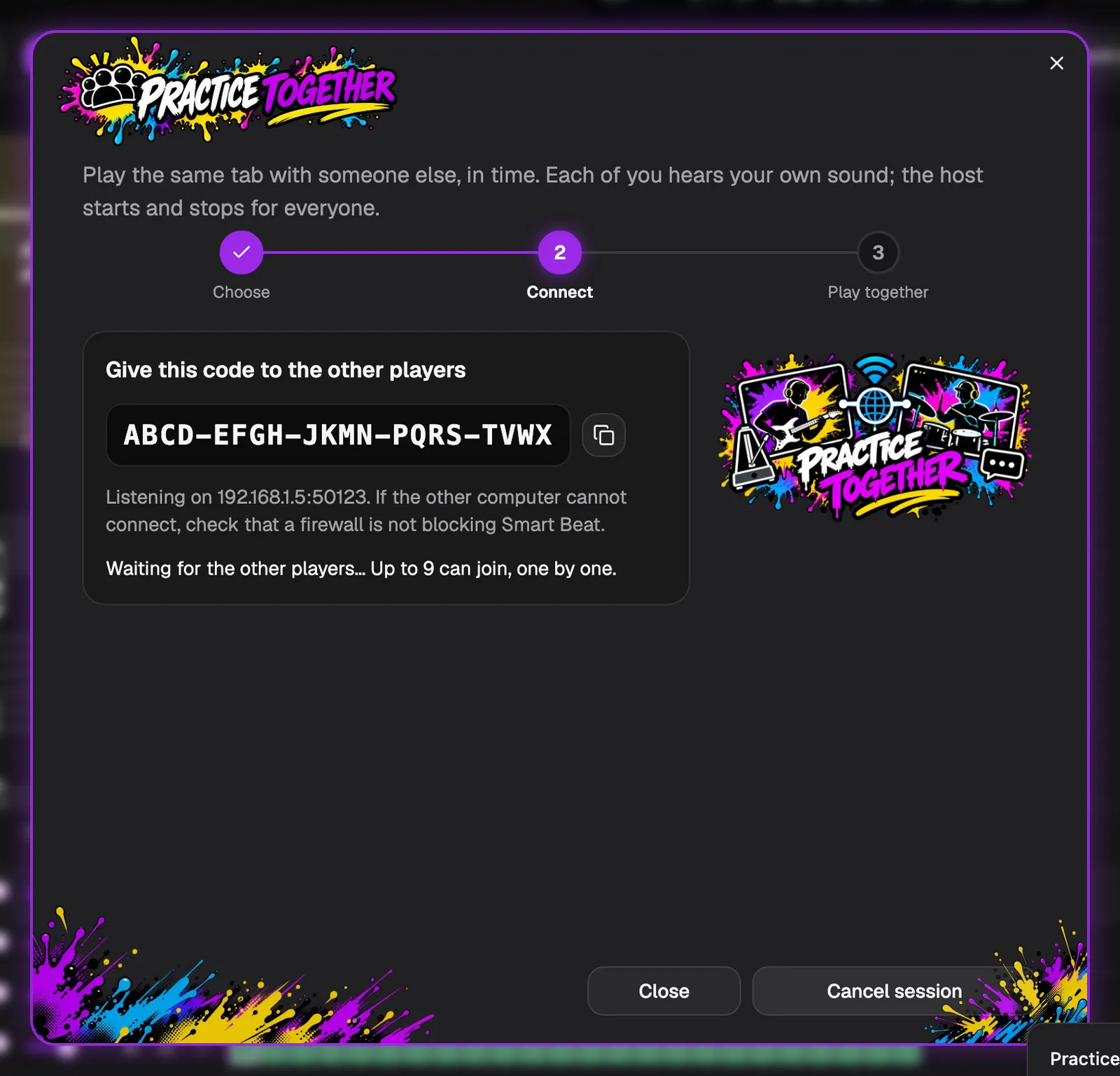
Editing together is part of Practice together. Open the tab you want to write on, click Practice together in the toolbar and start a session. Smart Beat shows a code to give to the other players.
Each of them opens Practice together, chooses Join an existing session, types a name and the code. The Practice together guide shows these steps in detail.
- Everyone needs Smart Beat 1.3.0 or later. A player with an older Smart Beat can follow the host’s tab, but cannot edit it.
Host: let the players in
When a player asks to join, the host sees their name, for example “Bass wants to join”, and clicks Let in or Decline. Nobody gets in by accident.
The host’s tab is sent to the player if they do not have it yet, and opens on their computer as a tab of its own.
Host: decide who can edit
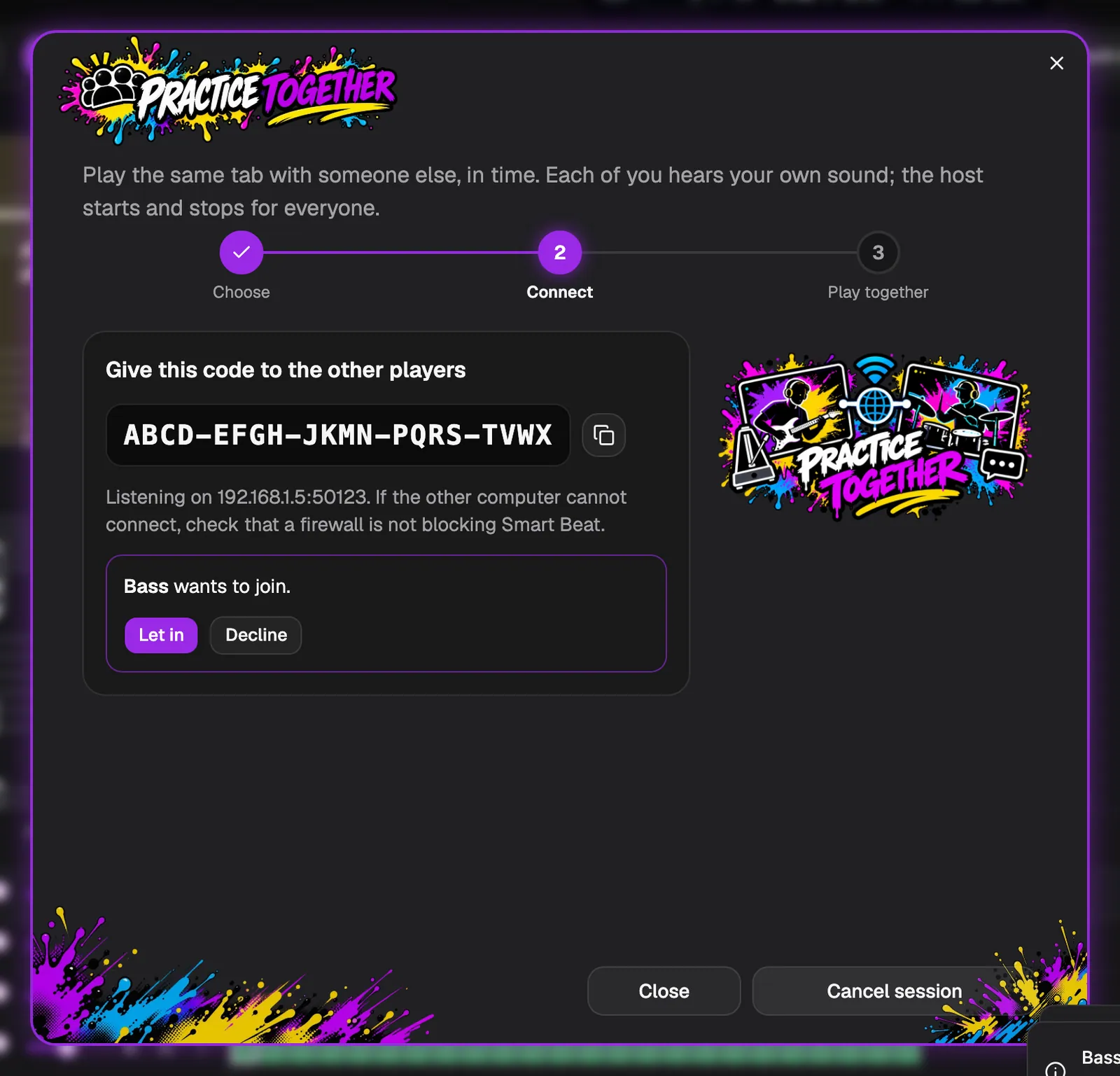
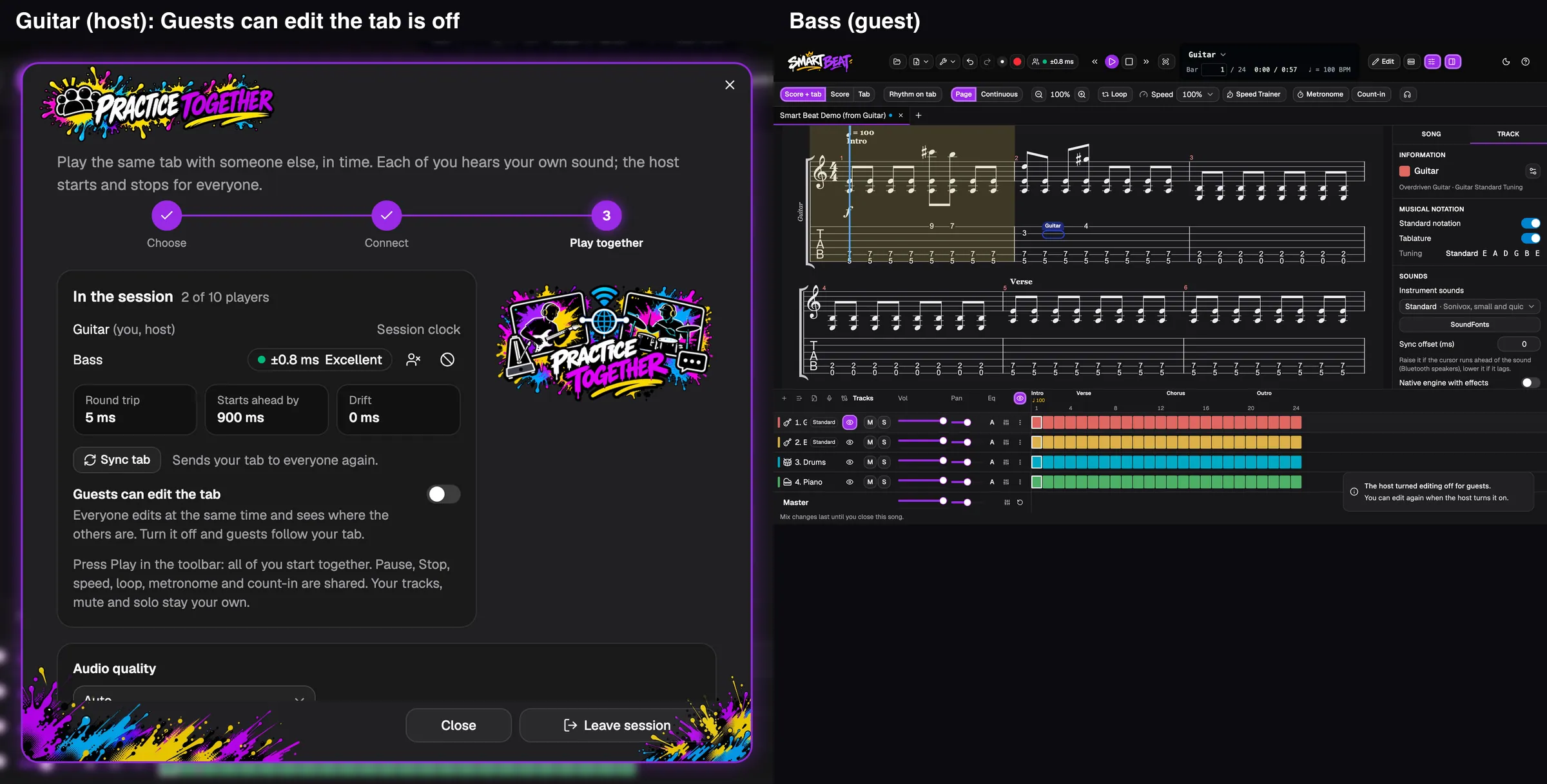
Once players are in, the host’s window lists them with their sync quality. Under it, Guests can edit the tab is switched on by default: everyone edits at the same time and sees where the others are.
Turn it off and the guests follow your tab and cannot change it. You can switch it on again at any time.
- If a guest is removed or banned, they lose their right to edit at once.
Everyone: switch on Edit and write
Every player clicks Edit in the toolbar and writes as usual: type a fret number on a string, pick a note value, add rests and bends. Each change shows up on the other computers within a moment, in both directions.
Two players can work in the same bar. If you change different notes of the same beat, both of your changes stay.
- The tab is saved on every computer on its own. Save it when you want to keep the result.
See where the others are
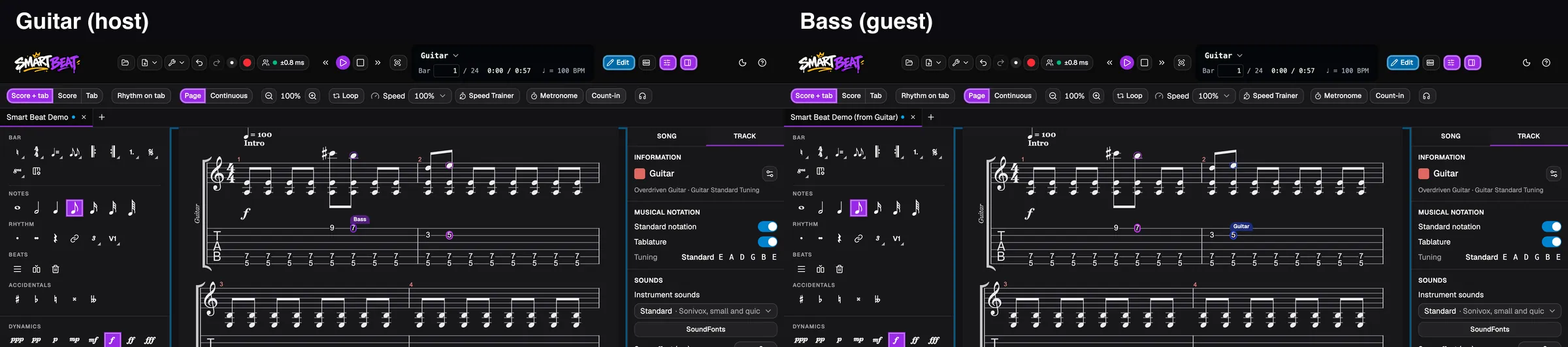
You see the other players the way you see your own cursor: the note or line they are on, in their own colour, with their name above it. Nobody has to ask “where are you?”.
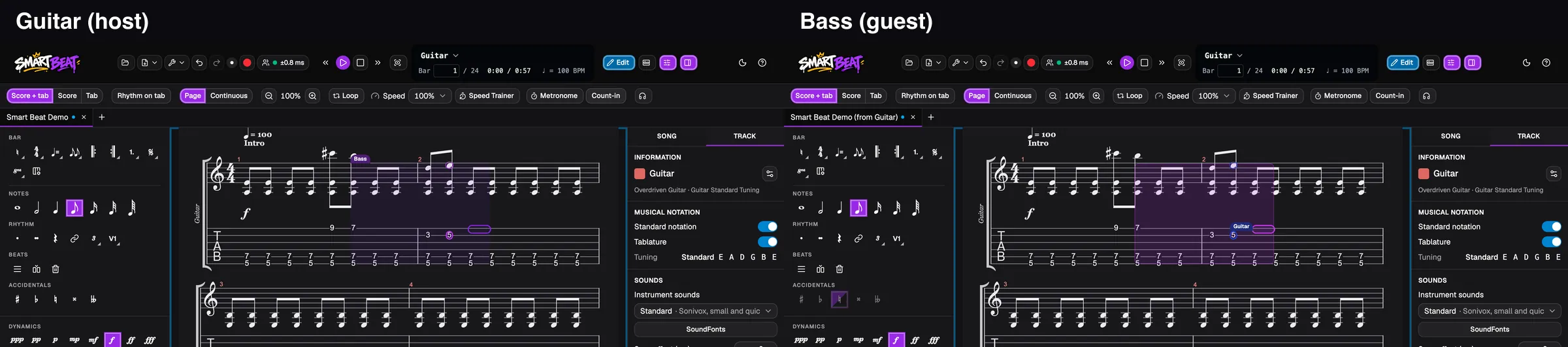
When a player selects a range of beats on purpose, for example to copy or delete it, that selection shows on your screen too, in their colour. Their cursor alone never selects anything on your side.
Undo only takes back your own edits
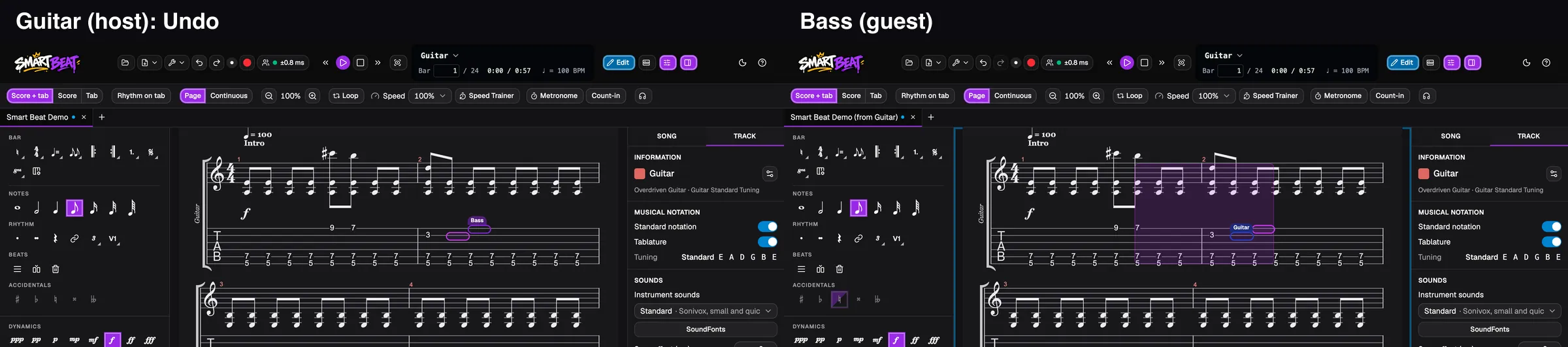
Undo and Redo only act on what you did yourself. When the host clicks Undo, the host’s last note disappears on both computers, and the notes the other player wrote stay.
So nobody can lose their work by mistake when someone else steps back.
Keep playing while you edit
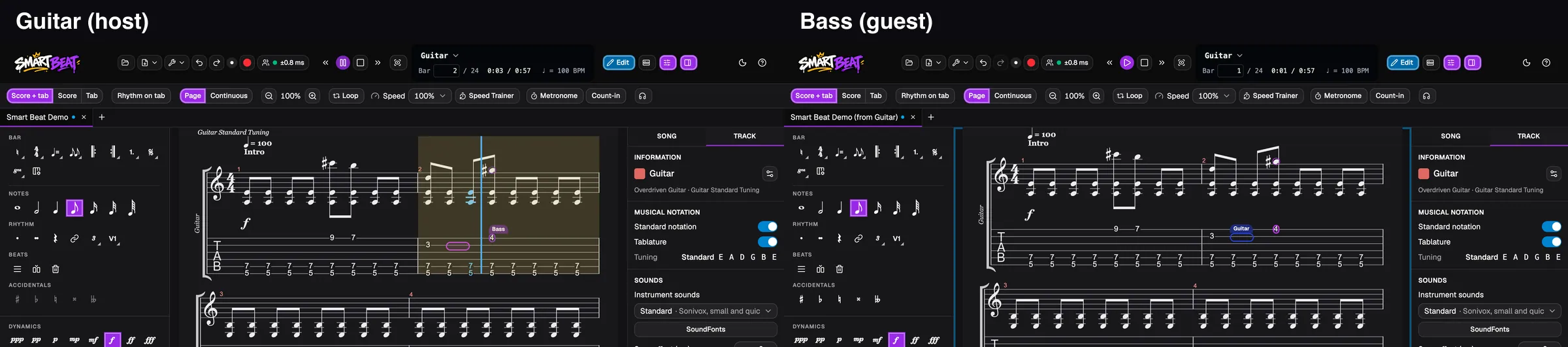
Editing does not disturb playback. When the host presses Play and a guest writes a note, the song does not restart and the shared clock does not move. The host’s metronome, count-in and speed stay as they are.
The sound of an edit is rebuilt after playback stops, so a new note is heard the next time you play that bar.
Host: turn editing off
To go back to a rehearsal where only the host writes, open Practice together and switch off Guests can edit the tab. Guests then follow the host’s tab again.
A guest who tries to edit sees a short message that the host turned editing off, and can edit again when the host turns it on. A guest who drops out and comes back gets the edits they missed.
Good to know
- Up to ten players can be in a session, the host and nine others.
- The host decides who can edit: Guests can edit the tab is on by default and can be turned off at any time.
- The host’s tab is not sent again after every edit. It is only sent again when someone joins, when Sync tab is pressed, or when two copies differ for a while.
- A player with an older Smart Beat keeps following the host’s tab and cannot edit it.
- The tab goes straight from the host to the players, never through a server. Over the internet, only the setup messages go through the meeting service.
- Audio tracks of the tab are shared as well. Each player keeps their own volume, pan, mute and solo of a track.